
Simple scene setup
Create one Foliage Tool object and keep all core controls in a single panel.
Its key advantage is smooth viewport work without slowdowns or freezes, even with heavy source geometry. The tool prioritizes maximum speed and simple use: choose a surface, add source objects, then place them with a brush or one by one.

This demo shows the real interface and the actual setup flow: create the helper, add surfaces and source objects, paint in the viewport and reach a render-ready result without manual copy-paste.
Create one Foliage Tool object and keep all core controls in a single panel.
Pick the receiving surface once and paint directly where the objects should appear.
Mix multiple source objects with randomized scale and rotation for a less repetitive look.
Display modes like Dot and Box help keep the scene workable even when scattering many instances.
The page follows the actual usage order so a first-time visitor immediately understands what the plugin does and how to start using it.
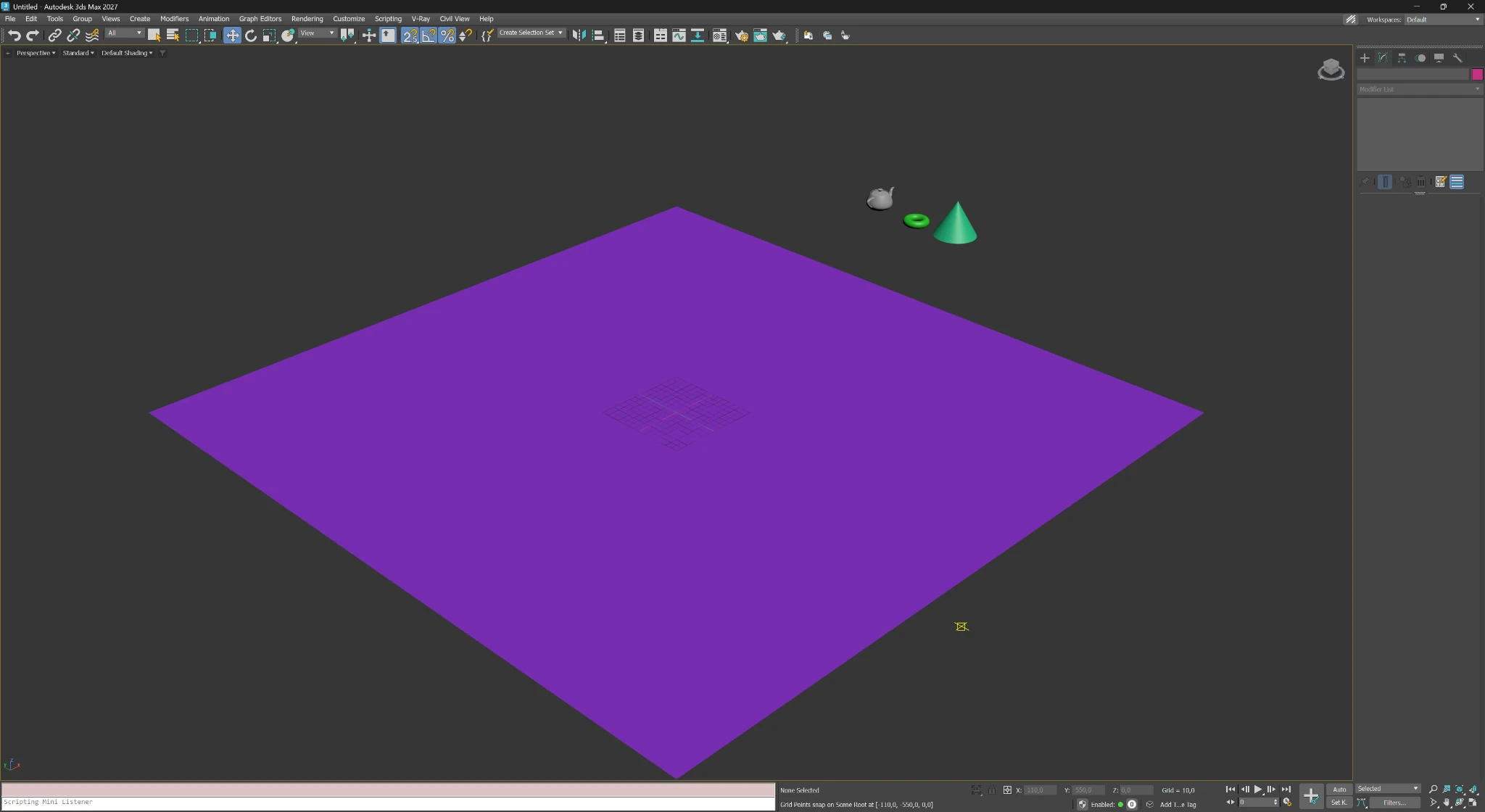
Prepare the terrain, floor plane or any other surface that should receive the scattered objects.
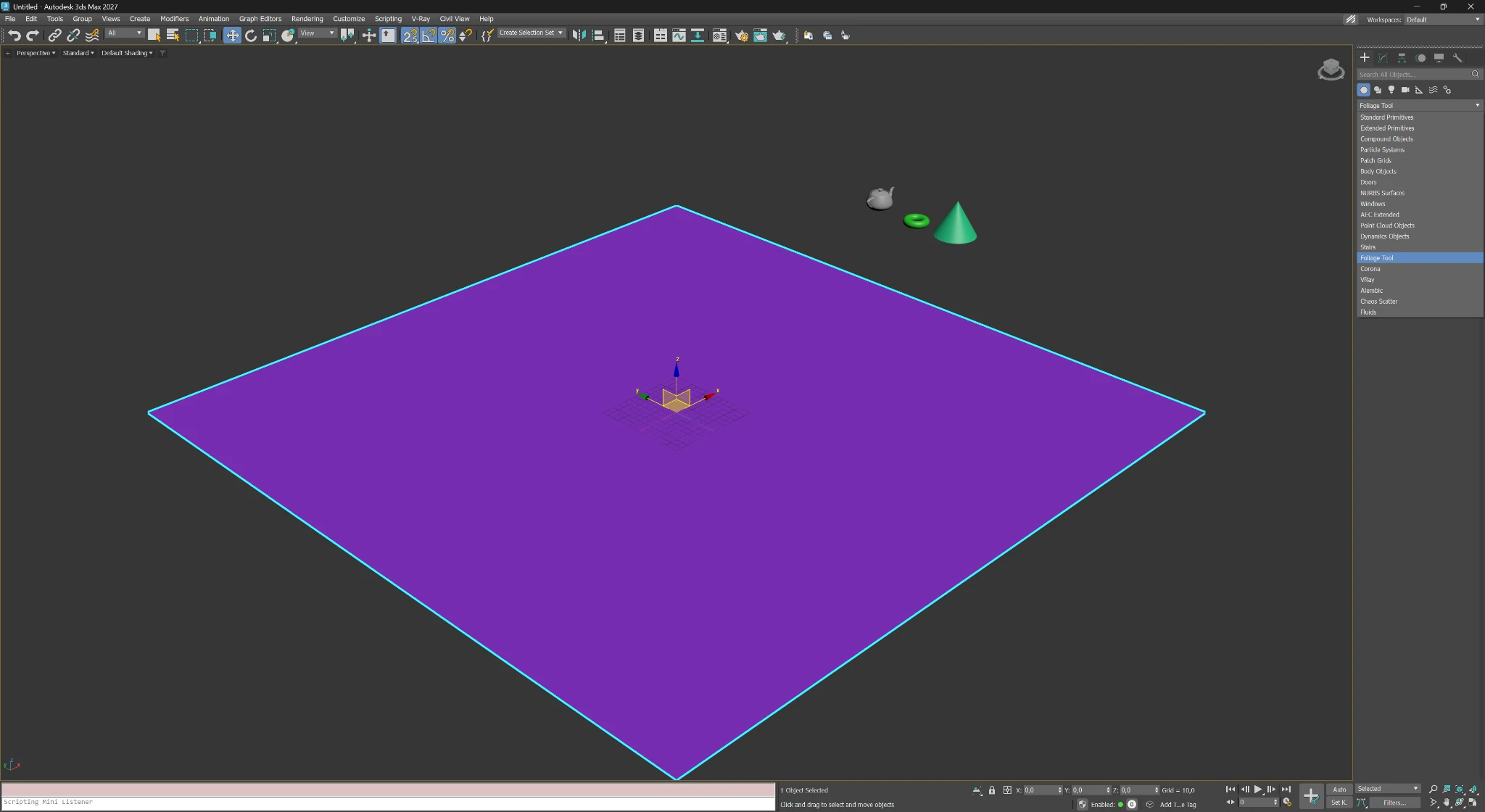
Choose Foliage Tool in the Create panel and place the helper in the scene like any standard 3ds Max object.
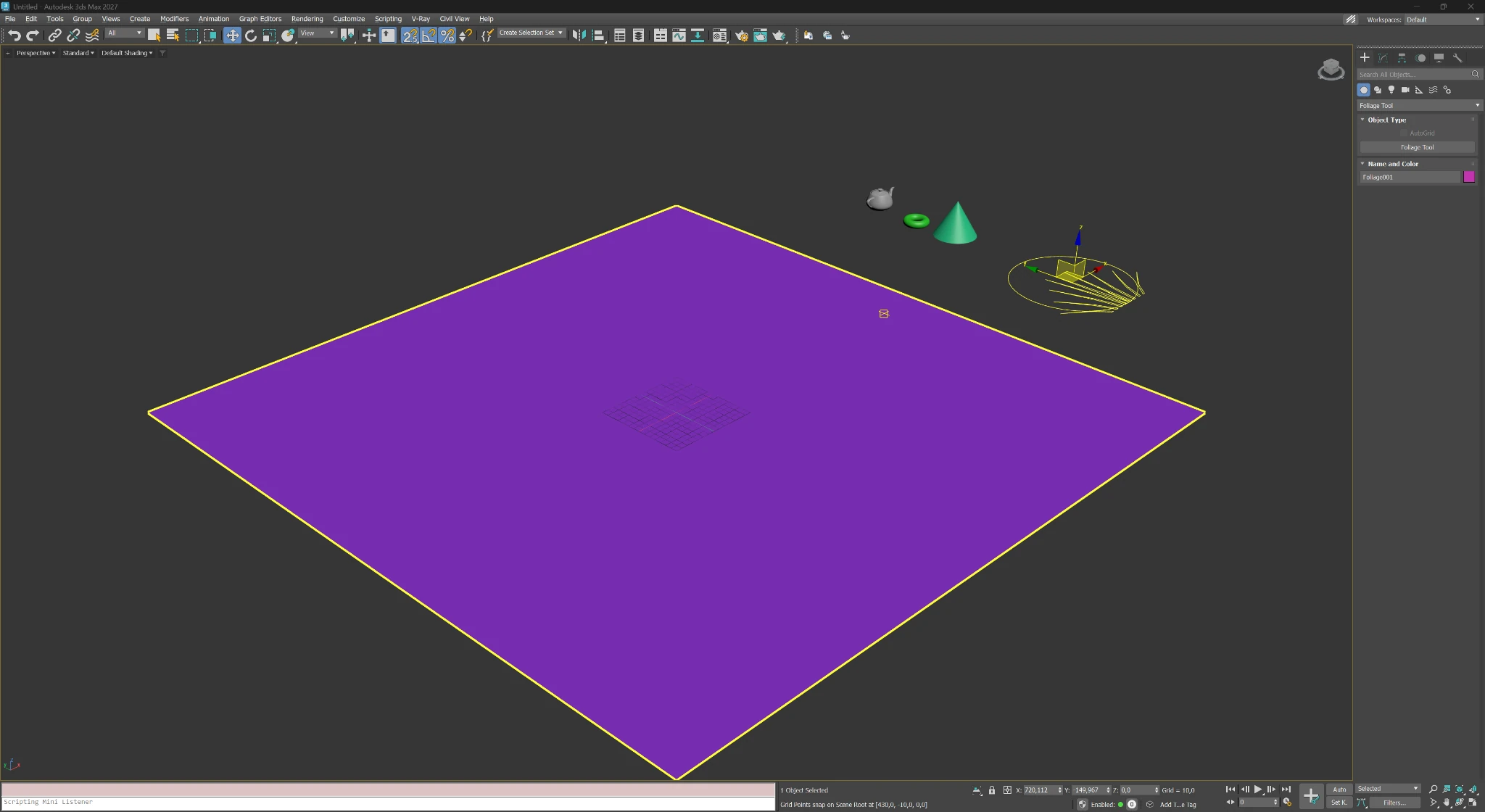
Once created, the helper gives you a brush-based gizmo that becomes the center of the scattering workflow.
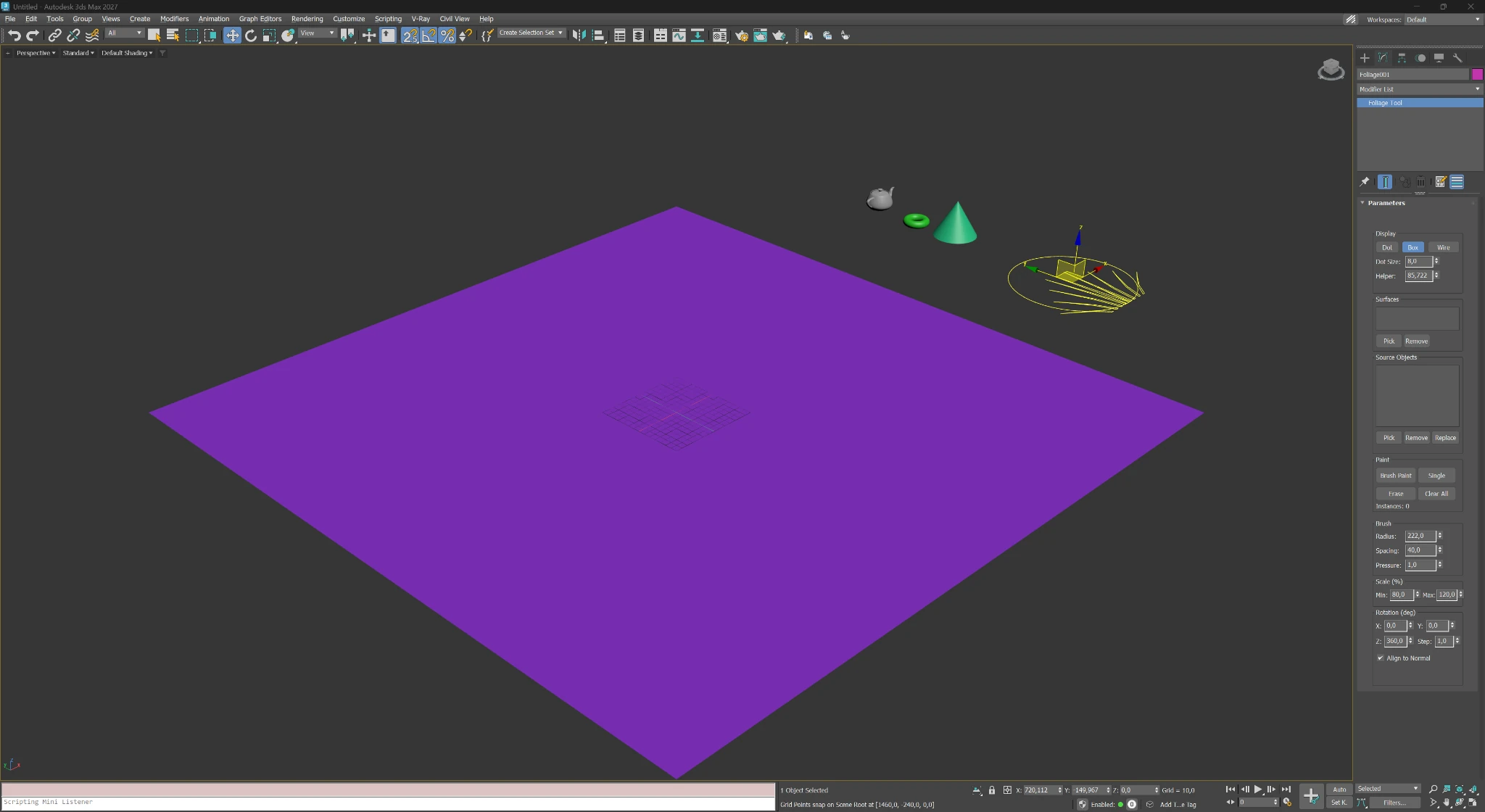
Assign one or more target surfaces, then add your source objects. Set brush radius, spacing, pressure, scale and rotation in one panel.
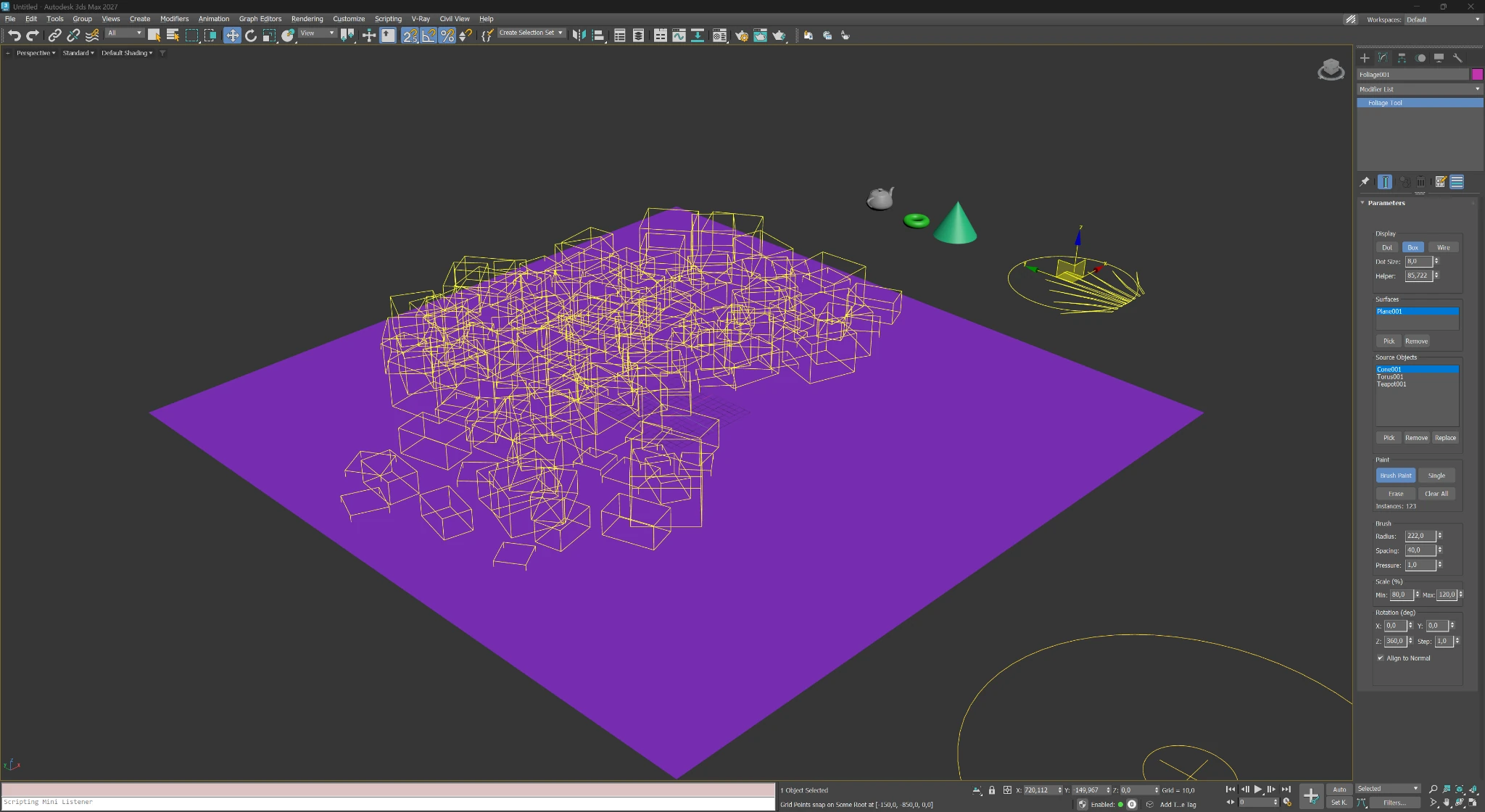
Use Brush Paint to scatter, Single for precise placement and Erase to carve out paths and clean zones. Lightweight display keeps the viewport responsive.
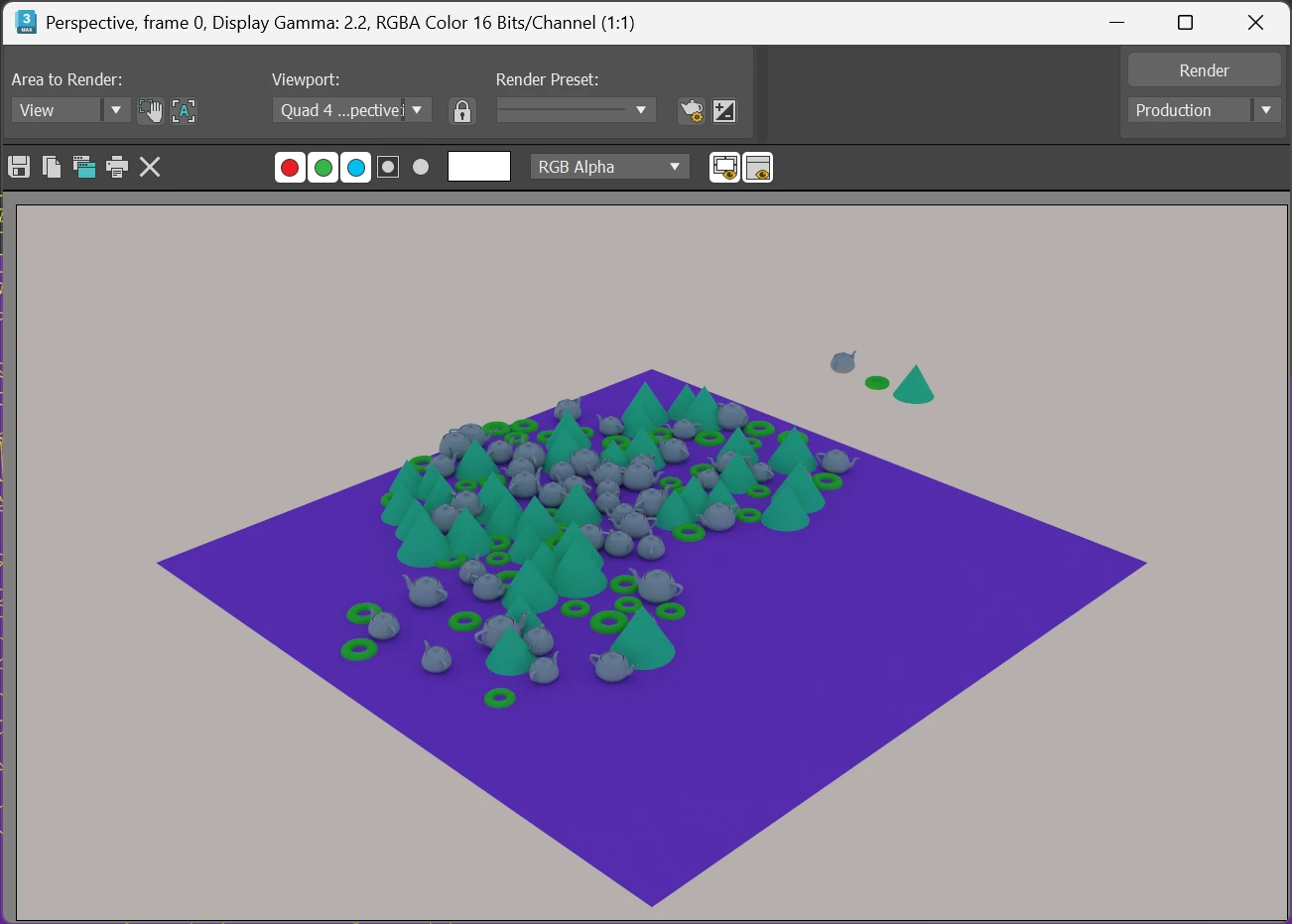
The scattered setup is ready for rendering with your preferred renderer — ideal for landscape visualization, exterior scenes and decorative site coverage.
FoliageTool is strongest when the interface stays simple: target surfaces, source objects, paint modes, density and randomization controls are all available in one place.
View large
Pick one or several receiving surfaces, then add multiple source objects for richer visual variation.
Use Dot, Box or Wire display when painting heavier scenes, then switch to a fuller preview closer to the final result.
Brush Paint covers large areas quickly, Single places one object per click and Erase removes scattered elements.
These three values define painting area, minimum distance between instances and overall density.
Set min/max scale and rotation ranges across X, Y and Z to reduce repetition and add controlled chaos.
Keep trees and grass vertical, or align objects to surface normals when scattering across slopes, walls or irregular terrain.
The plugin is not limited to trees and shrubs. Any repeating object that should be distributed fast and naturally can be managed with the same workflow.
Grass, shrubs, low planting, flowers and trees across courtyards, parks, roadsides and private landscapes.
Rocks, pebbles, debris, leaves, mulch, pavement details and small exterior accessories.
Block out coverage quickly, test several source sets and refine composition directly in the viewport before final rendering.
After payment the license appears in your account. Activate online through the website or offline by e-mail for air-gapped workstations.
Perpetual license for the 1.x branch. Supports 3ds Max 2021–2027. One purchase covers studio use on up to two machines.