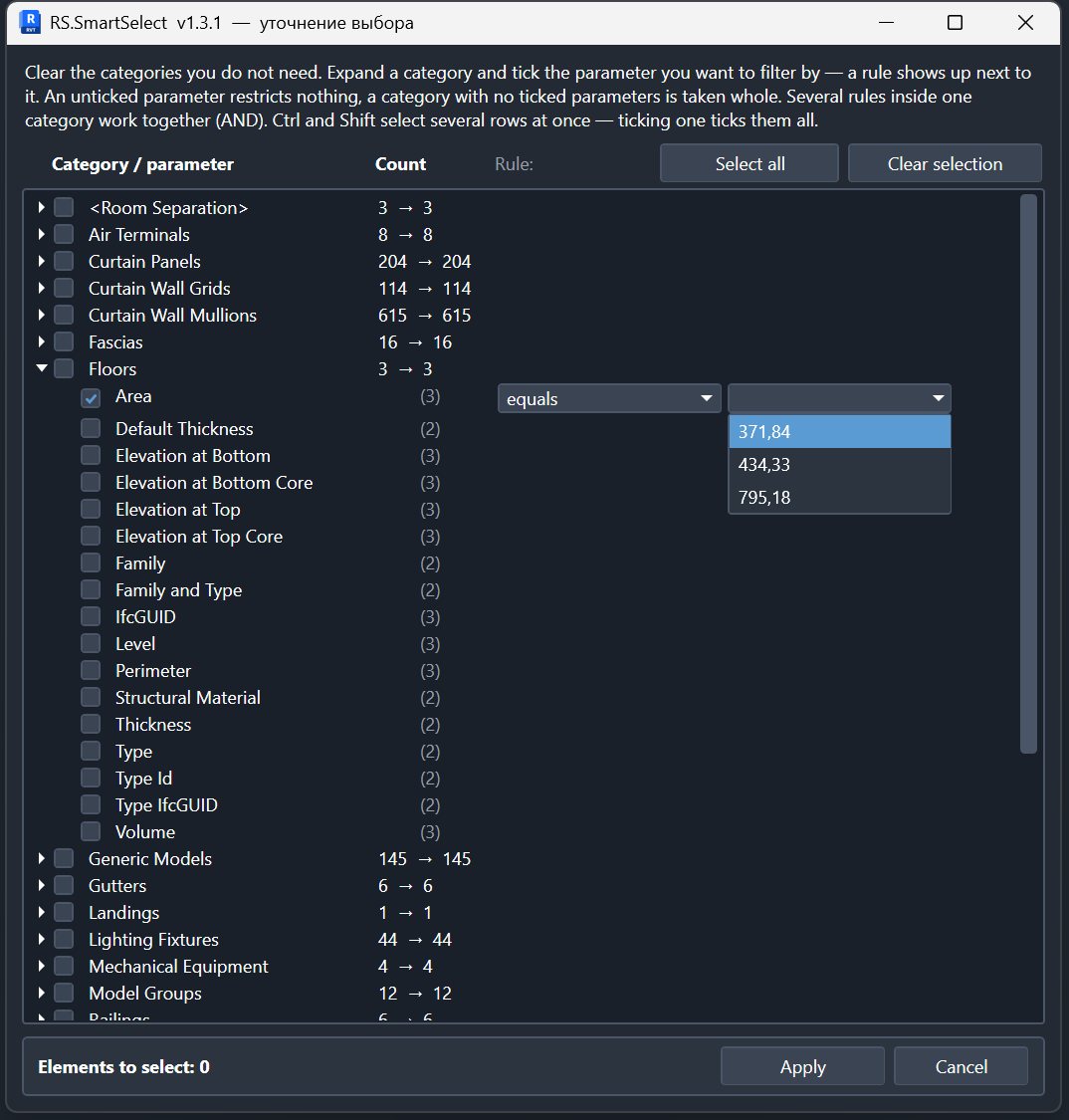
Rules for equal, not equal, contains and does not contain now accept multiple values with checkboxes. Values within a rule use OR; separate rules use AND. Negative rules exclude all selected values.
The value list includes search, select all, clear all and a selection counter. Bulk actions affect visible search results and preserve selections outside the filter. Selecting a value activates its rule and category; an empty selection does not narrow the result.
Numeric comparisons still use one value. Esc closes the value list first. Large lists are virtualized; themes and 16 interface languages are supported. Rule presets and numeric ranges are not available; selections are not saved after closing the window.
DESCRIPTION
Revit SmartSelect
How to use
Large models need controlled selection, not manual clicking
When many elements must be checked or edited, manual selection is slow and unreliable. SmartSelect makes selection repeatable and rule-based.
01 SmartSelect command on the Revit ribbon
The Filter+ command is available on the RS-Systems tab and on Modify | Multi-Select after elements are selected.
02 Categories in the current selection
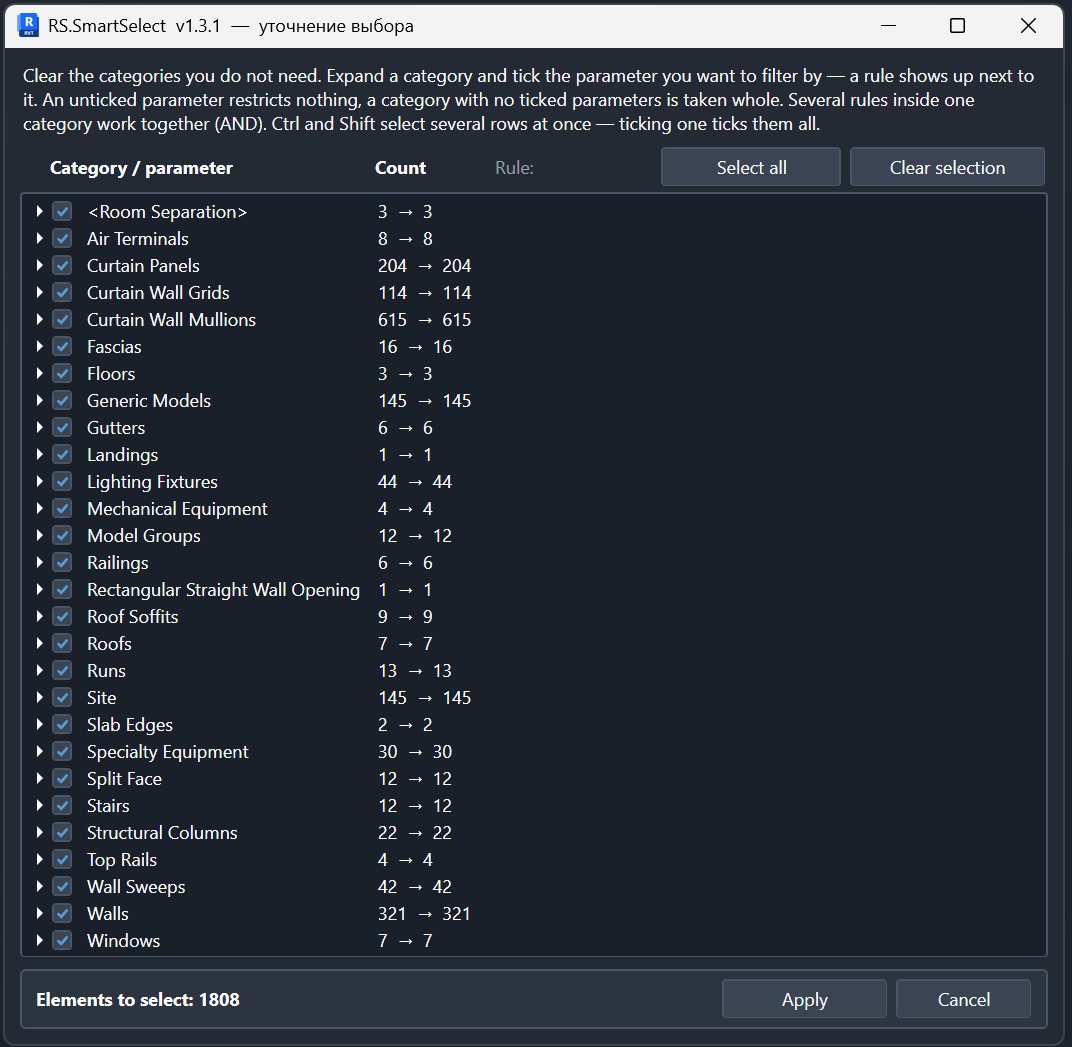
The window groups the currently selected elements by category and shows both the original and expected element counts.
03 Parameters of the selected category
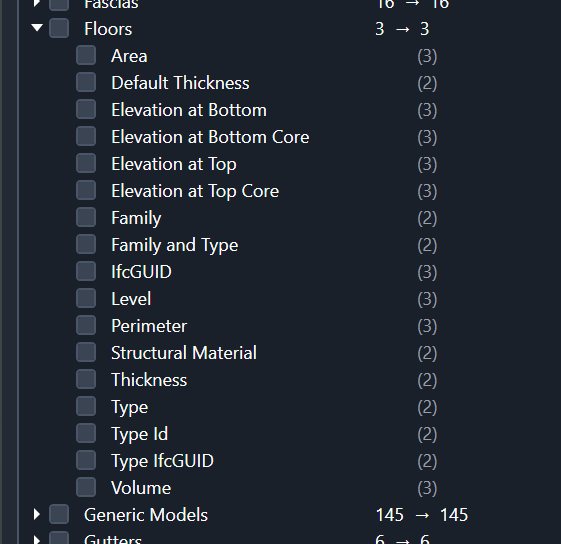
Expand a category and enable one or more parameters that should refine the selection.
04 Operators matched to the data type
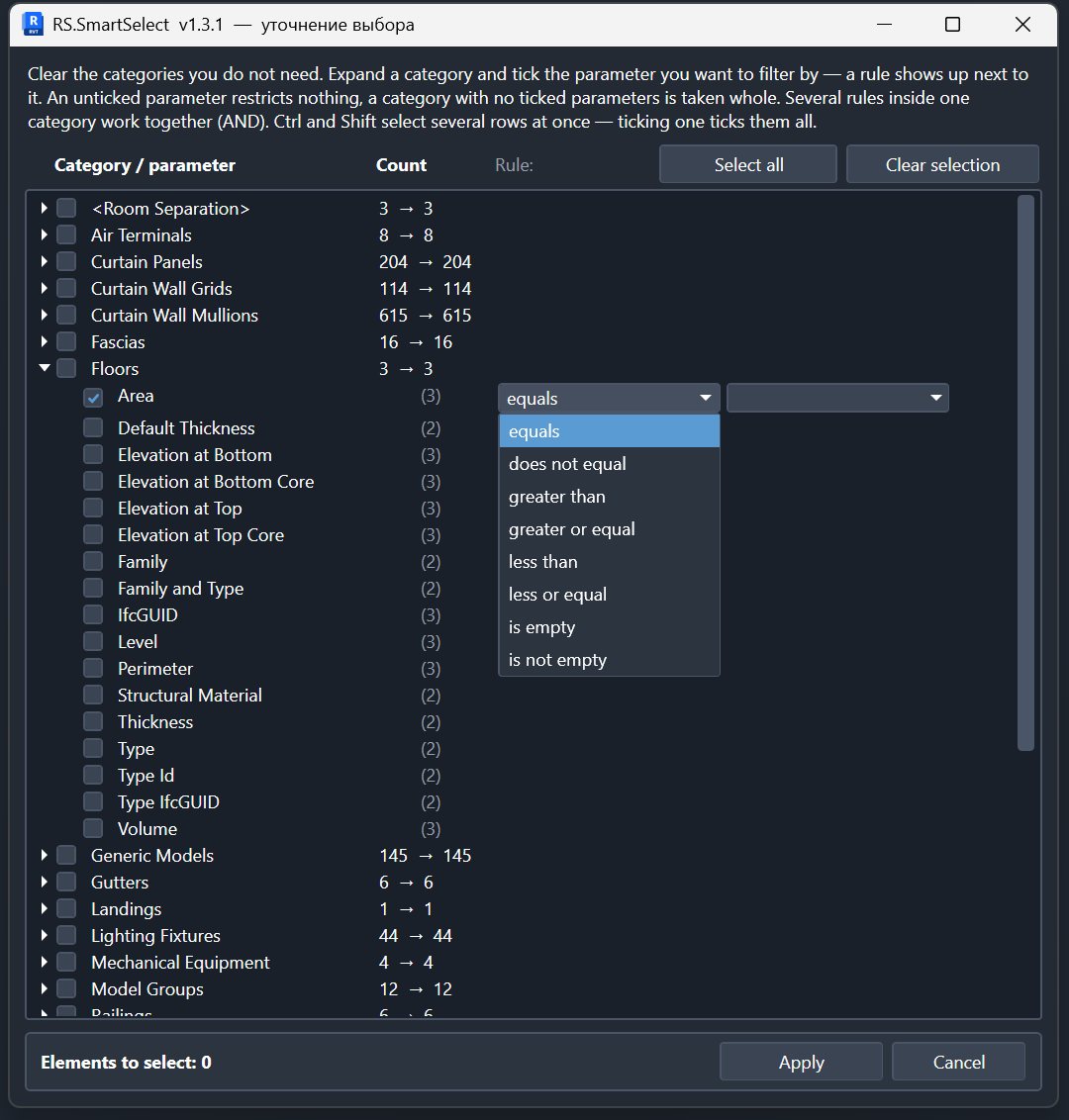
Numeric parameters use comparison operators, text parameters use string conditions, and empty values have dedicated operators.
05 Values from the current selection
The value list is built from the selected elements, so the required value can be chosen without repeated manual typing.
06 Verify the result in Revit
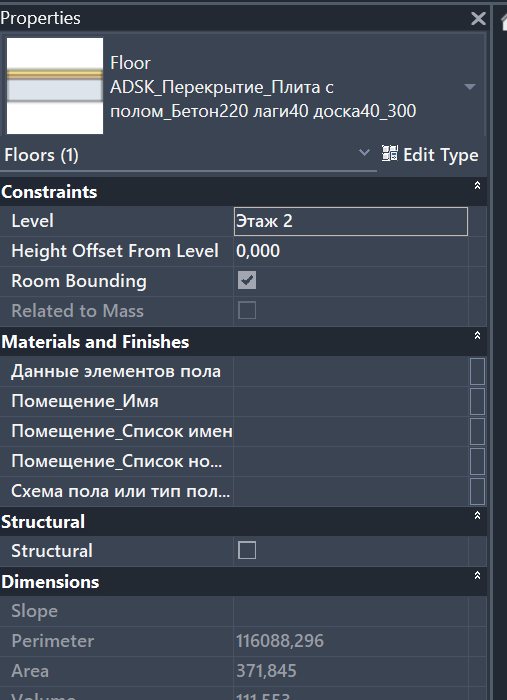
After the rules are applied, only matching elements remain selected and the result can be checked immediately in Properties.
Why it is needed
Large models need controlled selection, not manual clicking
When many elements must be checked or edited, manual selection is slow and unreliable. SmartSelect makes selection repeatable and rule-based.
How to use
Basic working scenario
Install
Install the MSI and open Revit.
Define rules
Choose categories and parameter conditions.
Select elements
Run the rule and use the resulting selection in Revit.