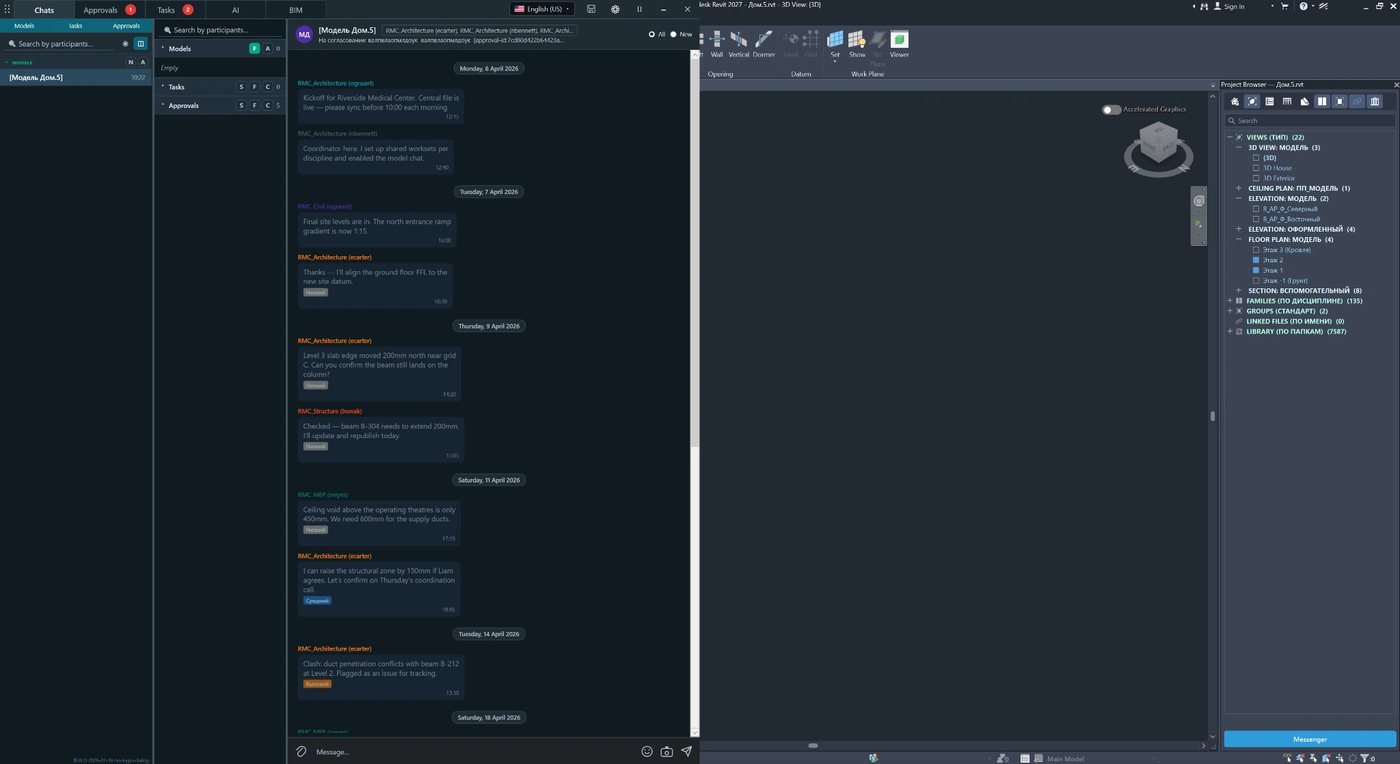
Windows now use the application icon. F1 help is available on the ribbon button and opens the English product page.
Known limitation: the update window and status bar still appear in Russian.
01.09.2026
Database paths now use one shared database per model in RS.CDE. Attachment paths are unchanged. Migration of the old Messenger database is not yet implemented; previous data remains in the old file.
15.08.2026
Activation status, updates and theme selection are grouped on the Licence tab in Settings.
DESCRIPTION
RS-SYSTEMS
REVIT.Messenger
Project communication, tasks, approvals, AI and BIM support inside Revit
Complete solution description for designers of all disciplines, BIM specialists and project managers
REVIT.Messenger works directly beside the Revit model and keeps the designer in the working context.
One workspace for discussion, assignments, approval, checking and support — without losing the connection to the model.
Solution description · July 2026
Contents
Purpose of the solution
Two operating modes: local and server
Five types of project interaction
Chats inside Revit
Approvals and decision records
Tasks and execution control
AI chat and work with the model
Requests to the BIM department
RS.CDE server mode as the project ERP environment
Practical scenarios
Benefits for designers and the team
Recommended workflow
Who the solution is for
Architects, structural engineers, HVAC, plumbing, electrical, low-current systems and other discipline engineers, BIM coordinators, BIM managers, team leads, reviewers, clients and approval participants.
1. Purpose of the solution
REVIT.Messenger is designed for communication between designers inside Revit itself. The solution treats the host model and linked models as recipients with whom users can exchange messages, assign tasks, start approvals and submit requests. Interaction is therefore organised around the actual project structure: a message is addressed not to an abstract group chat, but to a specific model and the specialists working with it.
The solution removes the main break in a designer’s daily work: the model is in Revit, while questions, assignments and decisions usually end up in email, an external messenger, a spreadsheet or a verbal conversation. In REVIT.Messenger, working communication stays beside the model and preserves the context — discipline, participants, deadlines, status and history.
Main practical benefit
The designer switches between applications less often, receives answers faster, understands who is responsible for an action and can restore the history of an accepted decision at any time.
What changes in daily work
A short question does not turn into an uncontrolled message thread — it stays in the model chat.
An assignment receives a responsible person, deadline, priority and status.
A question that requires confirmation becomes an approval and is not lost among messages.
A request to the BIM department is registered and follows a clear processing cycle.
Routine checks and permitted changes can be delegated to the AI assistant with user confirmation.
2. Two operating modes: local and server
REVIT.Messenger can be used as a standalone tool within a set of Revit models or as the client component of the RS.CDE server core. This makes the solution suitable both for a small team exchanging files and for a large project with centralised management of participants, roles and permissions.
Criterion
Local mode
RS.CDE server mode
Interaction scope
The host model and every model in the linked-model list.
The entire project and all participants registered in the server core.
Where information is stored
Directly in the Revit models.
In a centralised server environment with synchronisation of client interfaces.
Who has access
Specialists who work directly in Revit.
Designers in Revit, the BIM team, managers and other participants through web workspaces.
Work with external participants
Information can be transferred with a detached model outside the company environment.
An external participant connects according to their role, permissions and the project structure.
Permissions and administration
Defined by the local model logic and the set of linked files.
A complete role matrix, access permissions and centralised project rules.
Scale of use
Coordination within a Revit working group.
A project-interaction ERP environment for all project participants.
Local mode
In local mode, communication is limited to the current host model and all models present in the linked-model list. Messages and related data are stored directly in the models. The information can therefore be transferred with the file even to a specialist working with a detached model outside the corporate network.
A separate server core is not required for basic interaction.
Linked models act as clear recipients of project correspondence.
Agreements can accompany the model when it is transferred to an external contractor.
The mode is intended for users who work directly in Revit.
Server mode
After connection to RS.CDE, the solution switches to an extended mode. Correspondence, tasks, approvals, requests and statuses become part of the shared project structure, while access is controlled by a complete role matrix. The interface can be used not only by designers in Revit, but also by managers, reviewers, the BIM team, the client and other participants through web workspaces.
Unified roles and permissions for all project participants.
Access to interactions from Revit and from web workspaces.
Centralised storage of history, statuses and responsibilities.
The ability to involve people who do not work directly with the models.
Result of switching to server mode
REVIT.Messenger stops being only a local communication panel and becomes the user interface of a complete RS.CDE ERP environment for managing project interaction.
3. Five types of project interaction
Different types of work are not mixed together in the solution. A quick question remains a message, an assignment becomes a task, a formal decision is created as an approval, a routine operation is delegated to AI, and a support request is registered as a request to the BIM department.
CHATS
APPROVALS
TASKS
AI
BIM
Quick questions and discussions
Decisions that must be approved
Assignments with a responsible person and deadline
Checks, advice and actions in the model
Requests to the BIM department and support
When to use
Section
What is recorded
Result
Information needs to be clarified quickly
Chat
Author, recipient, text, time and message history
A quick answer in the model context
A confirmed decision is required
Approval
Initiator, participants, package, deadline, priority and status
A verifiable approval history
A specific action must be assigned
Task
Responsible person, deadline, priority and state
Controlled execution
The model must be checked or a routine operation performed
AI
Dialogue, selected agent and application mode
Advice, a check or a prepared action
BIM support is required
BIM
Subject, requester, status and correspondence
A registered request carried through to completion
4. Chats inside Revit
Chats are intended for quick questions, clarifications and discussions about the model. Their use resembles familiar tools such as WhatsApp or Telegram, but they are located directly in Revit and connected to the project structure. The user sees models and participants, selects a recipient, reads the history and sends a message without leaving the working window.
What the designer receives
Correspondence about a specific model rather than an impersonal general channel.
Participant search and quick navigation to the required workspace.
Separation of new and already viewed messages.
A discussion history that stays beside the project context.
The ability to move quickly from a message to a task or approval when the issue requires a formal action.
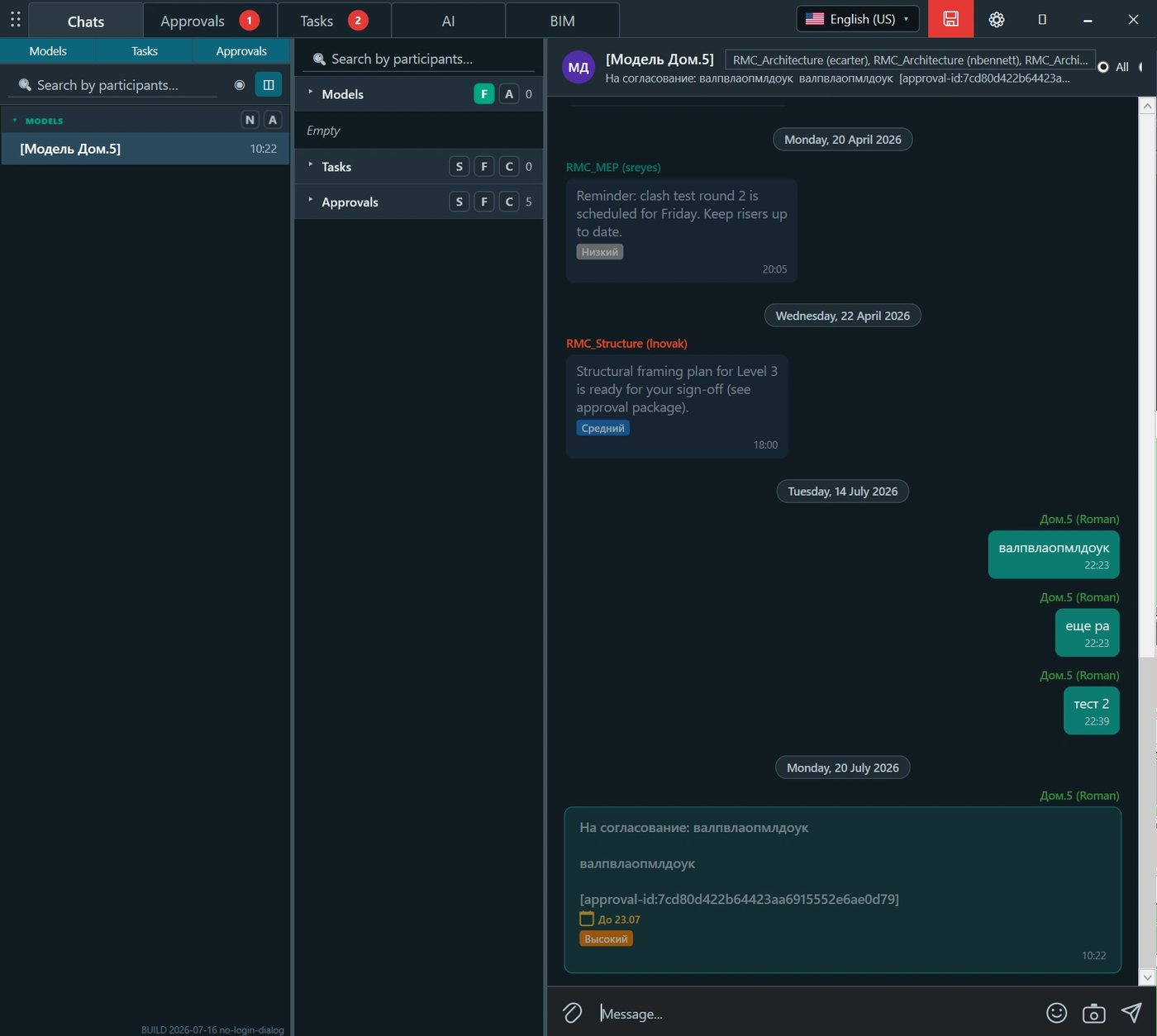
Figure 1. The Chats section: the model and participant tree on the left, message history on the right and the input field at the bottom of the window.
Correct use of chats
It is useful to specify the level, grid lines, zone, element, view or sheet in a message. This reduces follow-up questions and helps restore the context quickly.
5. Approvals and decision records
The Approvals section is used when a simple message is not enough. It is intended for checking and approval processes related to model elements, sheets, views and project-documentation packages. The final status is preserved and can be checked at any time.
What an approval contains
A title and explanatory text.
The initiator and recipients from the project structure.
A deadline and priority.
A linked package of sheets, views or other model materials.
Stages, current status and activity history.
Result: approved, rejected, in progress or awaiting a response.
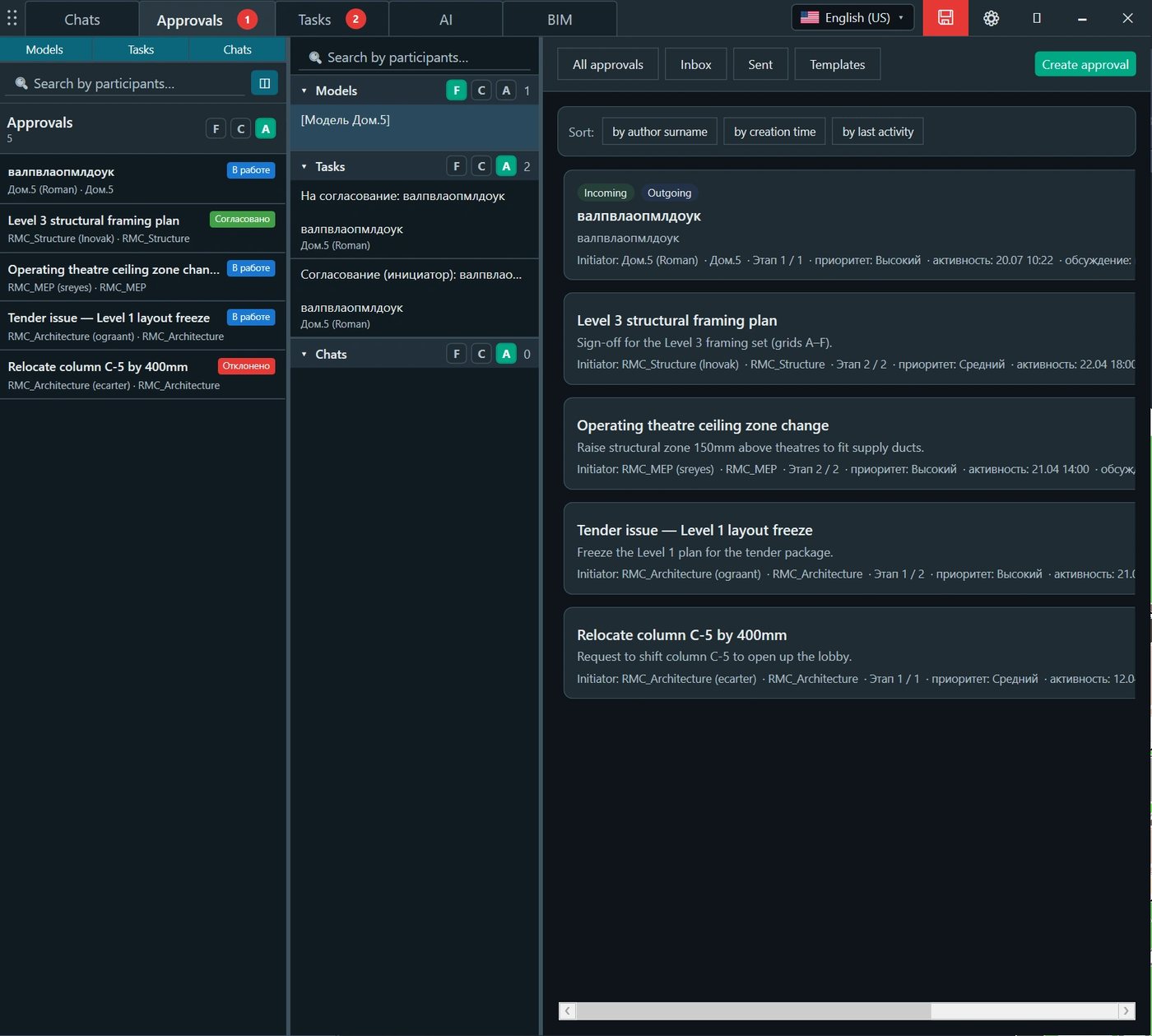
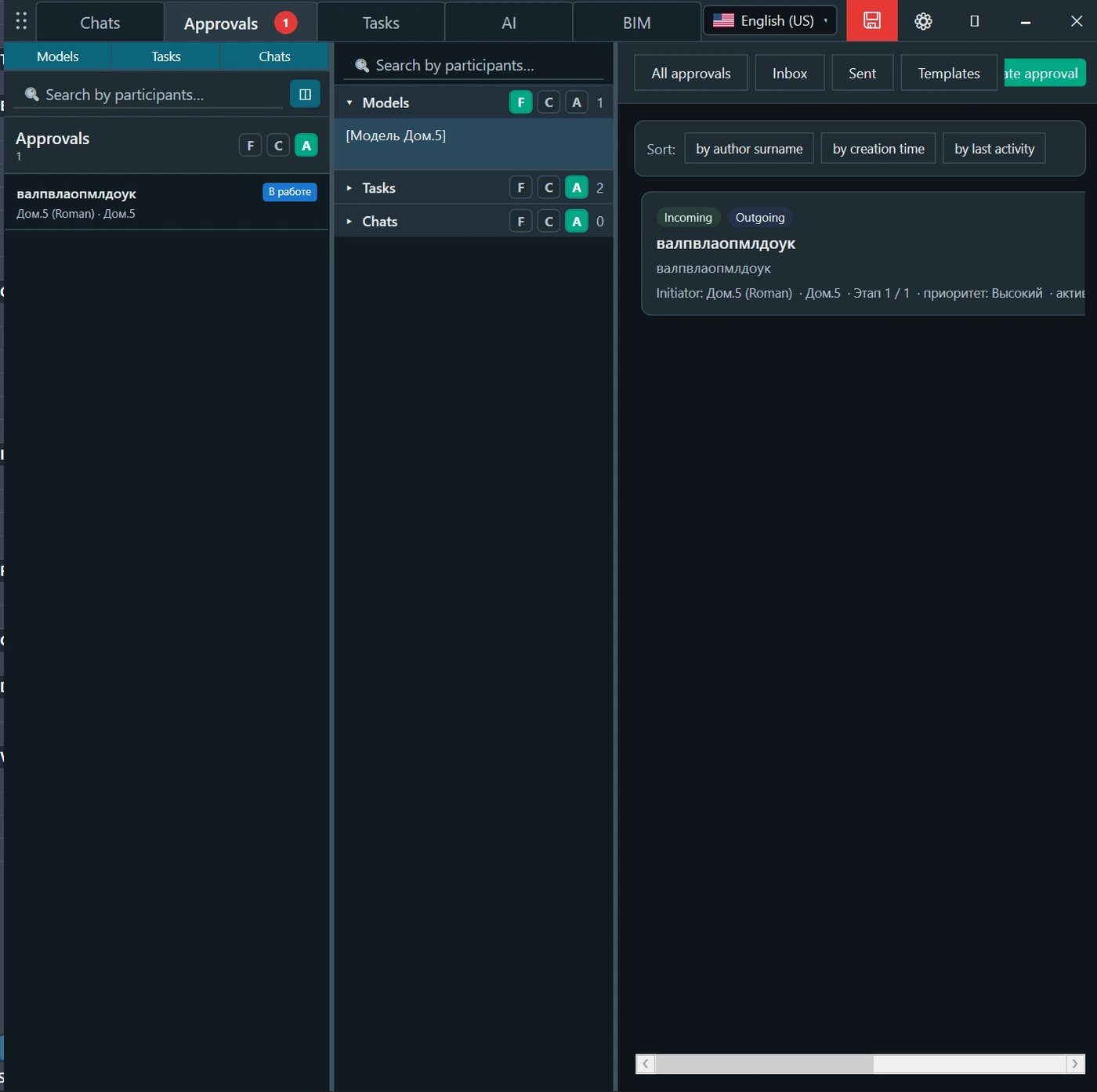
Figure 2. Approval register: incoming and outgoing processes, statuses, initiators, priorities and sorting by activity.
Creating an approval
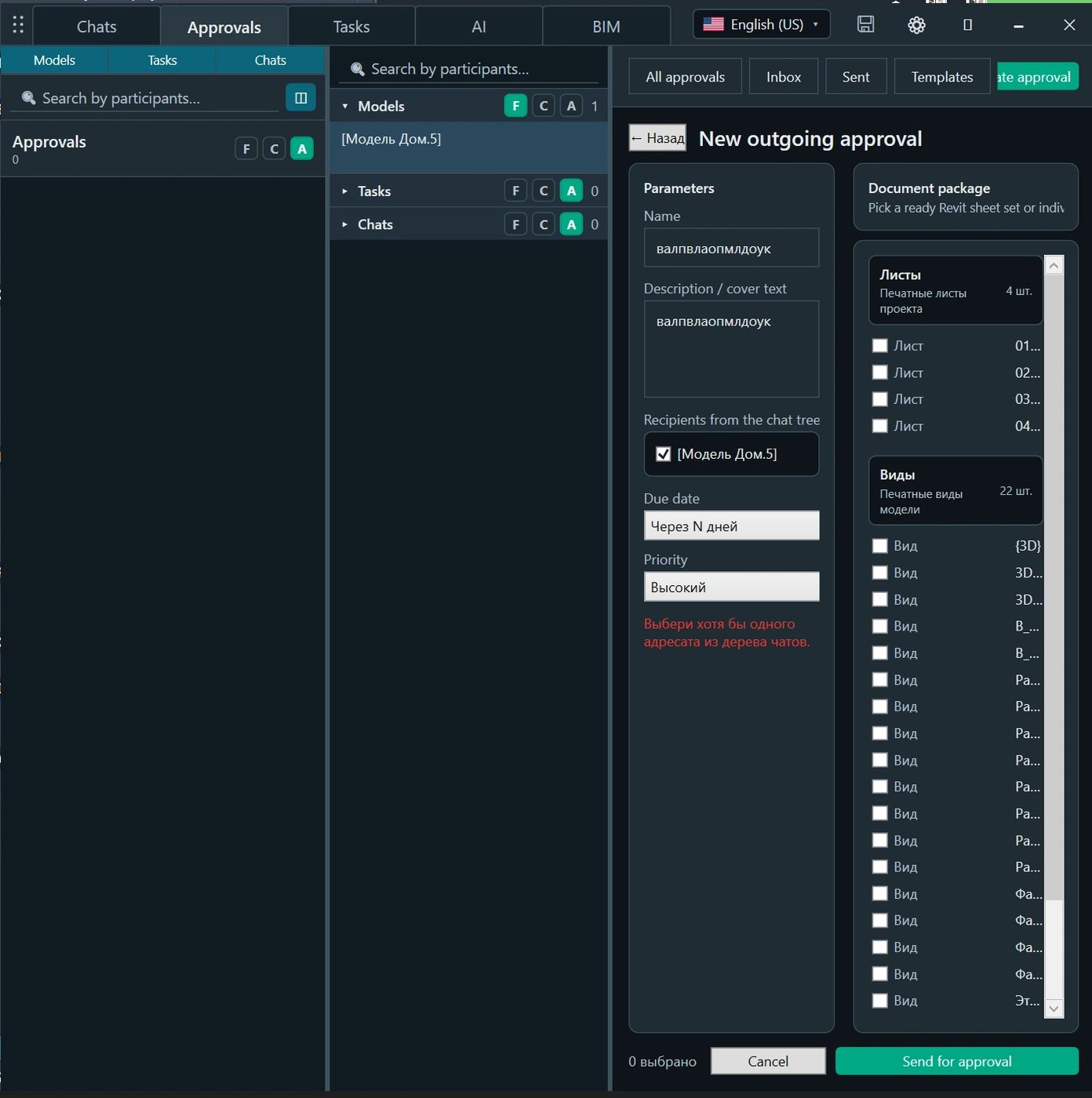
The user specifies the subject, description, recipients, deadline and priority, then creates a package directly from the model content. This makes it possible to submit not an abstract link, but a specific set of sheets or views for review.
Figure 3. New approval form: process parameters, recipients and selection of sheets or views from the model.
Why this matters
An approval creates a demonstrable decision history. A week or several months later, it is possible to check who initiated the issue, what exactly was reviewed, who responded and what the final status was.
6. Tasks and execution control
Tasks are used for specific assignments to specialists working on the model. Unlike an ordinary message, a task immediately answers four questions: what must be done, who is responsible, when the result is due and what state the work is in.
Main task parameters
A title and detailed description of the expected result.
A responsible person or responsible workspace.
Due date and priority.
Current status: new, in progress, completed or closed.
Deadline filters: overdue, today, week and closed tasks.
Four views of the same information
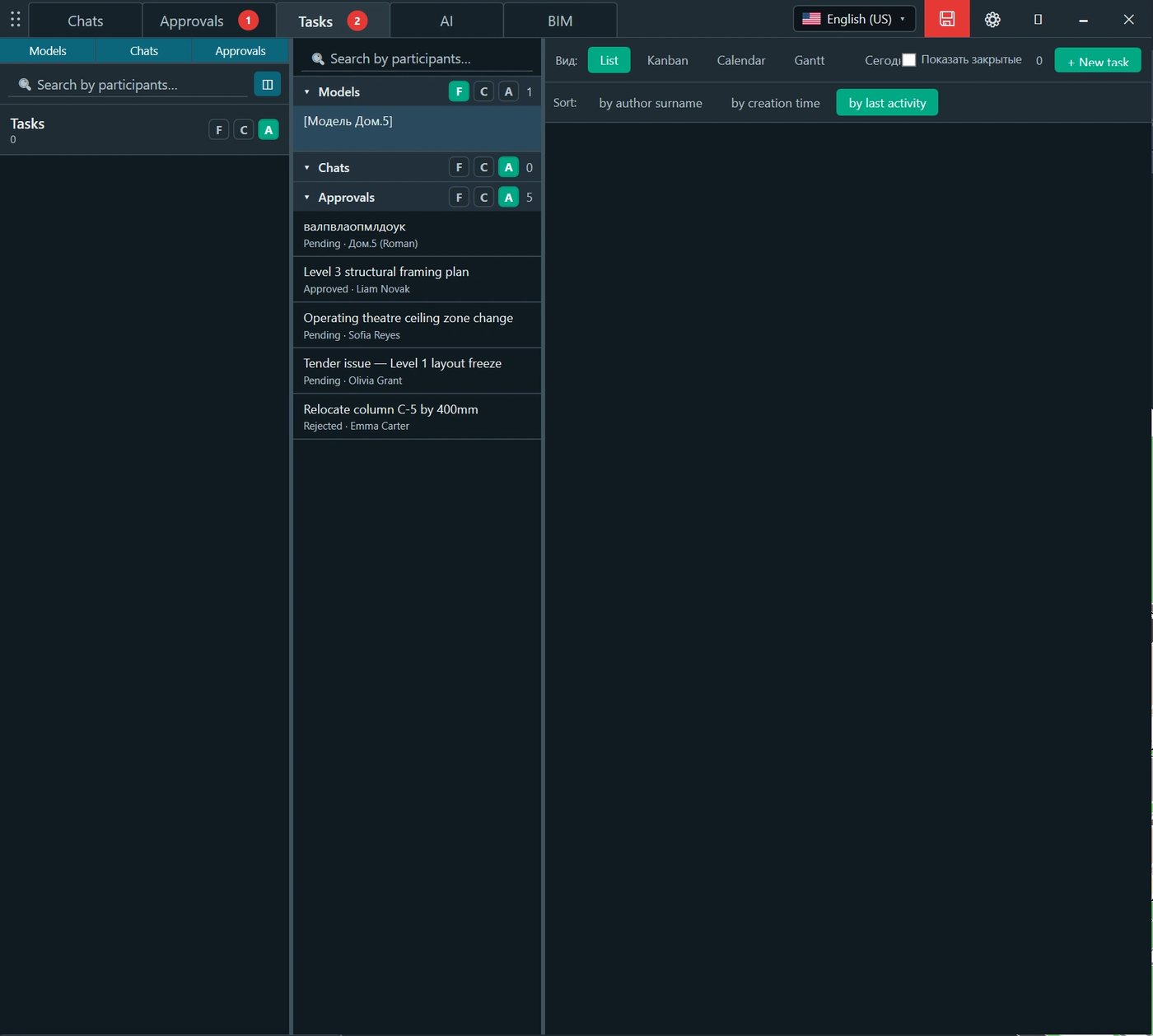
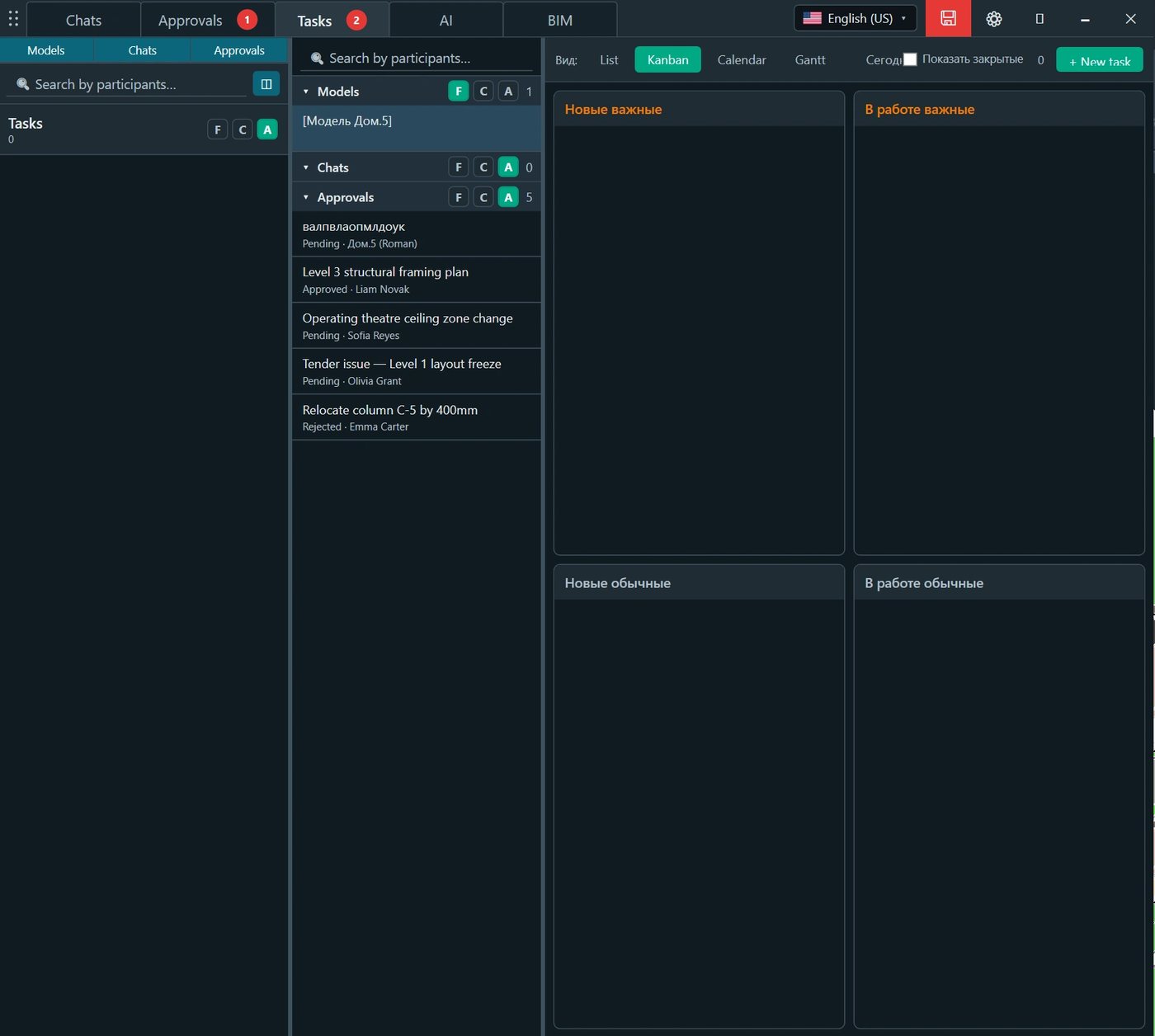
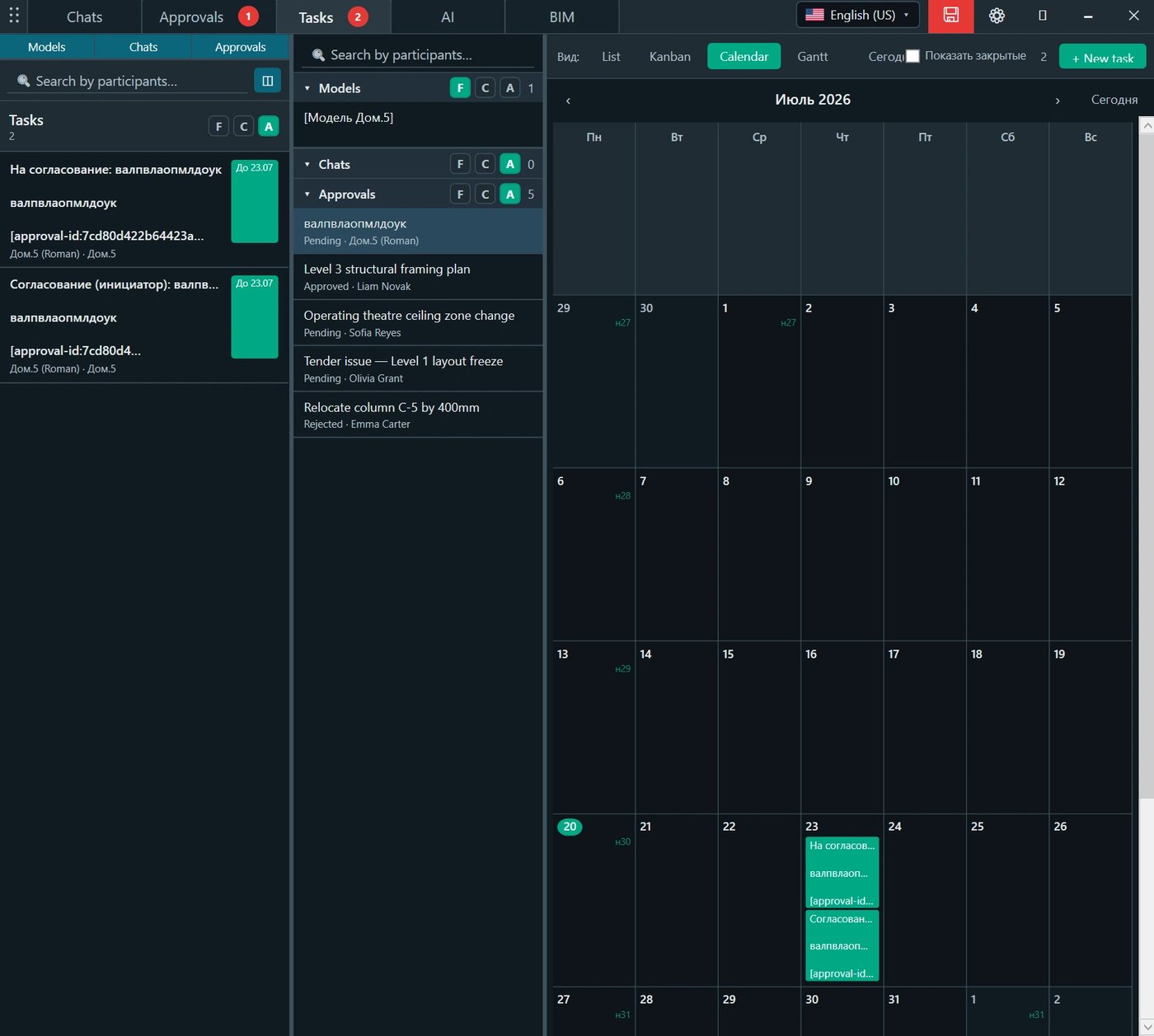
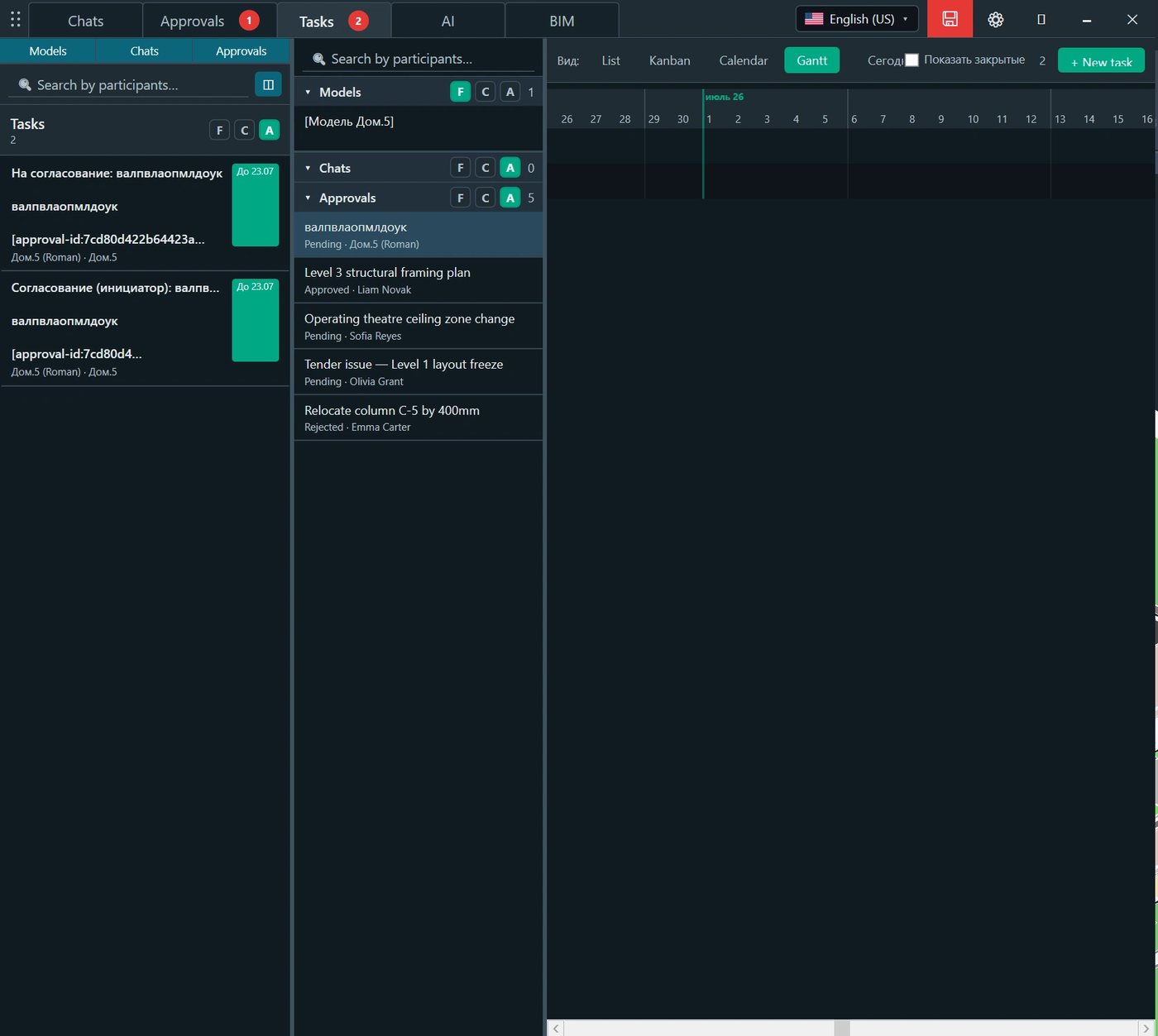
The same task can be displayed in different modes. The designer selects the view according to the current work: a list for quick checking, Kanban for flow management, a calendar for date control or Gantt for an overall schedule.
Figure 4. Kanban board: tasks are divided by priority and state and can be moved between columns.
Figure 5. Calendar: tasks are placed on their due dates, making the daily and weekly workload visible.
Figure 6. Gantt view: task periods are shown on a timeline for deadline and sequence control.
Practical benefit
A task does not remain only a phrase in a chat. It receives a responsible person, deadline and state, while the manager can see both the current workload and overdue work.
7. AI chat and work with the model
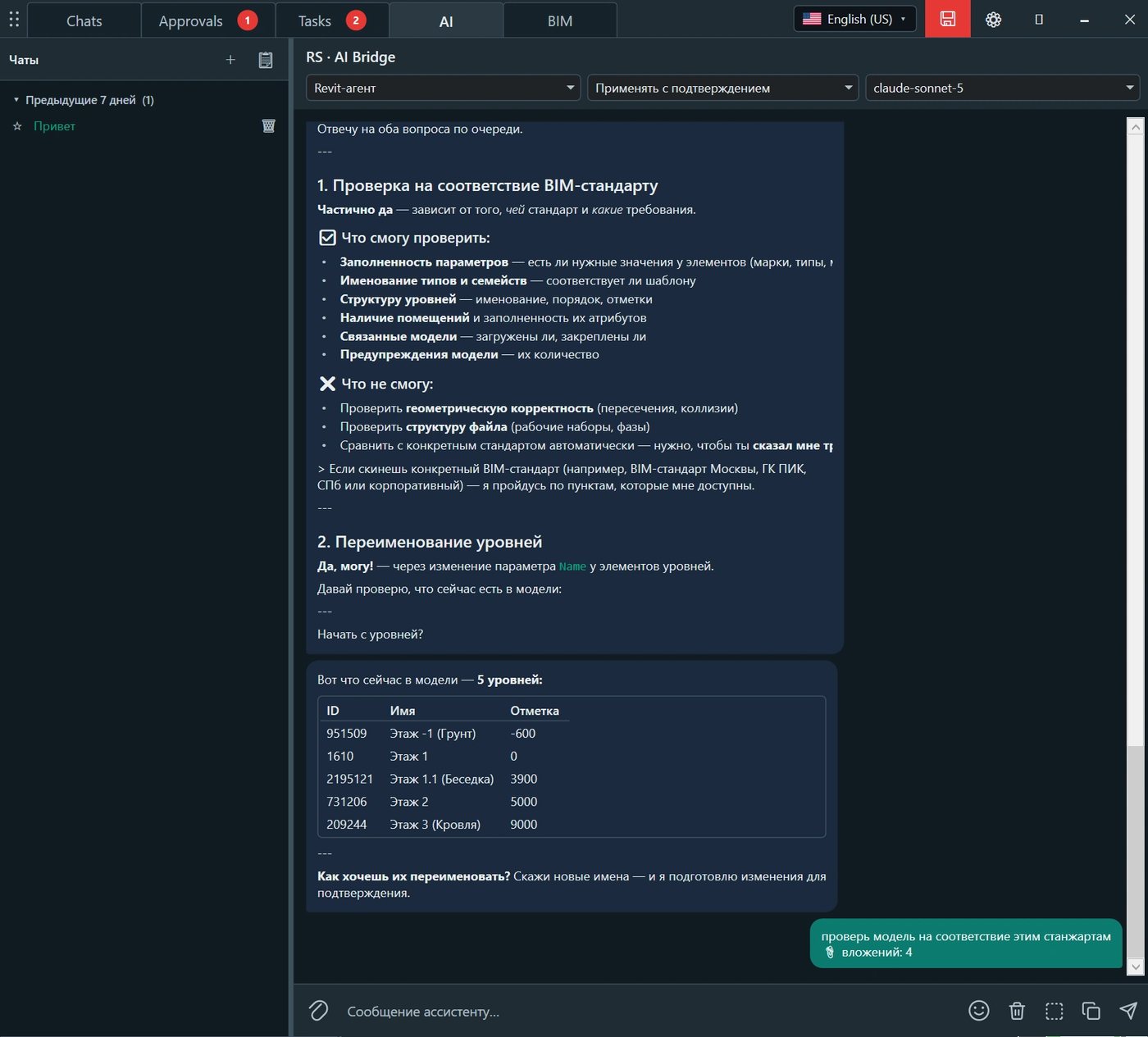
RS · AI Bridge connects the Revit workspace to an AI assistant. It can answer questions, analyse accessible model data, perform permitted routine operations and take part in modelling together with the designer. The user selects the agent, execution mode and working model.
Typical AI-assistant capabilities
Answers to questions about Revit, BIM standards and working procedures.
Checking parameter completeness, naming, structure and other accessible model data.
Preparing changes, such as renaming levels or processing a set of elements.
Performing routine actions only within the granted permissions.
Joint work with the specialist: AI proposes an action, and the user checks and confirms its application.
Figure 7. RS · AI Bridge: agent, model and action-application mode selection, dialogue history and work with data from the current model.
Managed access
AI Bridge uses a separate install token issued by an administrator. The main API key of the external AI service is not stored in the plugin and is not transferred to the user. The token can be revoked centrally without disabling the other REVIT.Messenger functions.
Safe operating mode
For actions that modify the model, the Apply with confirmation mode is recommended: the assistant prepares the operation, but the final decision remains with the designer.
8. Requests to the BIM department
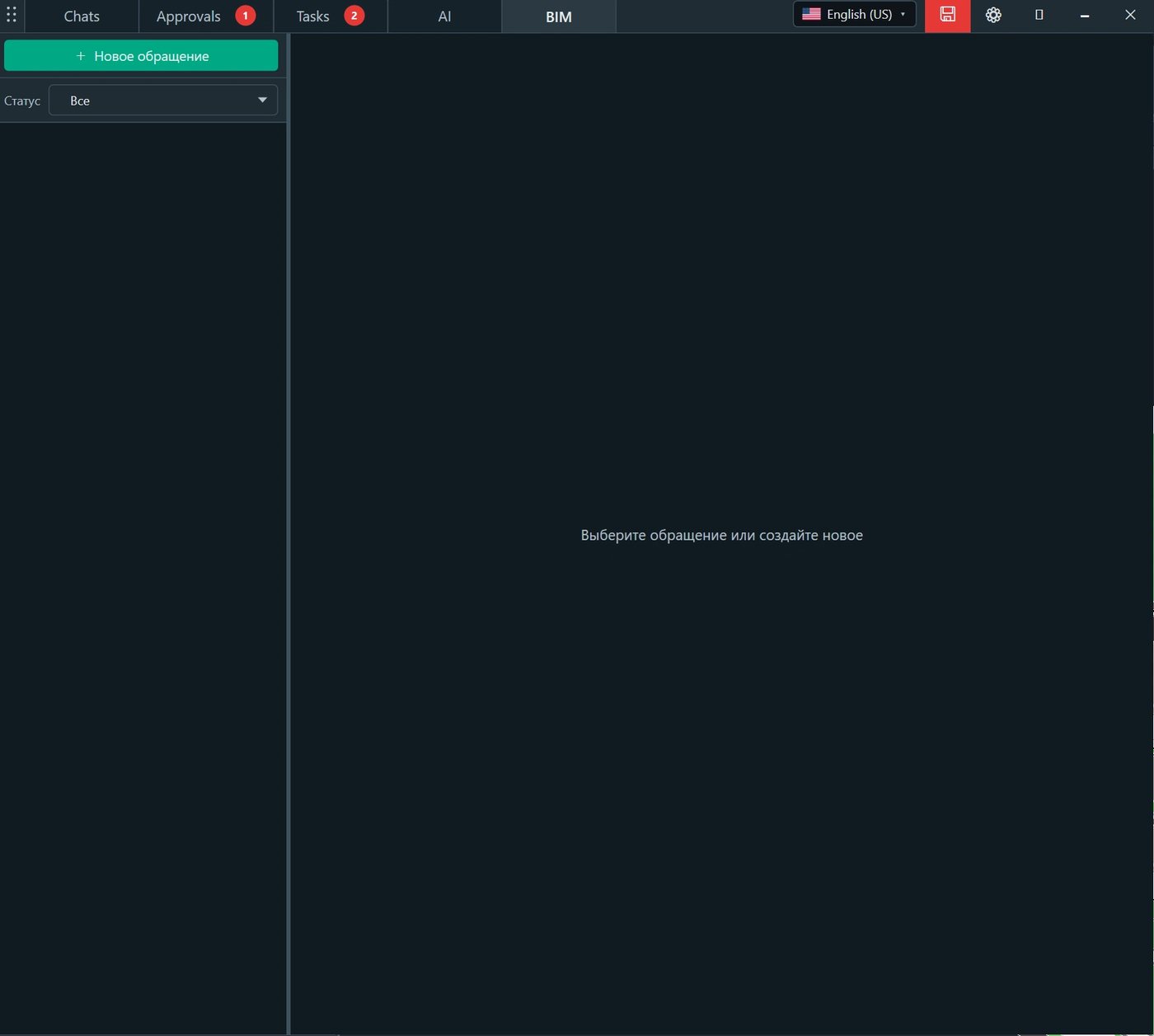
The BIM tab is intended for recording any requests from designers to the BIM team: technical problems, questions about standards, settings, families, templates, exports, coordination or plugin operation. Instead of scattered messages, every request becomes a separate item with a status and its own correspondence.
What a dedicated BIM-support channel provides
No request is lost in a general chat or private correspondence.
The designer sees whether the issue has been registered and which stage it has reached.
The BIM specialist receives a unified list of requests and can manage the queue.
The solution history remains available for reuse and analysis of recurring problems.
The manager sees the actual workload of the BIM team and recurring reasons for requests.
Figure 8. The BIM section: creation of a new request, status filtering and the correspondence workspace for the selected issue.
For the designer
Instead of asking “who is dealing with my problem now?”, the user receives a registered request, a clear status and a preserved response history.
9. RS.CDE server mode as the project ERP environment
When connected to the RS.CDE server core, all REVIT.Messenger sections operate within the shared project role model. This extends interaction beyond Revit and connects all participants — from direct performers to managers and the client.
Participant
Working interface
Practical role in the system
Revit designer
Panel inside Revit
Model correspondence, task execution, approvals, AI and requests to the BIM department.
BIM coordinator / BIM manager
Revit and web workspace
Support, coordination and control of requests, rules and data quality.
Team lead / chief project engineer
Web workspace and working registers
Control of deadlines, statuses, workload and accepted decisions.
Reviewer / approver
Web workspace
Review of packages and recording of the official result.
Client and external participants
Web workspace according to the assigned role
Participation in permitted processes without the need to work directly in Revit.
What appears in server mode
Centralised identification of users and project roles.
A role matrix with permissions to view, create, modify and approve.
Access to workflows from web workspaces.
A unified interaction history regardless of where the participant works.
Shared registers of tasks, approvals, requests and project activity.
A basis for reporting, execution control and further process automation.
Key effect
Information no longer belongs to a separate file, message thread or employee. It becomes a managed part of the project, with an author, recipient, deadline, status, permissions and history.
10. Practical scenarios
Scenario 1. Quick interdisciplinary clarification
An architect discovers that a shaft is too small for the building services. The architect writes in the chat to the recipient — the linked HVAC/plumbing model — and specifies the level, grid lines and view. The engineer responds in the same context, and if an action is required, the issue becomes a task.
Scenario 2. Approval of a change
A structural engineer proposes changing the position of a column. An approval is created with a description, deadline and package of related views or sheets. After the response, the final status remains in the history and can be checked when the documentation is issued.
Scenario 3. Issue control
The manager assigns tasks for checking sheets, correcting comments and preparing the issue package. Performers work with the list or Kanban board, while the manager controls deadlines in the calendar and Gantt chart.
Scenario 4. Routine work through AI
The designer asks AI to check level naming and prepare new names. The assistant reads the available data, shows the result and applies changes only after confirmation.
Scenario 5. Request to the BIM department
An export template does not work for a specialist, or a parameter question arises. The specialist creates a BIM request, receives a status and continues working without searching for the responsible person in private chats.
Scenario 6. Transfer of a detached model
In local mode, the model is transferred to an external contractor together with the information stored inside it. The specialist receives not only the file, but also the project context related to that model.
11. Benefits for designers and the team
For the designer
Benefit
What this means in practice
Fewer application switches
Questions, assignments, approvals and AI are in the same window in which modelling is performed.
A clear recipient
A linked model becomes the natural recipient of interaction between disciplines.
Fewer lost agreements
Important information does not remain only in a verbal conversation or external messenger.
Verifiable responsibility
A task has a responsible person and deadline; an approval has an initiator, participants and final status.
Faster assistance
A request to the BIM department is registered and does not depend on whom the user managed to contact personally.
Less routine work
AI assists with checks, consultations and permitted operations in the model.
For the BIM team and managers
A single request channel and a visible support queue.
Task control by status, deadline and priority.
A formal history of approvals and accepted decisions.
The ability to analyse recurring problems and reasons for delays.
Centralised administration of AI access through tokens.
In server mode, connection of all project participants and a unified role model.
For the project as a whole
Interdisciplinary coordination proceeds faster.
The risk that an assignment remains only a message and is not completed is reduced.
Decisions can be documented and restored later.
The team sees not only the content of an issue, but also its current state.
Knowledge and interaction history remain in the system rather than only with individual employees.
12. Recommended workflow
To keep the system simple and manageable, each type of interaction should be used for its intended purpose.
For a short question or clarification, open the chat for the required model.
When a specific action appears, create a task with a responsible person and deadline.
When checking, approval or an official response is required, create an approval.
For a routine check or preparation of changes, use AI in confirmation mode.
For methodological or technical assistance, create a separate BIM request.
Close completed tasks and finished approvals regularly so that working lists remain current.
Rules that improve efficiency
Specify the exact level, zone, element, view or sheet in messages and tasks.
Do not use chat for a decision that must have an official status.
Do not create a task without a verifiable result and deadline.
Do not transfer an AI token to other users; access must be issued by an administrator.
In server mode, assign permissions by role rather than through unnecessary individual exceptions.
REVIT.Messenger in one line
Discuss in chat. Assign in a task. Approve in an approval. Check or automate through AI. Get support through a BIM request.
Conclusion
REVIT.Messenger creates a clear project-interaction system inside Revit that corresponds to the team’s real work. Linked models become recipients, messages keep their context, assignments receive deadlines and responsibility, approvals preserve the decision history, AI helps perform routine operations, and the BIM department receives a complete support channel.
In local mode, the solution provides interaction within a set of models and allows information to be transferred with detached files. In server mode, when connected to RS.CDE, it expands into a complete project ERP environment with a role matrix, web workspaces and participation by specialists who do not work directly in Revit.
Result for the project team
Fewer lost questions and decisions, faster response between disciplines, clearer responsibility and a unified history of project interaction.
Five functions — one managed process
Section
Purpose
Management result
Chats
Discuss an issue quickly in the model context.
Information is not lost and remains available to participants.
Approvals
Obtain a confirmed decision.
A verifiable approval history is preserved.
Tasks
Assign a specific action and deadline.
Responsibility and execution control appear.
AI
Check data or prepare a routine action.
Time spent on repetitive operations is reduced.
BIM
Obtain technical or methodological support.
The request is recorded, receives a status and is carried through to completion.