After renaming, the row remains selected and visible, and keyboard focus returns to the tree. Other selected rows are retained; rebuilding the tree preserves focus and scroll position. Focus is not taken back if the user has moved to another window.
1.1.30 | 18.09.2026
Each browser category can now have its own background color across the whole section. The color is saved with presets and disappears when the category is hidden.
Context menus have been cleaned up: Project Browser Organization is available for Legends and other view sections, while irrelevant commands and empty submenus are no longer shown.
Linked files now show live status icons for loaded, unloaded, locally unloaded, missing, closed-workset and other states. A separate indicator warns about closed worksets inside a loaded linked model.
1.1.27 | 18.09.2026
From Linked Files you can open RS.LinkedModels directly and use “Unload for me” without unloading the link for other users.
1.1.22–1.1.26 | 03–11.09.2026
View and family workflows are more reliable: views can switch during sketch and other edit operations, Reload remembers the family source and correctly replaces families from renamed files, and family-parameter binding is fixed for Revit 2022+.
1.1.25 | 10.09.2026
Windows now use the application icon. F1 help is available on the ribbon button and opens the English product page.
The update window, messages, status bar and licence tab are translated into the supported Revit interface languages.
1.1.12 | 26.08.2026
Views, legends and schedules can be dragged directly onto a sheet—either onto a sheet row in the browser or onto an open Revit sheet; placement always reports a clear result instead of failing silently.
F2 on a sheet opens an editor for sheet number and name. Family and type tools are more reliable: type properties work in Family Editor, and system or empty families no longer lose valid commands.
Multi-selection and organisation were improved: a view template applies to all selected views, a template can be created from a view, and double-click/F2 behaviour is predictable throughout the tree.
1.1.6 | 19.08.2026
User groups and scheme folders are separated; items can be created directly in the selected group.
Double-clicking a family type opens its type properties instead of the family editor.
DESCRIPTION
RS-SYSTEMS
REVIT.ProjectBrowser
Advanced Project Browser, family library, and model-structure management
Complete solution description for Revit designers of all disciplines, BIM coordinators, and BIM managers
One managed browser for views, legends, schedules, sheets, families, groups, links, and the library.
Eight categories, complete tree organization, and a personal workspace for every specialist.
Solution description · July 2026
Contents
Purpose of the solution and five key differences
Main window and eight categories
The Library category
Grouping, filtering, and sorting for every category
Custom groups and drag-and-drop
Independent user settings and presets
Search, navigation, and view-placement control
Operations with views, legends, schedules, and sheets
Working with families, groups, and linked files
Tree appearance settings
Extended RS.CDE mode
Practical scenarios
Benefits for designers and the team
Recommended workflow
Summary
1. Purpose of the solution and five key differences
This solution is intended for Revit designers of all disciplines. Revit.ProjectBrowser replaces the standard Project Browser with an advanced work panel in which the model structure becomes not merely a list, but a managed personal environment for finding, organizing, and acting on project content.
Five fundamental differences
The solution supports eight working categories instead of seven: the Library category is added to views, legends, schedules, sheets, families, groups, and linked files. One or more folders containing RFA families on a local or network drive can be connected, after which those families appear directly in the tree.
Grouping, filtering, and sorting can be configured for all eight categories without exception, not only for views, sheets, and schedules. Each category has its own set of organization schemes.
Custom groups and nested subgroups can be created in any category, and elements can be moved into them with the mouse. When an element is moved into a folder built from a custom parameter, the solution can change the parameter value and thereby genuinely move the element according to the organization rule.
Active-scheme selection, section visibility, node expansion, and appearance are stored independently for each login and document. Three specialists working in the same model at the same time can see the tree differently without interfering with one another.
In a corporate configuration, the solution connects to the RS.CDE server core and switches to an extended mode. The administrator can define mandatory rules and restrictions: permit family loading only from the approved library, prohibit creating or renaming certain views and sheets, control structure, and prescribe required actions.
Primary practical benefit
The designer spends less time scrolling and searching, opens the required object faster, keeps the personal workspace organized, and does not impose a personal browser layout on other model participants.
Criterion
Standard Revit Project Browser
Revit.ProjectBrowser
Categories
Seven main project sections.
Eight categories, including a separate library of external RFA files.
Organization
Primarily views, sheets, and schedules.
Independent schemes for views, legends, schedules, sheets, families, groups, links, and the library.
Manual structure
Limited to standard rules and parameters.
Custom groups and subgroups in any category, with drag-and-drop movement.
Participant settings
The model structure is shared and personalization is limited.
Personal selection of schemes, visibility, expansion, and appearance for each user.
Corporate control
No separate ProjectBrowser policy layer.
When connected to RS.CDE: role-based restrictions, mandatory rules, and action control.
2. Main window and eight categories
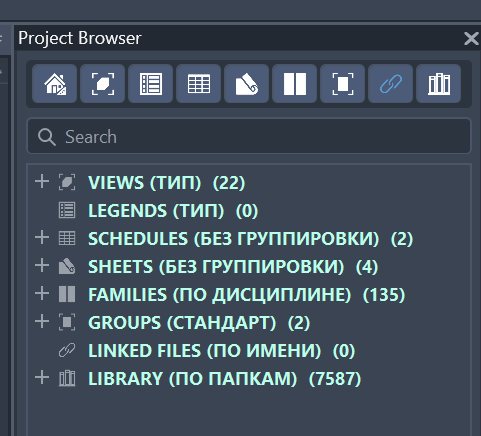
Revit.ProjectBrowser is placed as a dockable Revit panel and retains the familiar tree logic. Category switches are at the top, search is below them, and the main area is occupied by the tree with groups, elements, and counters. One category, several categories, or the combined All mode can be enabled.
Figure 1. Main window: switches for eight categories, search bar, tree, active schemes, and element counts.
Category
What is displayed
Practical benefit
Views
Plans, sections, elevations, 3D views, and other working representations.
Fast access to the required view and organization by type, level, discipline, and parameters.
Legends
Legends are separated from the general view list.
They can be searched and organized independently of working views.
Schedules
Schedules, material takeoffs, sheet lists, view lists, and note blocks.
Fast opening and batch unification of settings.
Sheets
Sheets and their custom structure.
Control of sets, numbers, view placement, and automatic numbering.
Families
Loaded families and types, including instance counts.
Management, saving, updating, selection, and placement of instances.
Groups
Model and detail groups.
Searching for group types and selecting all instances.
Linked files
Revit link types.
Managing load state, source, discipline, and link instances.
Library
RFA files from selected folders.
Searching and opening approved content without manually browsing directories.
Combined and single-category modes
Categories work as independent switches. The designer can leave only the required section visible or assemble a personal set of sections displayed at the same time. The system stores this choice locally, so it does not change colleagues' interfaces. Counters beside nodes show the actual amount of content and allow the model structure to be assessed quickly.
3. The Library category
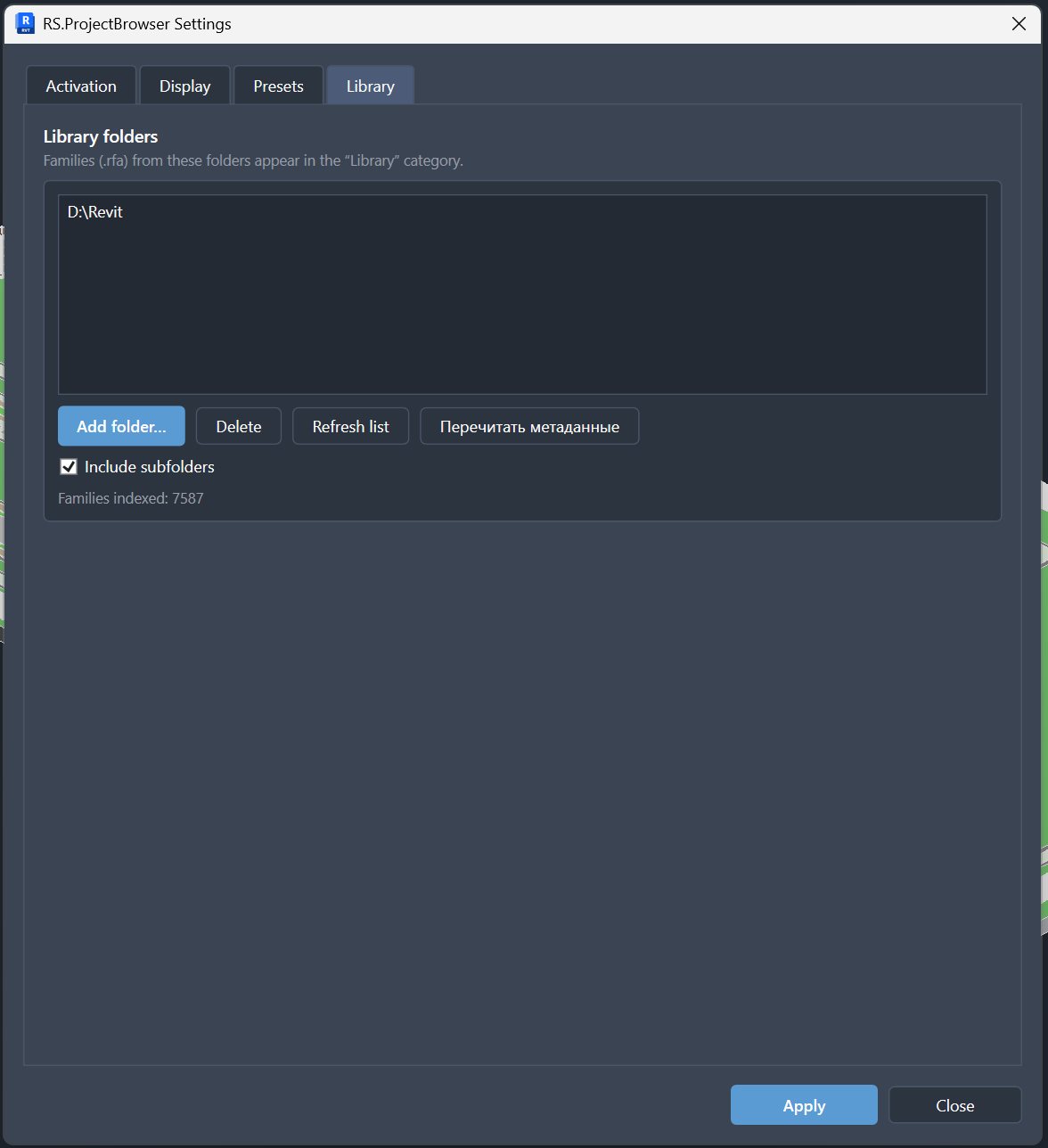
The Library turns family folders into a complete eighth browser section. In the settings, several local or network directories can be added, nested-folder scanning can be enabled, and the index can be refreshed at any time. The tree shows not the contents of the current model, but available RFA files that can be found and opened directly from Revit.
Figure 2. Library settings: multiple sources, nested folders, list refresh, and full metadata rereading.
How indexing works
Folder scanning and metadata reading run in the background and do not require every family to be opened sequentially in Revit.
The RFA name, category, types, saved Revit version, and text parameter metadata are extracted and included in search.
Backup files such as Family.0001.rfa are excluded automatically.
Unchanged files are read from cache, while deleted or modified records are updated.
The tree can be organized by folder, name, family category, or placement method: unhosted, host-based, or undefined.
Double-clicking or the Open command opens the selected family in Revit.
Why the library is more useful than an ordinary folder
The designer searches for a family by more than the file name. The index includes category, types, and descriptive parameter values, so the required object can be found by purpose, manufacturer, description, or another known attribute.
4. Grouping, filtering, and sorting for every category
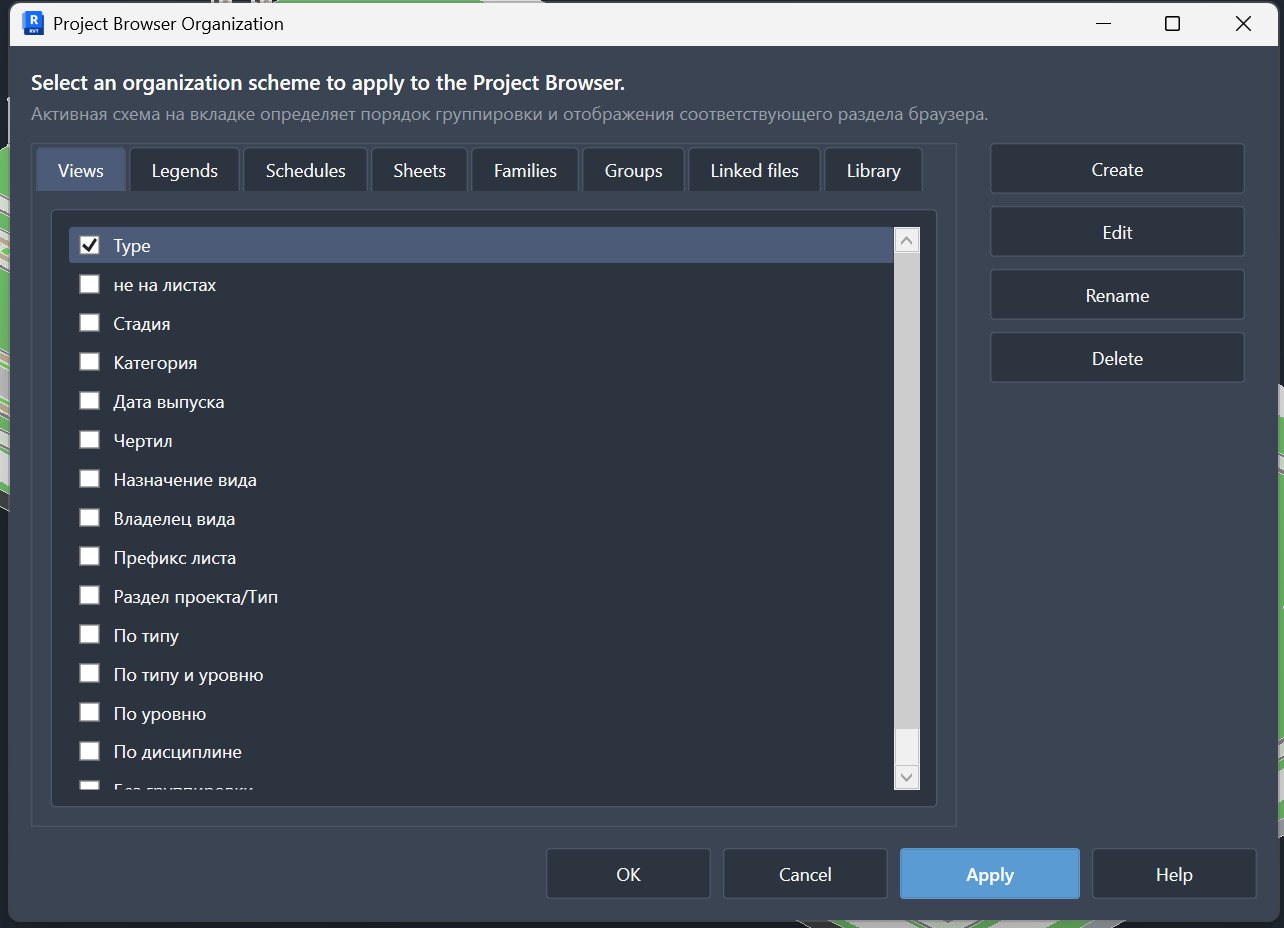
The Project Browser Organization window contains eight tabs, one for each category. On every tab, users can create, edit, rename, delete, and activate their own schemes. Changes are previewed in the tree, while the active-scheme choice is stored separately for the current user.
Up to three filter conditions combined with AND logic.
Up to six grouping levels with variable depth: when a value is absent, an element can skip a level and remain higher in the tree.
Grouping by parameter, view type and family, discipline, scale, detail level, associated level, sheet number or name, category, and other fields.
Filter operations: equals, does not equal, contains, does not contain, starts with, is empty, is not empty, and regular expression.
Grouping by the first N characters, with optional prefixes and suffixes added to folder names.
Sorting by a selected system field or parameter, in ascending or descending order.
For sheets, a separate parameter can be selected for display instead of the standard sheet number.
Practical example
Views can be grouped as Discipline → View Purpose → Level, sheets as Section → Set, families as Discipline → Category, links as Discipline → Source, and the library by folders or categories. All these structures operate independently.
5. Custom groups and drag-and-drop
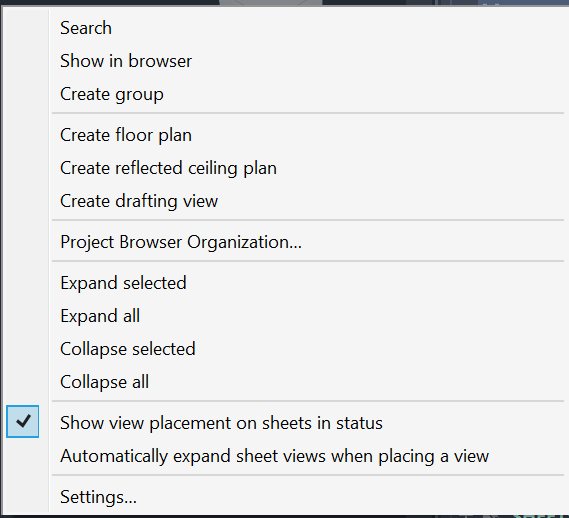
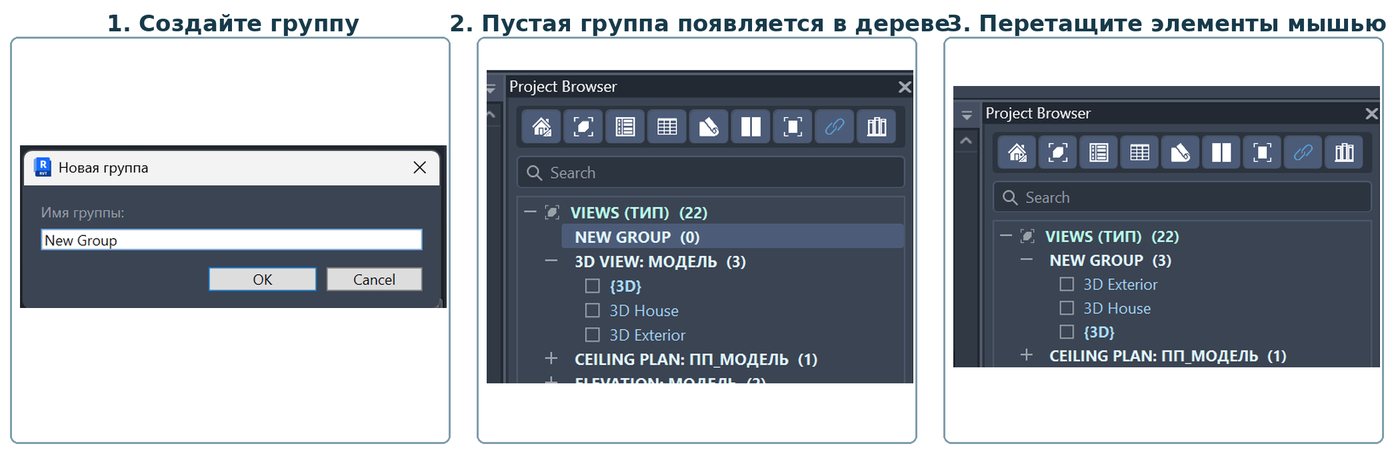
In addition to formal parameter-based schemes, Revit.ProjectBrowser can create a manual working structure. The Create Group command is available in model categories, and groups can contain nested subgroups. An element, family, or entire folder can be added through the context menu or dragged with the mouse.
Figure 4. Context menu: search, show active view, create group, create Revit elements, organization, and expansion control.
Figure 5. Creating a custom group and dragging selected views into it.
Two types of movement
Where the element is moved
What happens
When to use it
Into a custom group
The element's membership in the manual group is stored in the model. The element's source parameters are not changed.
For a personal or team working structure that does not have to match the project's formal classification.
Into a scheme folder based on a custom parameter
The solution changes a writable parameter so that, after the tree is rebuilt, the element appears in the target folder.
For quickly filling parameters and maintaining the project's formal structure.
Into a folder based on a system or calculated property
Movement is blocked if it would require changing a system, read-only, or ambiguous property.
This protects the model from hidden or incorrect changes.
Custom groups are stored inside the model through Extensible Storage and travel with it. In a workshared model they are available to project participants, while personal expansion state, visibility, and selected schemes remain local.
6. Independent user settings and presets
Revit.ProjectBrowser separates the shared model structure from the personal workspace. Organization schemes and custom groups may be stored in the model, but active-scheme selection, category visibility, expanded nodes, and appearance are stored locally for a specific login, document, and Revit version. Therefore, participants in the same model do not overwrite one another's working settings.
Worksharing example
An architect can see views by purpose and level, a structural engineer by discipline and type, and a BIM coordinator by owner and stage. All three work in the same model, but each receives a personal browser.
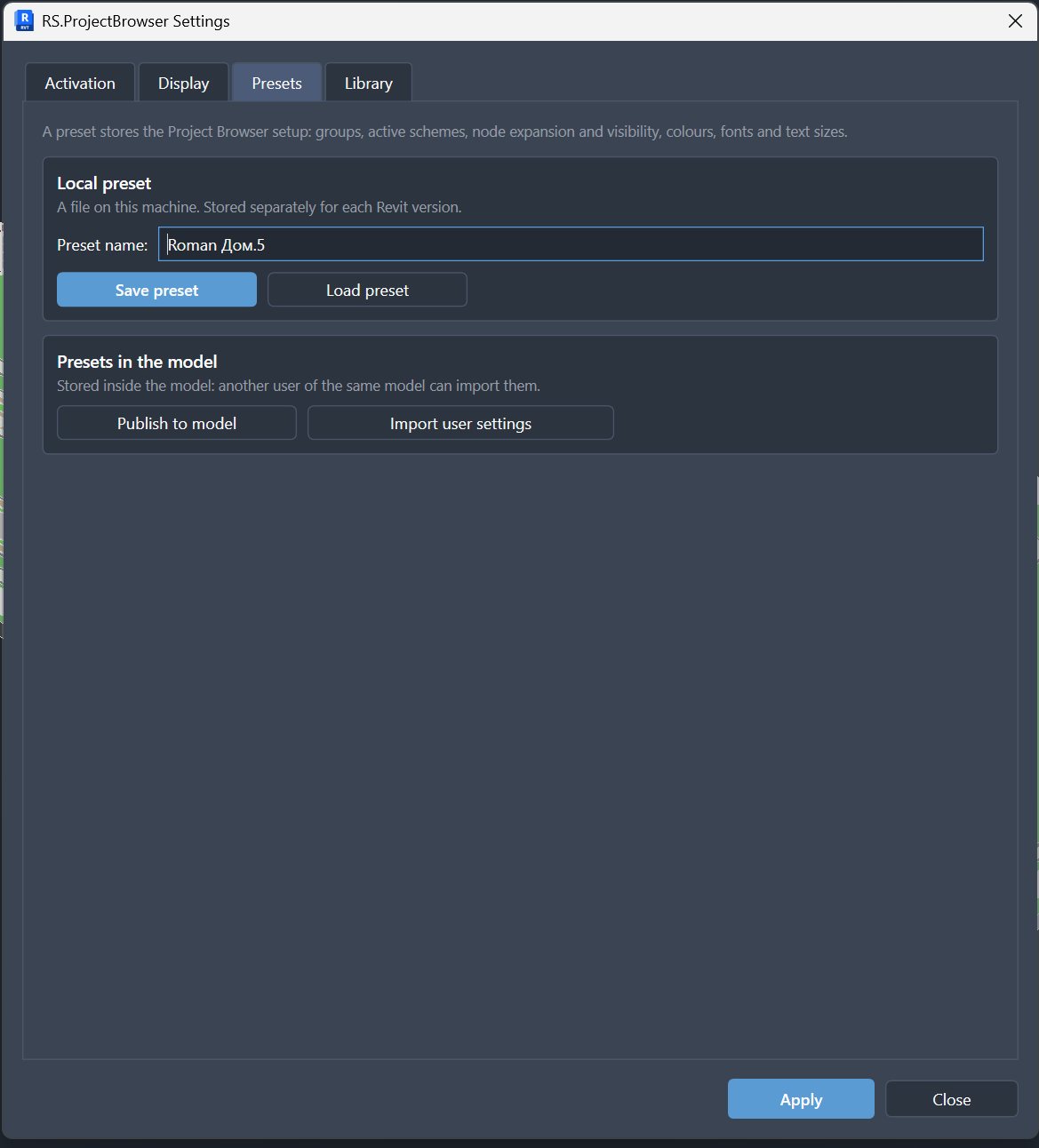
Figure 6. Presets: local saving, loading, publishing to the model, and importing user settings.
What a preset includes
Organization schemes and custom groups.
Selection of active schemes by category.
Category visibility and node-expansion state.
Colors, fonts, sizes, capitalization, brackets, and text compression.
Other local browser display settings.
A local preset is saved as a separate file on the workstation. When required, the user publishes the preset to the model, after which colleagues can import it as a starting point while retaining the ability to customize their own version later.
7. Search, navigation, and view-placement control
Search works in the current category or within a selected tree branch. The query is split into words, and an element must match all entered fragments. This makes it possible to find the required views, sheets, families, and links without fully expanding large trees.
Navigation capabilities
Quick opening of a view, legend, schedule, or sheet from the tree.
Showing the current active view in the browser with automatic expansion of its path.
Separate visual highlighting of the active view.
Searching within a specific group, folder, or category.
Expanding and collapsing selected branches or the entire tree.
Saving the expansion state separately for each document and category.
Displaying information in the status bar about the sheets on which the selected view is placed.
Automatically expanding sheet views when a view is placed.
The required object is found by name or context in a few seconds, without long scrolling or manual tree traversal.
8. Operations with views, legends, schedules, and sheets
The browser is not limited to display. Context commands perform routine operations directly beside the selected object, support multiple selection, and use standard Revit transactions.
Views and legends
Creating a floor plan, reflected ceiling plan, drafting view, legend, and keynote legend.
Opening, renaming, deleting, and displaying properties.
Standard duplication, duplication with detailing, or duplication as a dependent view.
Applying a view template to the selected view.
Converting a dependent view into an independent view.
Schedules
Creating a schedule/quantities, graphical column schedule, material takeoff, sheet list, view list, and note block.
The Unify command for two or more schedules of the same category and type.
Batch alignment of field sets, column order, filters, sorting/grouping, header formatting, hiding, totals, and display parameters.
The solution compares selected schedules, presents differing values as options, and writes back only the parameters the user actually changes.
Sheets
Creating a new sheet with the standard Revit command.
Creating a sheet collection in Revit 2025 and later.
Automatic numbering of selected sheets in tree order: prefix, suffix, starting number, increment, and digit count.
Two-pass renumbering prevents conflicts between temporary and final numbers.
Showing where a view is placed on sheets and automatically expanding sheet contents.
Why the commands are located in the browser
The designer performs the action where the object is already selected. There is no need to find a command on another ribbon tab, select the element again, or open an additional list.
9. Working with families, groups, and linked files
Families
In the Families category, the browser shows families and types and, in the standard structure, also displays the number of placed instances. Views by category, name, discipline, and usage count are available.
Creating a new family type and renaming a family or type.
Opening a family for editing, saving one or more families to disk, and updating from a file.
Deleting selected families with processing of problematic elements.
Selecting all instances of a type in the active view or throughout the project.
Starting placement of a new instance of the selected type.
Assigning and clearing a custom discipline for a family or an entire category.
Groups
Separate display of model and detail groups.
Creating a model group with the standard Revit command.
Renaming, deleting, displaying properties, and selecting all instances in the view or throughout the project.
Any custom schemes and manual groups, as with the other categories.
Linked files
Links can be organized in the standard way, by discipline, or by source: local drive, Revit Server, or ACC/cloud. The main operational commands are available for each link type.
Reload, unload, and reload from another file.
Save link sites/positioning.
Create a new instance of the link type.
Select instances in the current view, throughout the project, or throughout the project including legends.
Rename or delete selected links.
Assign a discipline manually and then use it for grouping.
10. Tree appearance settings
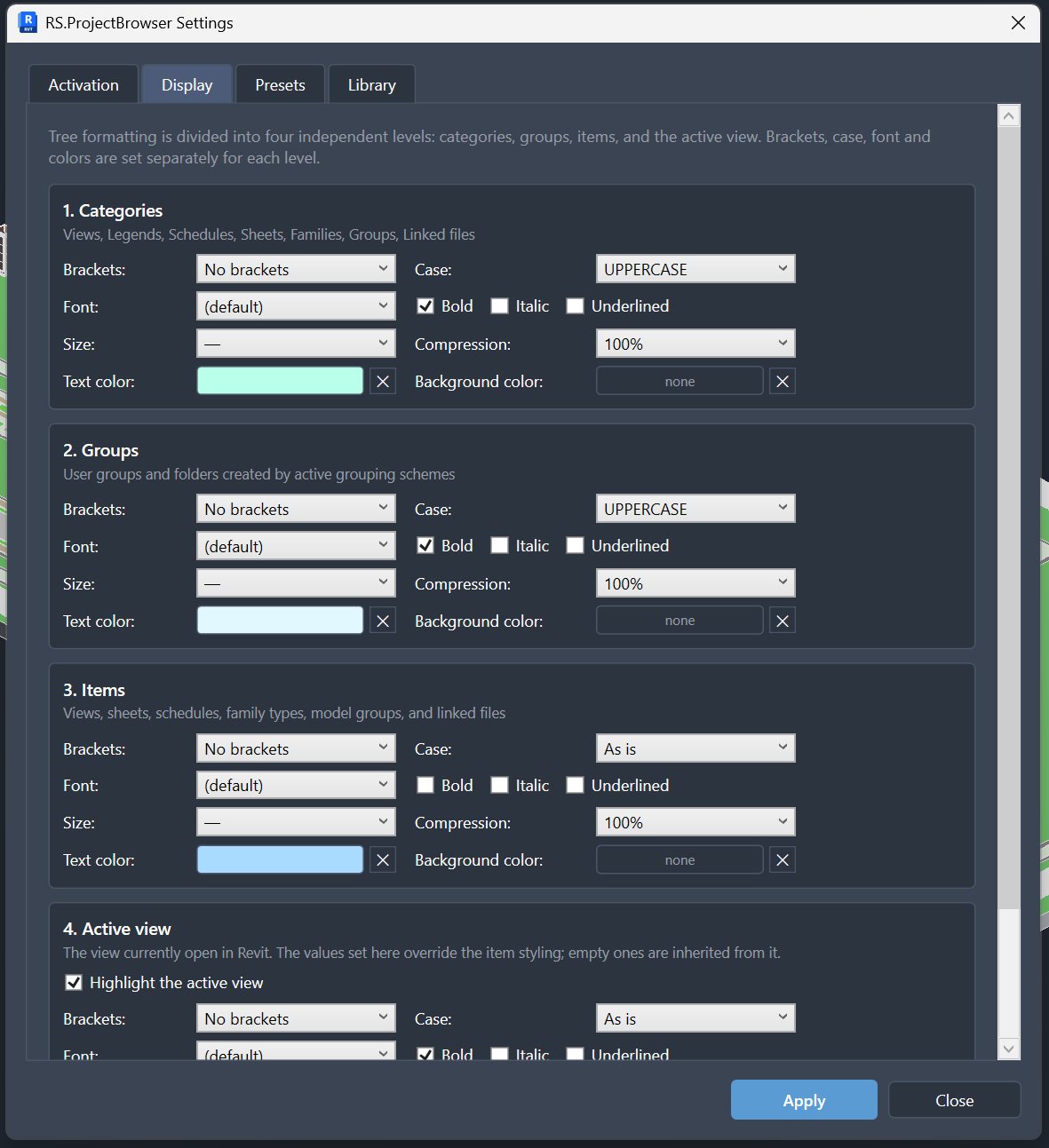
Appearance is divided into four independent levels: categories, groups, elements, and the active view. This creates a clear visual hierarchy in which major sections stand out, working elements remain easy to read, and the current view is highlighted separately.
Figure 7. Display settings for categories, groups, elements, and the active view.
Setting
What can be configured
Practical effect
Brackets
A bracket type or no brackets for each level.
Consistent visual designation of categories and groups.
Capitalization
As entered, UPPERCASE, or lowercase.
Major sections are easy to distinguish from ordinary elements.
Font
Family, size, bold, italic, and underline.
Comfortable reading at different interface scales.
Color
Separate text and background colors.
Important groups, categories, and the active view are visible immediately.
Compression
Percentage of horizontal text compression.
Long names fit inside a narrow docked panel.
Active view
Independent appearance with inheritance of unspecified settings.
The current working context is always visible in the tree.
11. Extended RS.CDE mode
In a corporate environment, Revit.ProjectBrowser can operate as a client of the RS.CDE server core. In this mode, the browser becomes not only a personal navigation tool but also a point at which project rules are applied. Policies are assigned by role and may differ for designers, BIM coordinators, team leaders, and administrators.
Examples of server policies
Allow families to be loaded only from approved Library folders.
Prohibit loading third-party RFA content or require approval of an exception.
Restrict the creation, deletion, or renaming of views, sheets, schedules, and links.
Prescribe a mandatory naming scheme, grouping structure, or parameter completion.
Prohibit specific commands for users without the appropriate role.
Record violations, mandatory actions, and the status of requirement fulfillment.
Mode
Who manages it
What the designer receives
Local
The user and the model's shared data.
Personal organization, library, search, commands, and presets without a server dependency.
RS.CDE server mode
The project administrator through a role matrix and policies.
The same working tools, but within unified permissions, mandatory rules, and controlled content.
Clarification regarding the supplied archive
The RS.ProjectBrowser 1.0.91 source archive confirms the local functionality described in sections 1–10. The RS.CDE integration client and server-side policy mechanism are not present in this archive; they belong to a separate corporate environment and must be supplied or connected together with the server core.
12. Practical scenarios
Scenario 1. An architect organizes views for the current task
The architect creates a manual Review Issue group, drags plans, elevations, and sections into it, and after issue either deletes the group or moves the elements back. View parameters are not changed.
Scenario 2. A BIM manager defines a formal structure
A Discipline → View Purpose → Level scheme is created with service views filtered out. Elements grouped by a custom parameter can be dragged between folders while the parameter value is corrected at the same time.
Scenario 3. An engineer searches for a family in a network library
The engineer enters a purpose or manufacturer in search. The browser finds the RFA through indexed metadata, shows its folder and category, and then the family can be opened in Revit.
Scenario 4. Several specialists work in one model
The architect leaves only views and sheets, the engineer uses views, schedules, and families, and the BIM coordinator displays every category. Settings are stored locally and do not switch colleagues' interfaces.
Scenario 5. Unifying schedules
The designer selects several schedules of one category and brings their fields, filters, sorting, and formatting to a consistent state in one operation.
Scenario 6. Preparing a sheet set
Sheets are grouped by section and set, after which the selected set is automatically renumbered with the required prefix, increment, and digit count.
Scenario 7. Corporate RS.CDE library
The administrator permits loading only from approved network folders. The designer sees allowed families in the Library, while an attempt to use third-party content is blocked by project policy.
13. Benefits for designers and the team
Benefit
What this means in practice
Find the required item faster
Search, eight categories, counters, and search within a branch reduce scrolling through large trees.
Work in a personal structure
Active schemes, visibility, expansion, and appearance are independent for every user.
Keep the library and model separate
Loaded families and external RFA files are separated, but available from one interface.
Maintain order without manual routine
Parameter-based grouping and dragging into scheme folders help organize the tree and populate data at the same time.
Perform actions beside the object
Renaming, duplication, templates, and management of families, links, sheets, and schedules are available from the context menu.
Standardize the team without rigidly unifying the interface
A BIM manager publishes a preset, and participants import it and adapt it locally when required.
Control content and rules
In RS.CDE server mode, the library and browser actions are governed by project role policies.
For BIM coordinators and BIM managers
The same organization mechanisms are available in every category, so standards do not end with views and sheets.
Presets can be published into the model as a recommended team structure.
Disciplines can be assigned explicitly to families and links and then used for grouping.
Schedule unification and automatic sheet numbering reduce repetitive operations.
RS.CDE server policies turn recommendations into verifiable mandatory rules.
Project result
The Project Browser stops being a long shared list. It becomes a designer's personal workspace and, at the same time, a managed layer of project standards.
14. Recommended workflow
Connect approved local or network folders in the Library category and run indexing.
Determine which categories are required for the current role and disable the rest in the combined view.
For each working category, select an existing scheme or create a new one with filters, grouping levels, and sorting.
Configure the appearance of categories, groups, elements, and the active view.
Save a personal preset. If the structure is useful to the team, publish it to the model.
Use custom groups for temporary work and parameter-based schemes for formal classification.
Find elements through the search bar or start a search inside the selected branch.
Use context commands for operations with views, sheets, schedules, families, groups, and links.
In corporate mode, apply RS.CDE policies by role and avoid unnecessary individual exceptions.
Rules for effective configuration
Do not create more grouping levels than are practically necessary: the tree should shorten the path, not complicate it.
Use manual groups for temporary selections rather than adding project parameters.
For stable team classification, use parameters with clear permitted values.
Name presets by discipline, purpose, and version, for example Architecture — working views — 2026-07.
Before dragging many elements into a scheme folder, check which parameter will be changed.
Periodically refresh the library index after network folders are changed.
15. Summary
Revit.ProjectBrowser extends the standard Revit Project Browser where it becomes inconvenient on a real project: it adds the eighth Library category, applies grouping and sorting to every category, allows manual groups and drag-and-drop, and stores an independent workspace for each user.
The 1.0.91 code also confirms advanced operations with views, sheets, schedules, families, groups, and links: branch search, active-view highlighting, schedule unification, automatic sheet numbering, family and Revit-link management, background library indexing, and movement through parameter-based schemes.
When a separate RS.CDE server environment is connected, the solution can become a point for applying role-based project rules: control the permitted library, restrict actions, and prescribe a mandatory structure. Local personalization and corporate standardization do not conflict: the user receives a convenient browser, while the project receives managed rules.
Result for the designer
Less time spent searching and navigating, less visual clutter, faster routine actions, and a clear personal structure without interfering with colleagues' working settings.
Revit.ProjectBrowser in brief
Function
Purpose
Result
8 categories
Bring model data and the external library together in one browser.
A complete working picture without browsing several windows and folders.
Organization for every section
Filter, group, and sort any category.
One consistent structure logic for the entire project.
Custom groups
Create temporary working selections with the mouse.
Fast organization without unnecessary parameters.
Personal settings
Separate the shared model from the individual interface.