
Chats
Short questions and discussions tied to the active project and model.
A daily project-communication panel inside Revit. Keep model discussions, assignments, formal approvals, AI assistance and requests to BIM specialists in the same workspace as the active model.
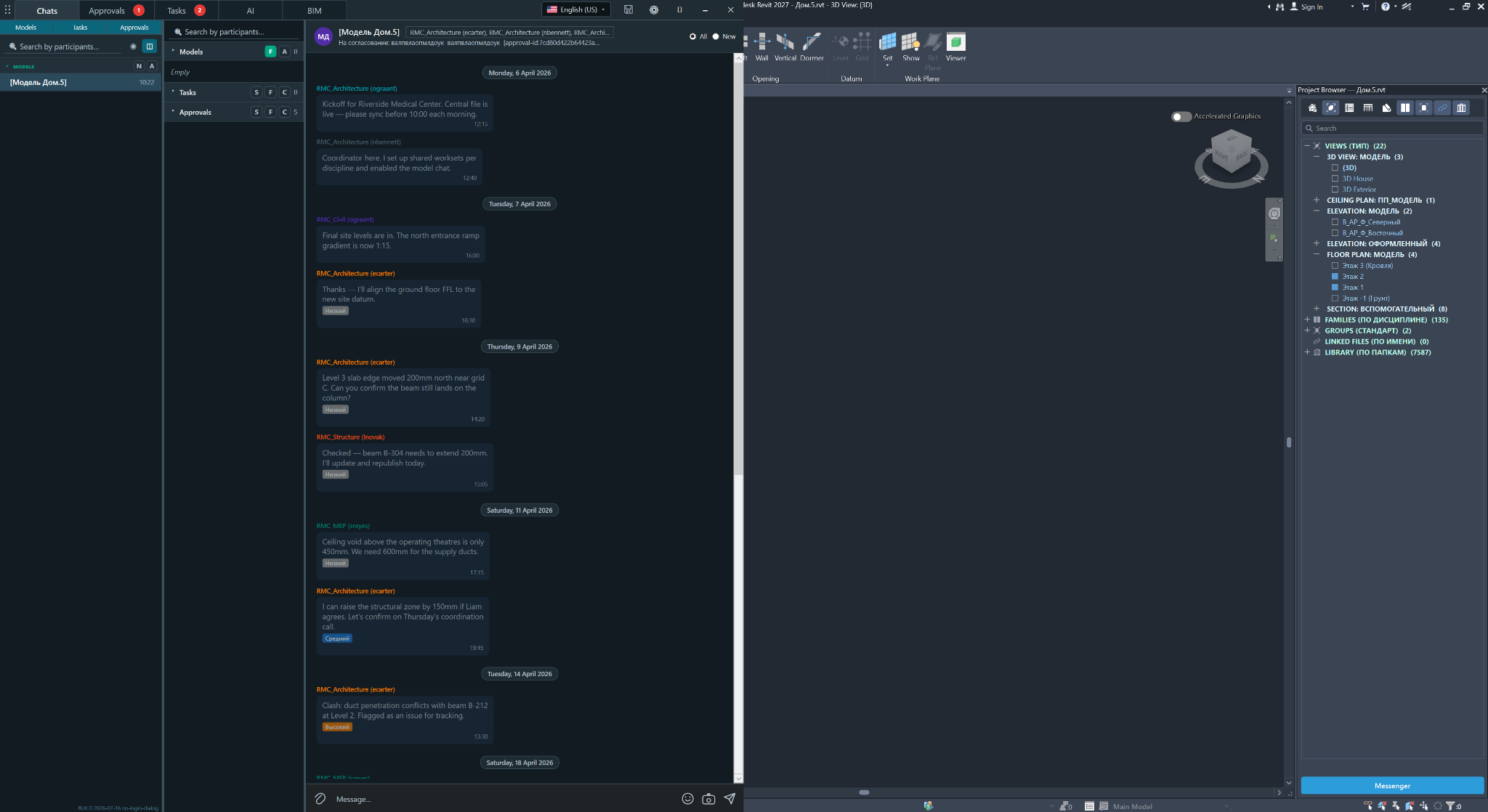 Communication stays beside the active model
Chats, approvals, tasks, AI Bridge and BIM requests stay beside the model instead of being scattered across email and external services.
Short questions and discussions tied to the active project and model.
Formal requests for checking or confirmation with an initiator, due date, status and history.
Assignments with an assignee, priority, deadline and List, Kanban, Calendar and Gantt views.
Administrator-controlled AI access through an rsai_ token without exposing the service API key.
Requests to BIM specialists with status filtering and a dedicated conversation for each issue.
REVIT.Messenger separates interaction types so responsibility, deadlines and confirmed decisions do not disappear in a common message feed.
Use a chat for clarification, a short discussion or a question about a level, zone, element, sheet or view.
Example: Confirm the ramp level at the north entrance.Create a task when a specific person must do something by a deadline and the team needs to see its status.
Example: Check the duct and beam clash on Level 3 by Friday.Use an approval for checking, confirmation or release decisions that must remain in the project history.
Example: Approve the Level 3 structural framing package.The chat handles quick model questions. Approvals add recipients, a due date, priority and a package of Revit sheets or views when the result must be formally confirmed.
The communication panel remains beside the active Revit model, so the designer can discuss, assign and approve without leaving the authoring environment.
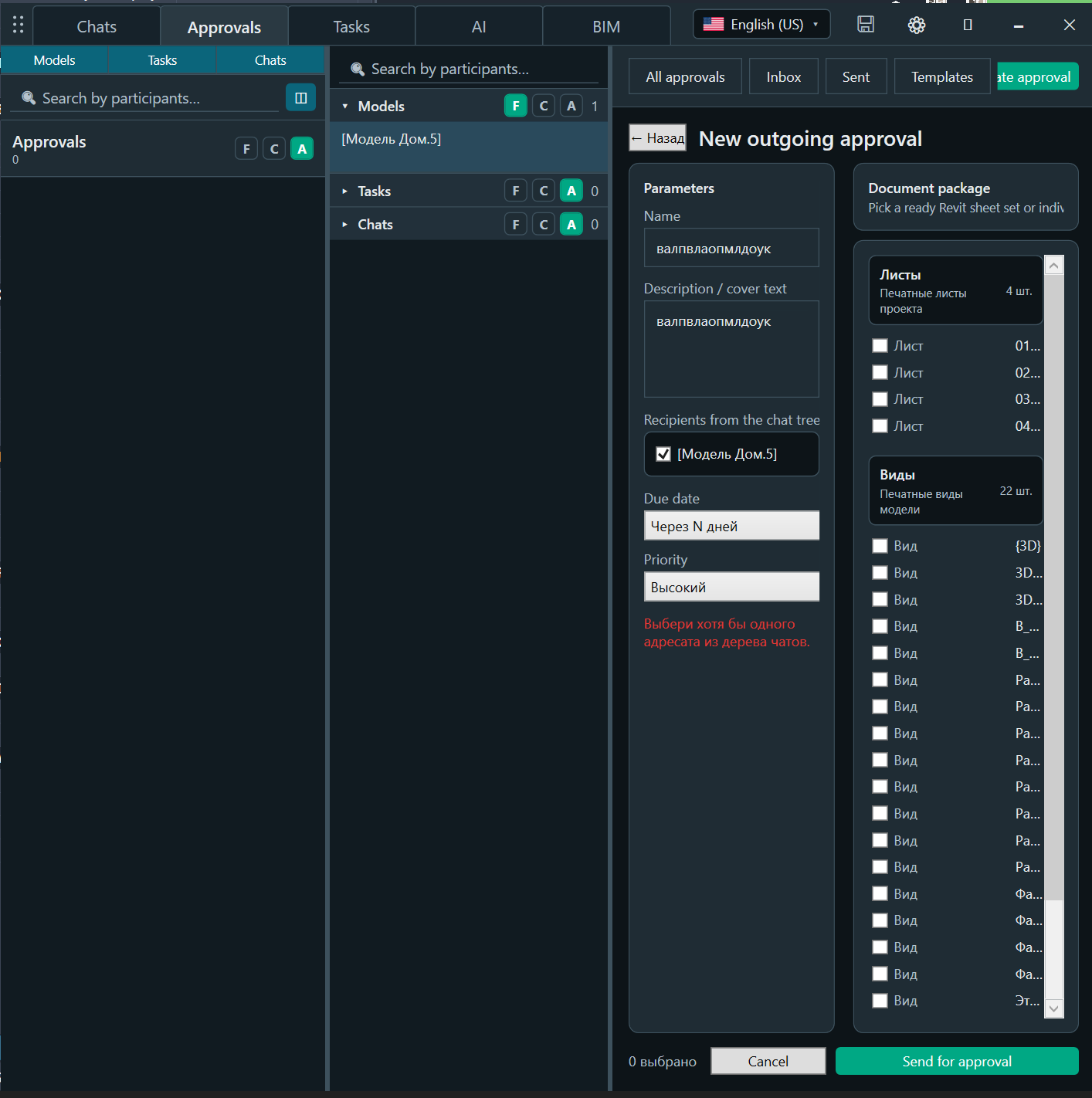
Set the subject, cover text, recipients, due date and priority, then include the required Revit sheets or views in the document package.
Use the list for rapid review, Kanban for status work, Calendar for due dates and Gantt for a day-by-day schedule. Filters help isolate overdue, today, this week and closed tasks.
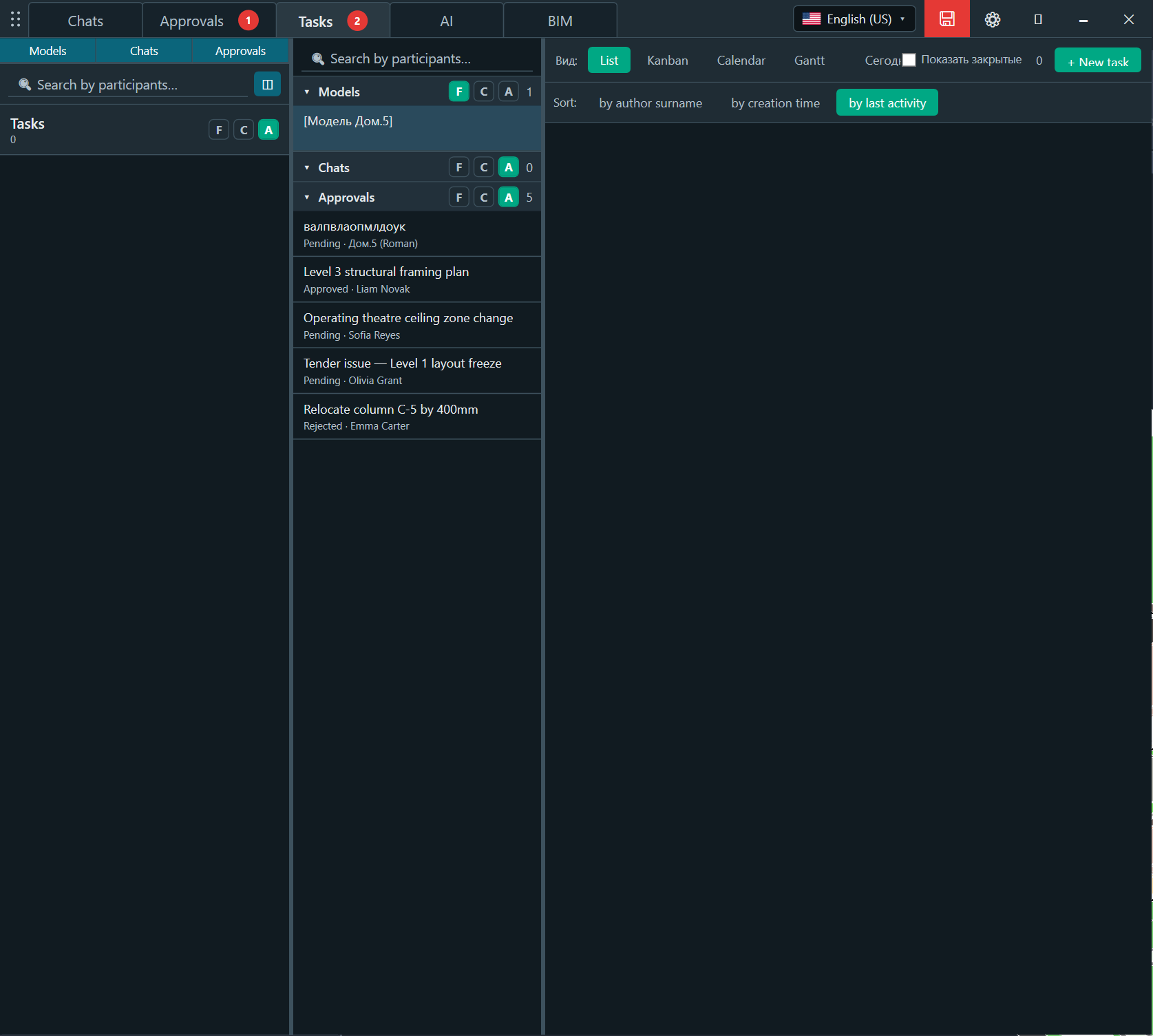
Assignments are shown with the responsible participant, status, priority and due date for fast operational control.
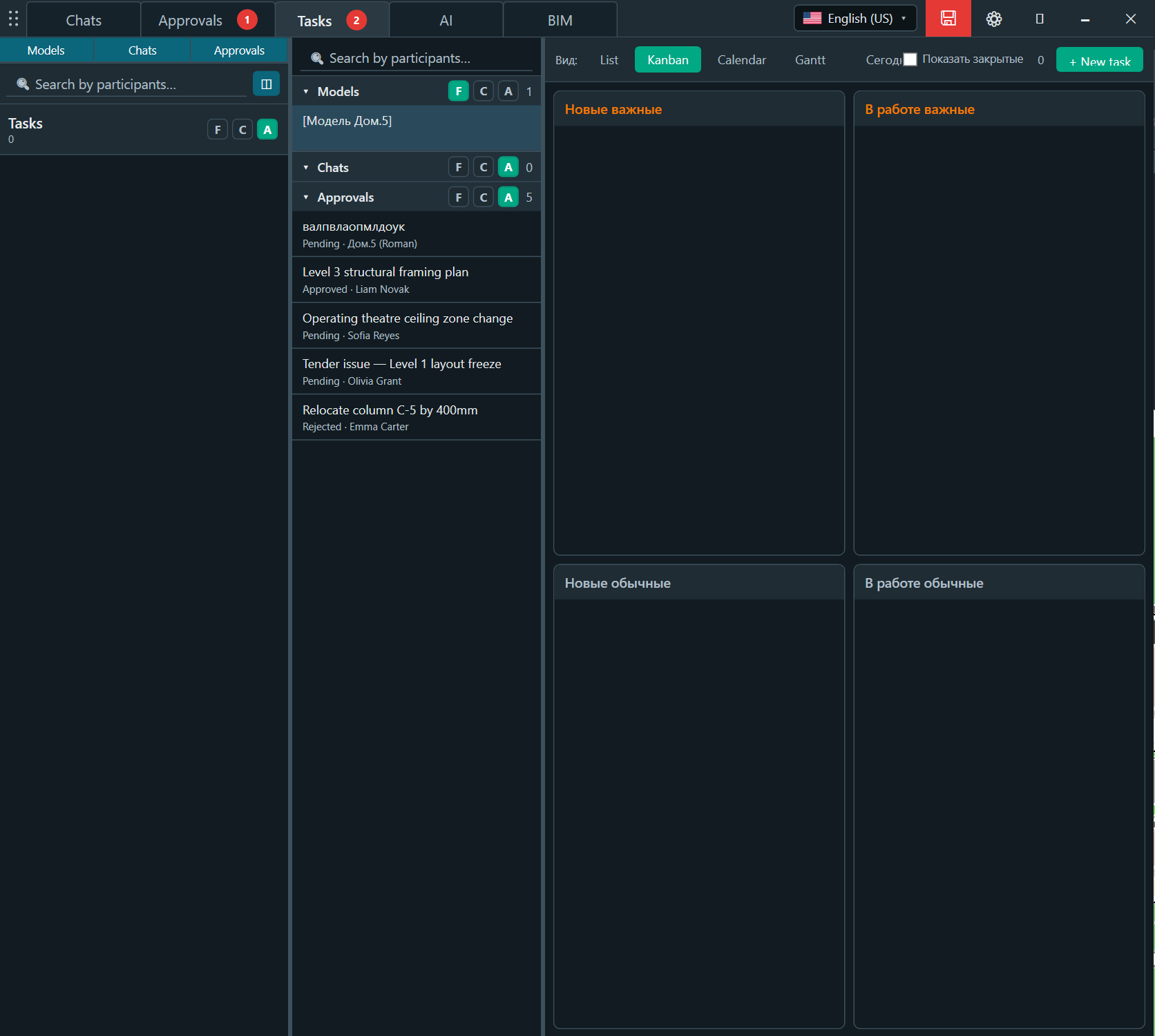
Cards are separated by importance and work status and can be moved between New and In progress columns.
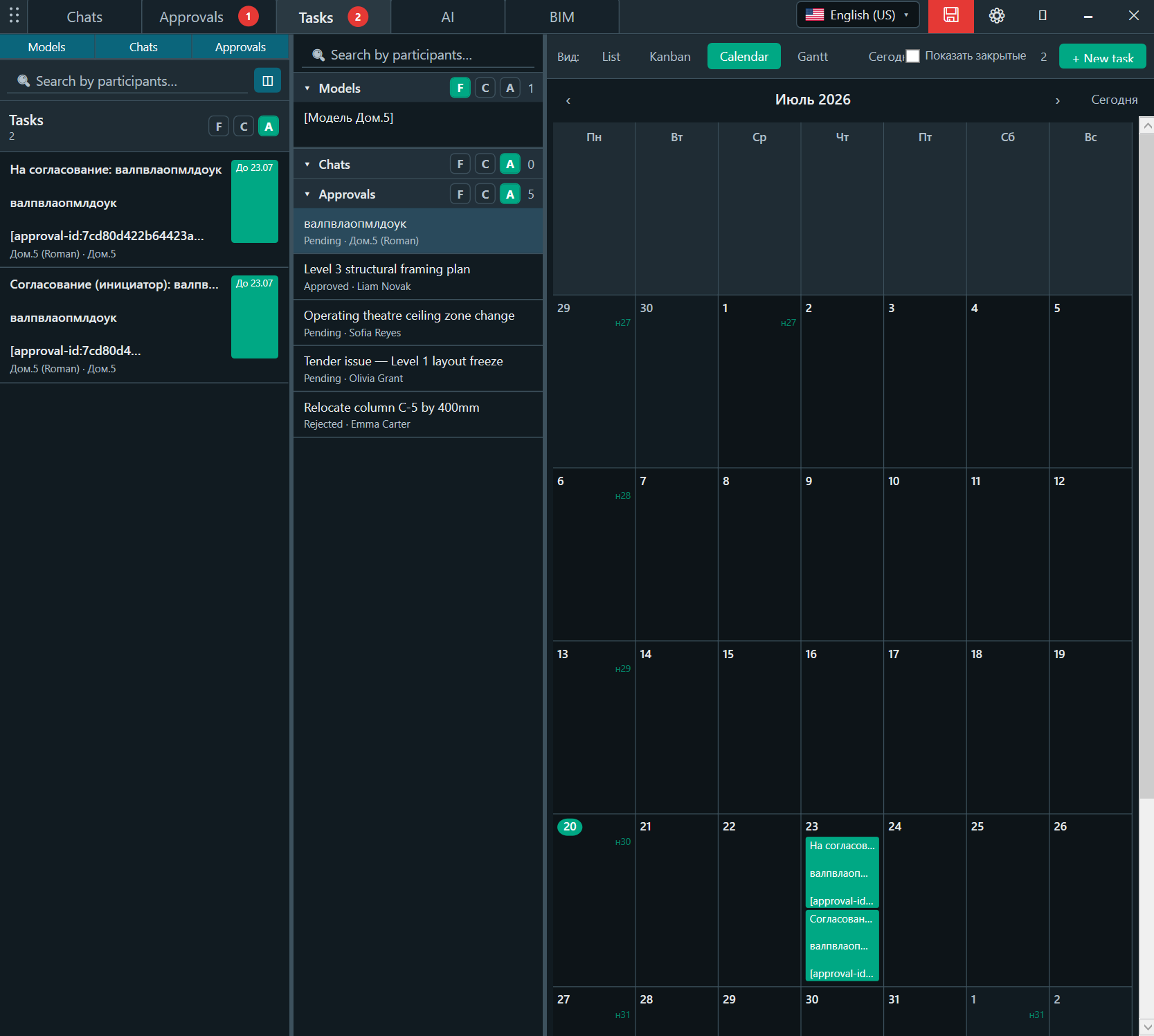
Each task appears on its due date, making daily and weekly workload easier to read.
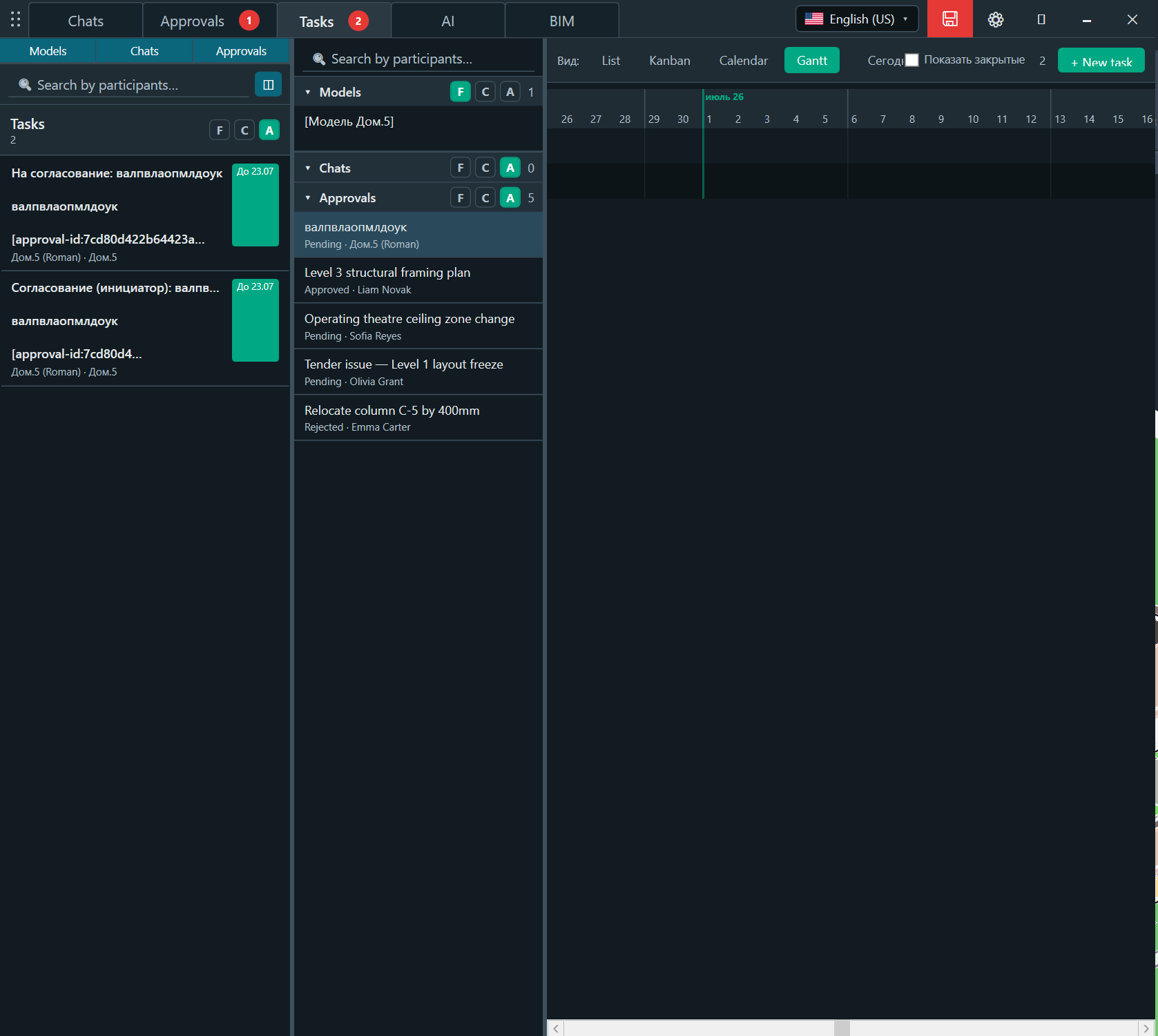
The timeline shows task periods by day for deadline and sequence control.
AI Bridge is connected with an administrator-issued token. BIM requests have their own status and correspondence, so technical support questions remain visible to the team.
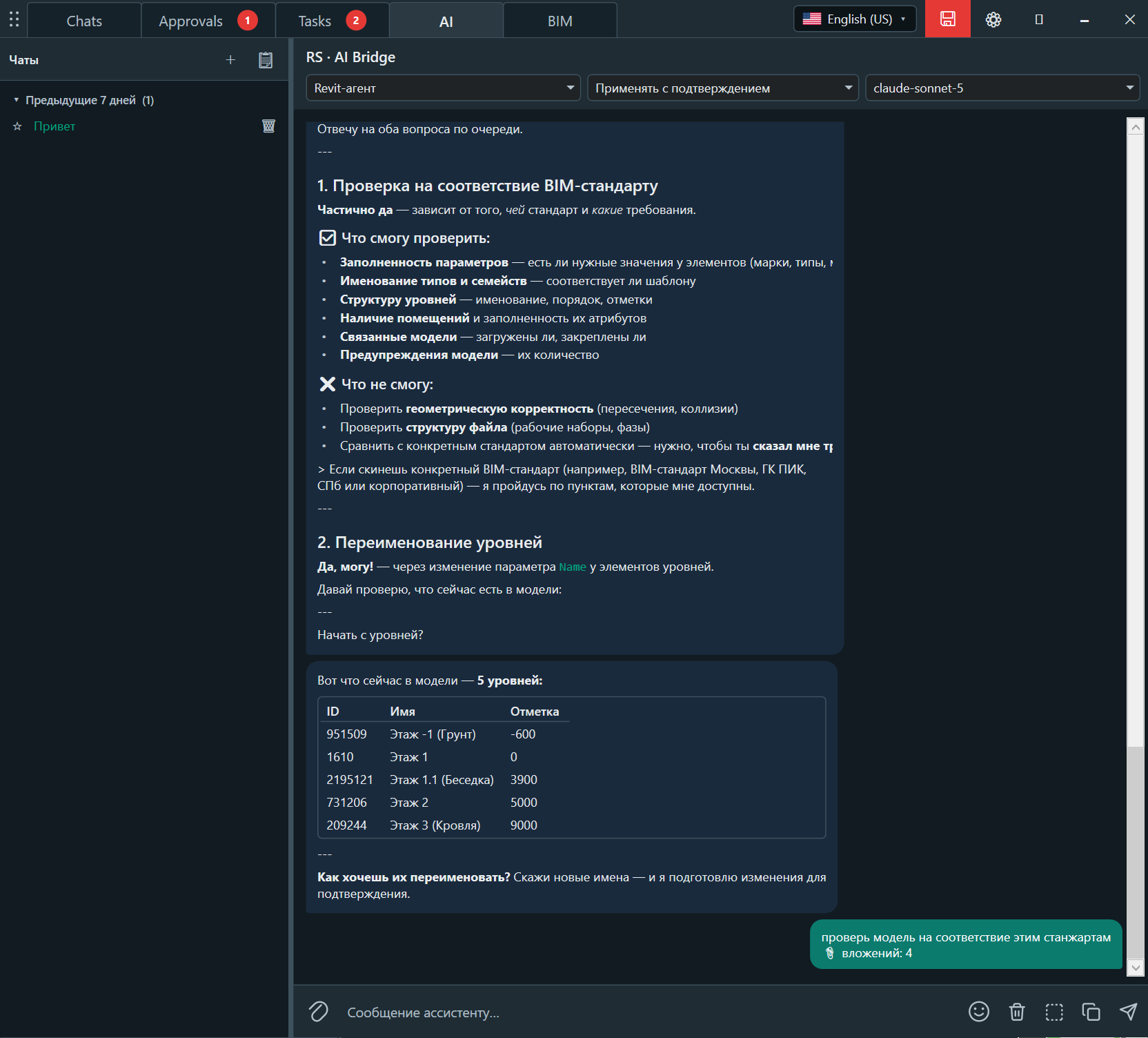
Select the Revit agent, action mode and model. The administrator issues an rsai_ token, while the actual AI service API key is not stored in the plugin or disclosed to the user.
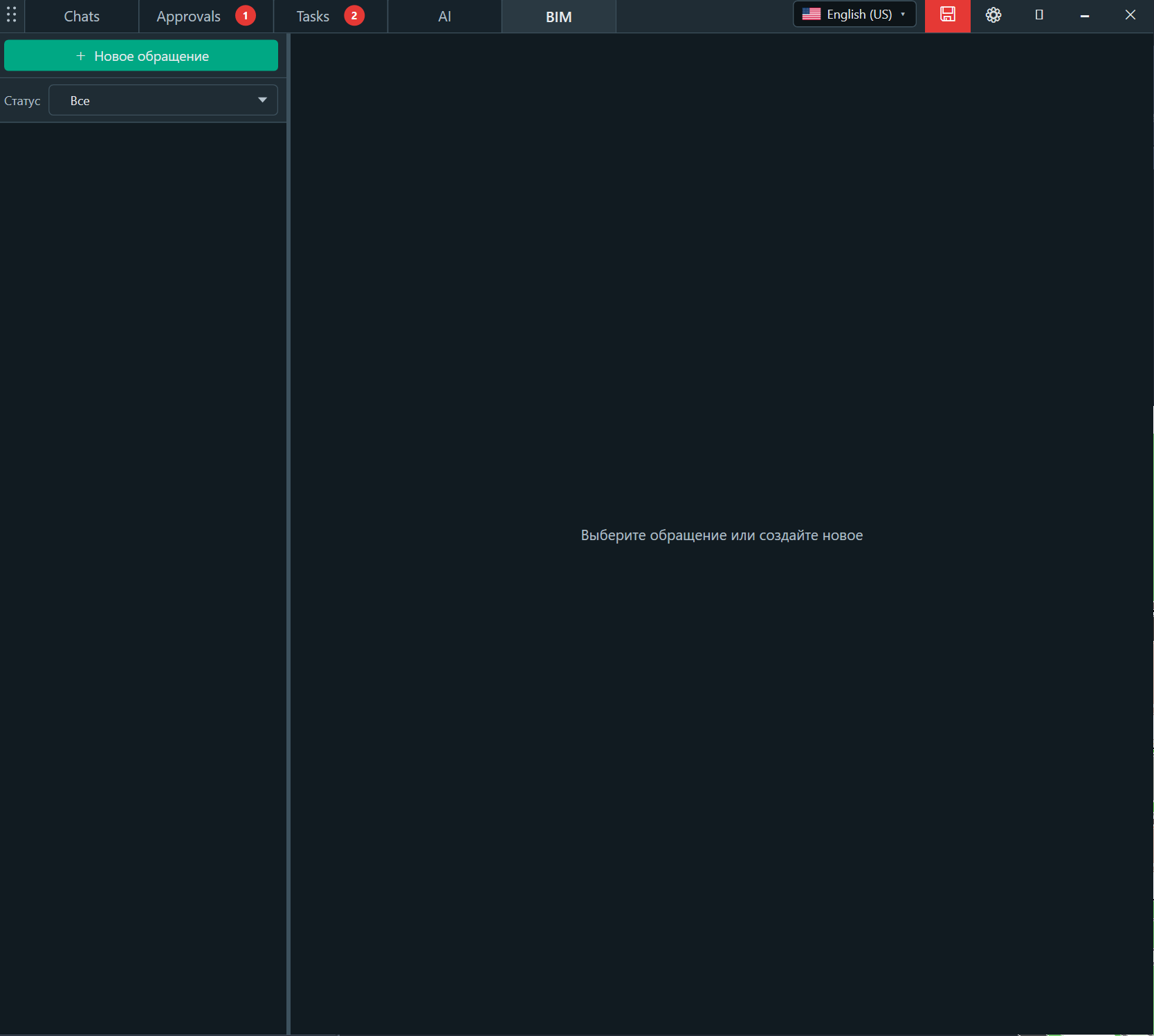
Create a request to BIM specialists, filter the list by status and keep the discussion attached to the specific issue until it is resolved.
The plugin is designed for the recurring daily cycle inside Revit: discuss, assign, confirm, support and return to the model.
Start REVIT.Messenger from the RS-Systems ribbon and select the model or project context.
Use a precise reference to the level, zone, element, sheet or view so the team understands the context.
When action is required, specify the performer, deadline, priority and expected result.
For a formal decision, select recipients and attach the required sheets or views.
Track status and activity, finish completed tasks and approvals, and keep only active work in the register.
The same interface supports designers, BIM coordination and formal reviewers without forcing every participant into a separate coordination application.
The guide identifies the following primary users of the solution.
REVIT.Messenger does not replace a full CDE platform or Autodesk Construction Cloud. Its purpose is the fast everyday scenario inside Revit: discuss, assign, approve and continue modelling.
The current DOCX guide covers installation, first launch, chats, approvals, tasks, AI Bridge, BIM requests, recommended practice and common situations.