

01
Command on the RS-Systems ribbon
Link Manager opens from the RS-Systems tab and gathers every linked-model source in one window without leaving the active model.
Collect, inspect and synchronize linked RVT files from local folders, Revit Server and ACC. One window shows source files, model links, worksets and actions for loading related information.
 One workflow for all linked models
The screenshots below show the actual Revit.LinkedModels manager: the RS-Systems ribbon and the Local files, Revit Server and ACC tabs in one window.
Link Manager opens from the RS-Systems tab and gathers every linked-model source in one window without leaving the active model.
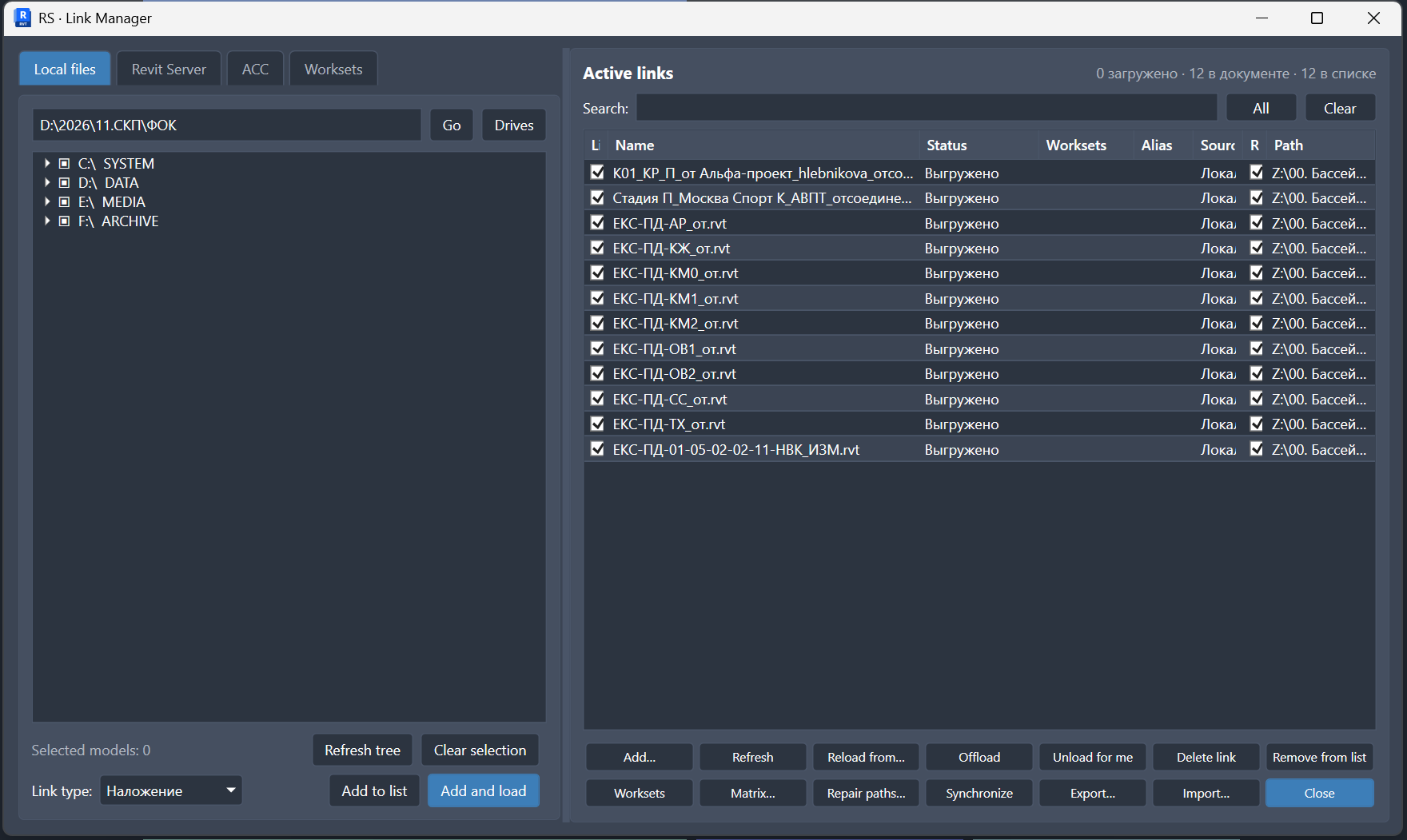
Point the panel at a local folder to list its RVT files with sizes and paths, then select the models to link.
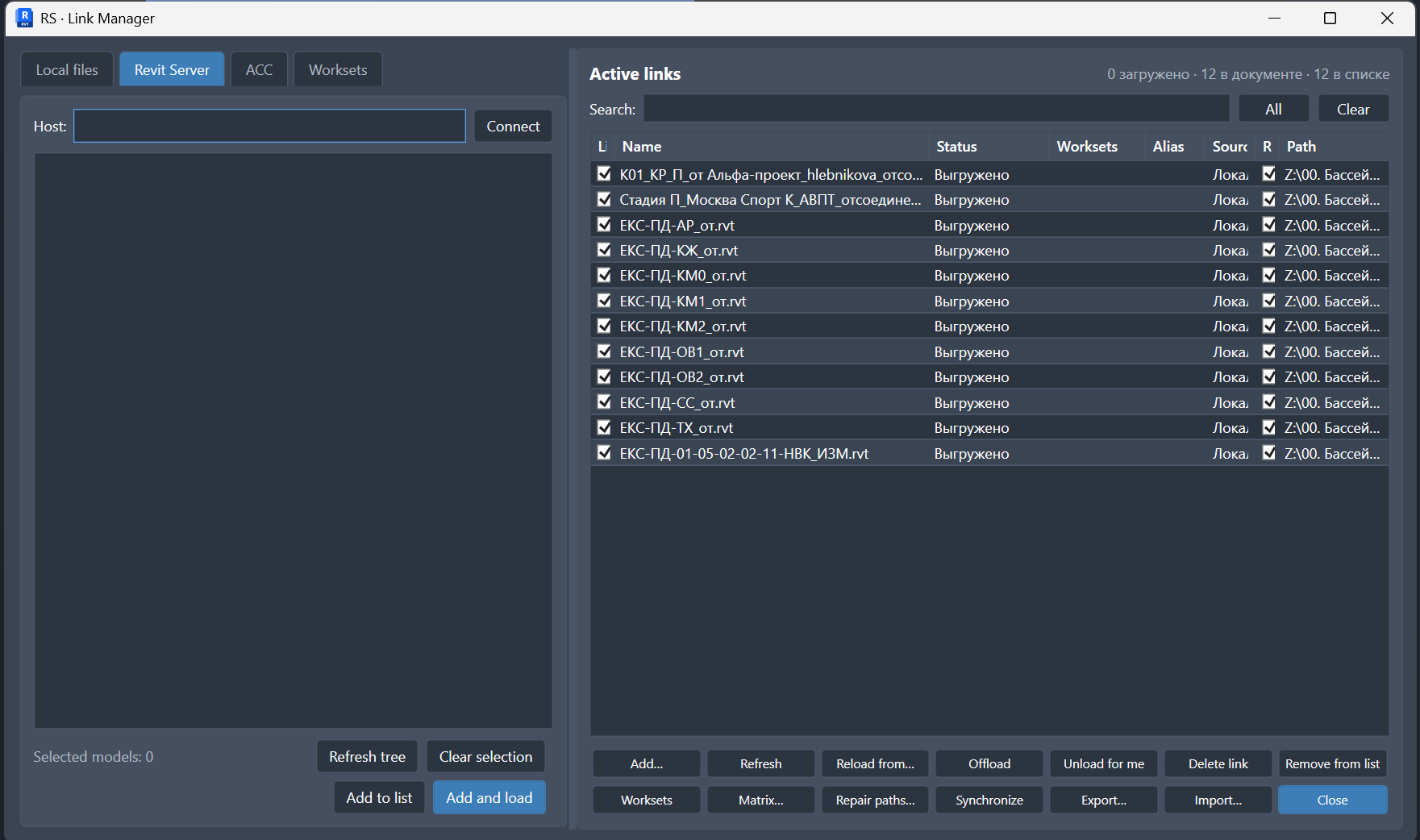
Browse models published on Revit Server and add the ones you need as links without leaving the session.
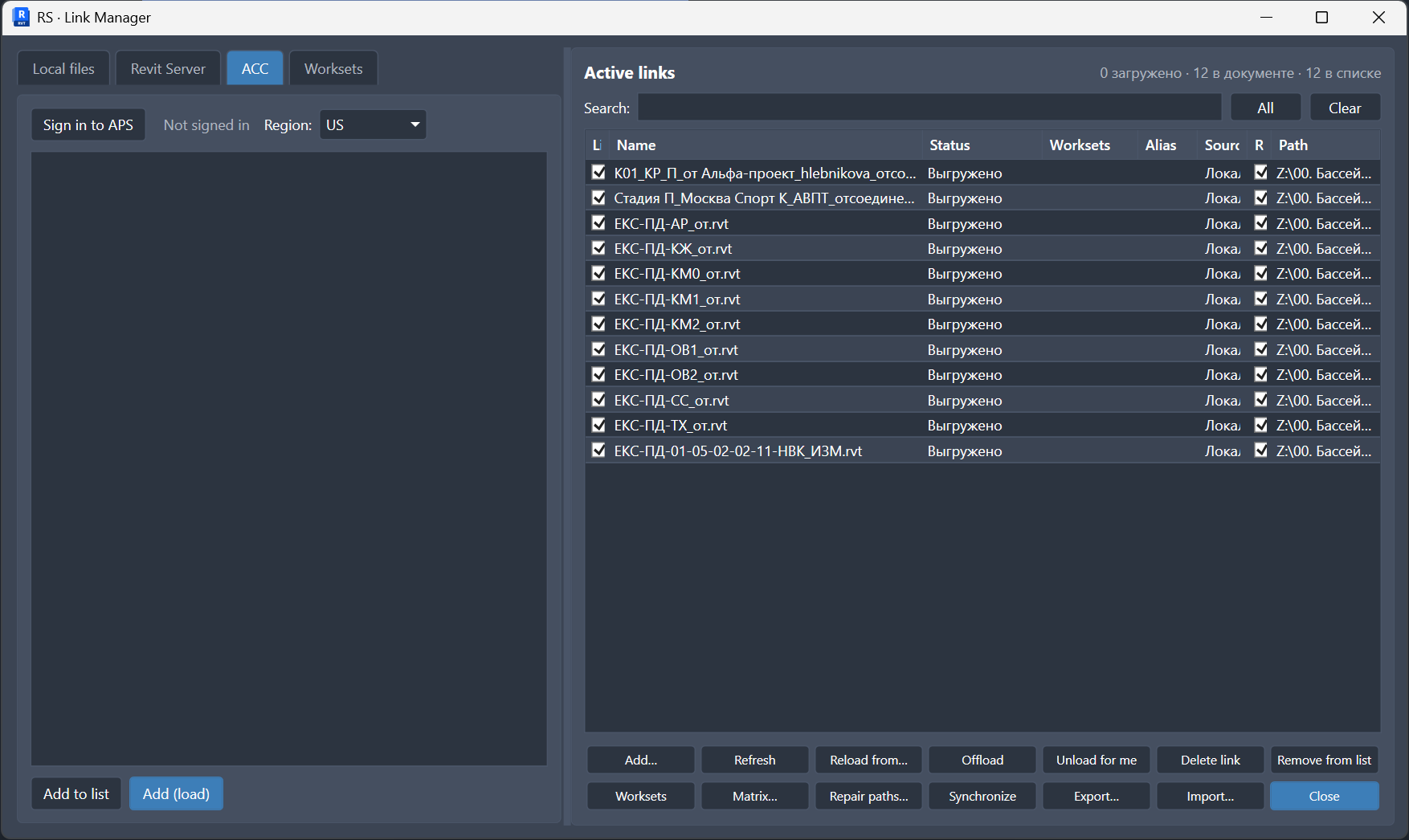
Navigate ACC hubs, projects and folders to find and link cloud-hosted models alongside local and server sources.
The standard Manage Links dialog works for the open model, but large projects often need faster collection, inspection and batch actions across several file sources.
Local folders, Revit Server, ACC and current-model links are handled in one working panel.
The list shows files, paths and model links, reducing the risk of linking a wrong model.
A dedicated tab helps open or close worksets in linked files to avoid loading unnecessary geometry.
Download the MSI, close Revit and complete setup.
Open a local folder, Revit Server, ACC or the linked worksets tab.
Check the file list and run the required link or workset operation.