The Result command checks every row in the open report and saves a 22-column XLSX workbook. Quick mode checks element availability; full mode also checks geometric intersections and their volume.
The Type column shows intersection, conservative intersection, clearance or duplicates. The type is included in XLSX exports and inferred from the test name when explicit data is unavailable.
Fixed isolation and reset for both sides of a clash. Plans, sections and 3D views supporting temporary visibility modes are supported; a linked model is isolated through its link instance. Failures now include an explanation.
Select element 1 and Select element 2 let you select either side separately and zoom to it. An unavailable side displays the reason.
The window can be reduced to 400 × 320 pixels. The lower details block and preview were removed; the selected row uses a red background with bold white text. All 606 interface strings are now translated into the supported Revit languages.
1.1.26 | 18–19.09.2026
The main window is now freely movable and modeless, keeping Revit available. The report, window size and position are retained within the current session.
Reselecting a report in history reloads its file; Current situation reloads the database. Availability and selection of both sides, including stair components, were fixed. Text search was removed; availability, hidden-clash and model-ownership filters remain.
1.1.17 | 15.09.2026
Clash reports are now merged into a persistent model database. The “Current situation” view shows the unresolved clashes accumulated from all imported reports.
Several reports can be imported at once. Duplicate rows for the same pair of elements are combined, and clashes confirmed as resolved in newer reports are automatically closed and hidden.
A clash can be transferred to the responsible linked model, with an optional comment and snapshot. Statuses now distinguish Open, In progress, Fixed, Transferred and Closed.
Navigation is more reliable: false self-clashes are hidden, stair runs and landings resolve to the parent stair, both sides are selected and isolated correctly, and real geometric intersections can be rechecked.
1.1.12 | 02.09.2026
Fixed clash navigation: the element is now selected strictly in the model specified by the report. An unrelated element with the same ElementId is no longer selected by mistake.
Added a check for the actual intersection of elements. When “Go to” is used, the plug-in shows the check result and creates the box around the real intersection area.
Clashes are now matched more accurately to the open model by file name. If a model has been renamed, the report model can be matched explicitly.
Repeated clashes involving the same pair of elements are highlighted with a common color; fixing one row closes the entire duplicate group.
Added a “Settings” window with selection of the 3D navigation view, an option to always switch to it, model mappings, and theme selection.
Another report can now be opened directly from the model-matching window. Element and model names are displayed correctly, including central workshared models.
Fixed theme and settings-tab issues, as well as Revit 2027 compatibility problems.
1.1.9 | 01.09.2026
Improved the reliability of discussion and attachment storage: ClashViewer data is separated from data belonging to other RS-Systems solutions, and previous records are migrated automatically.
RS.Messenger continues to display ClashViewer discussions; the unnecessary RS.Talk folder is no longer created.
1.0.75 | 12.08.2026
Added manual update checking with display of the installed version and current check status.
Updates can be downloaded from the website directly from the plug-in. Installation runs after the current Revit session is closed and takes effect at the next start.
Update checking can be re-enabled from the interface if it was previously disabled.
Previous settings and data are migrated automatically to the unified RS-Systems storage; RS.CDE data sharing has been improved.
1.0.71 | 11.08.2026
Added a “Second model” column for quickly identifying the other model involved in a clash.
Outgoing assignments are highlighted in green; incoming assignments to the current model are highlighted in red.
Added an “All reminders” window for viewing and deleting personal reminders.
1.0.65 | 09.08.2026
Added a discussion thread for each clash, including messages, files, and snapshots of the active view. The conversation is preserved when the report is updated.
The row context menu now includes commands to open the discussion, reassign the fix to the second model, and set a personal reminder.
Added a “Needs attention” section containing assigned clashes and triggered reminders, regardless of the currently open report.
Inactive clashes now show clear tooltips explaining why they are unavailable.
Fixed drop-down lists, report history, and visual interface defects. The history list now includes a “‹None›” item for closing the current report.
Improved performance when processing large reports and registering discussion data.
1.0.59 | 07.08.2026
Added Auto, Light, Dark, and RS-Systems themes, with the selection saved separately for each Revit version.
Expanded interface localization to Revit languages and fixed strings that previously remained in Russian.
Activation windows and other interface elements now follow the selected theme.
Fixed a critical crash during plug-in startup.
DESCRIPTION
1. Purpose and key benefit
The key benefit of REVIT.ClashViewer is saving specialists time. When a report is opened, the solution checks whether clashes are still relevant and automatically filters out and hides entries that do not represent real clashes:
false duplicate clashes in which both participants are the very same model element;
clashes that have already been resolved because the elements no longer intersect;
clashes in which one or both elements have been deleted from the model.
If the second element belongs to a linked model that is unloaded or not linked at all, the solution issues a warning. An unavailable link is not treated as a deleted element or a resolved clash.
The solution also allows responsibility for resolving a clash to be handed over to a specialist working in the second model, with discussion supported by attached files, screenshots, and other materials. Specialists can focus on current issues and coordination instead of manually checking outdated findings.
The solution works with any coordinate system and Navisworks report format. It can filter clashes by the IDs of the elements involved, so users can see clashes only for their own model regardless of whether the report came from a Navisworks model created by exporting each Revit file separately or from a federated model exported in a single pass. As a result, the BIM specialist does not need to prepare separate reports for each designer, and designers do not have to manually filter out other disciplines’ clashes — each person sees only the clashes involving elements in the model currently open in Revit.
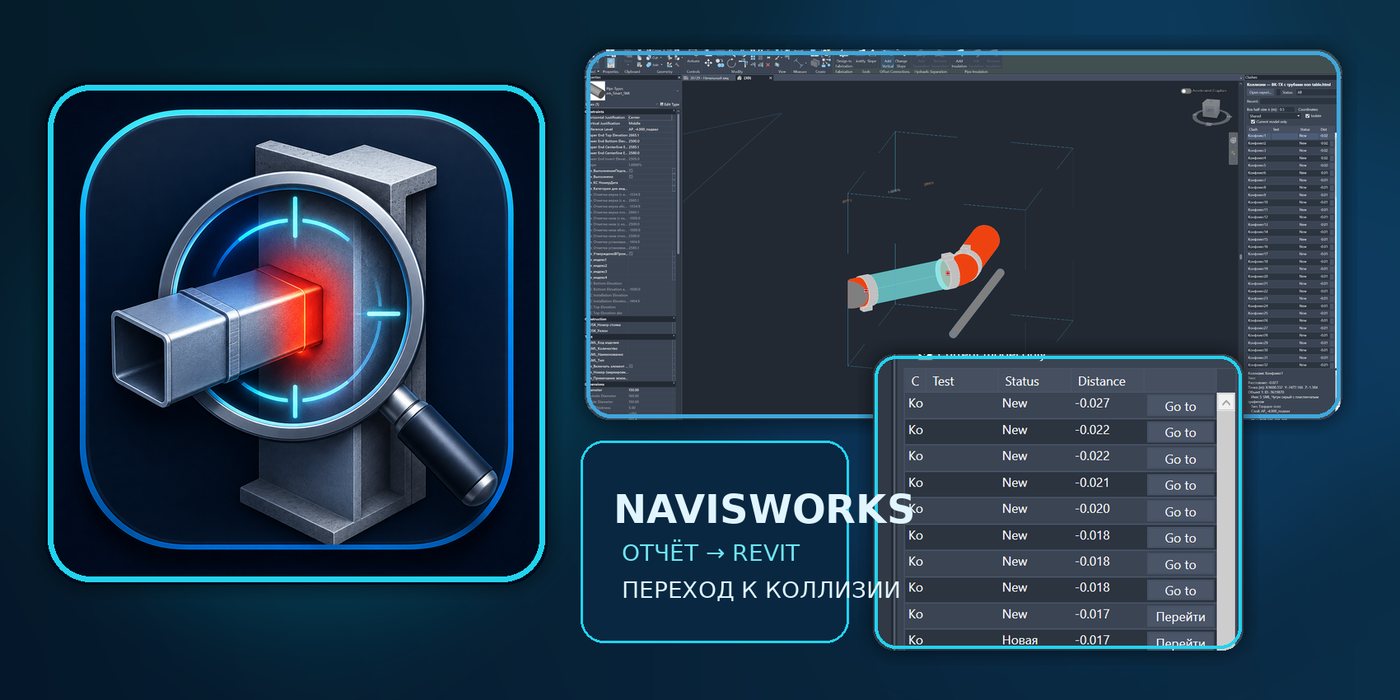
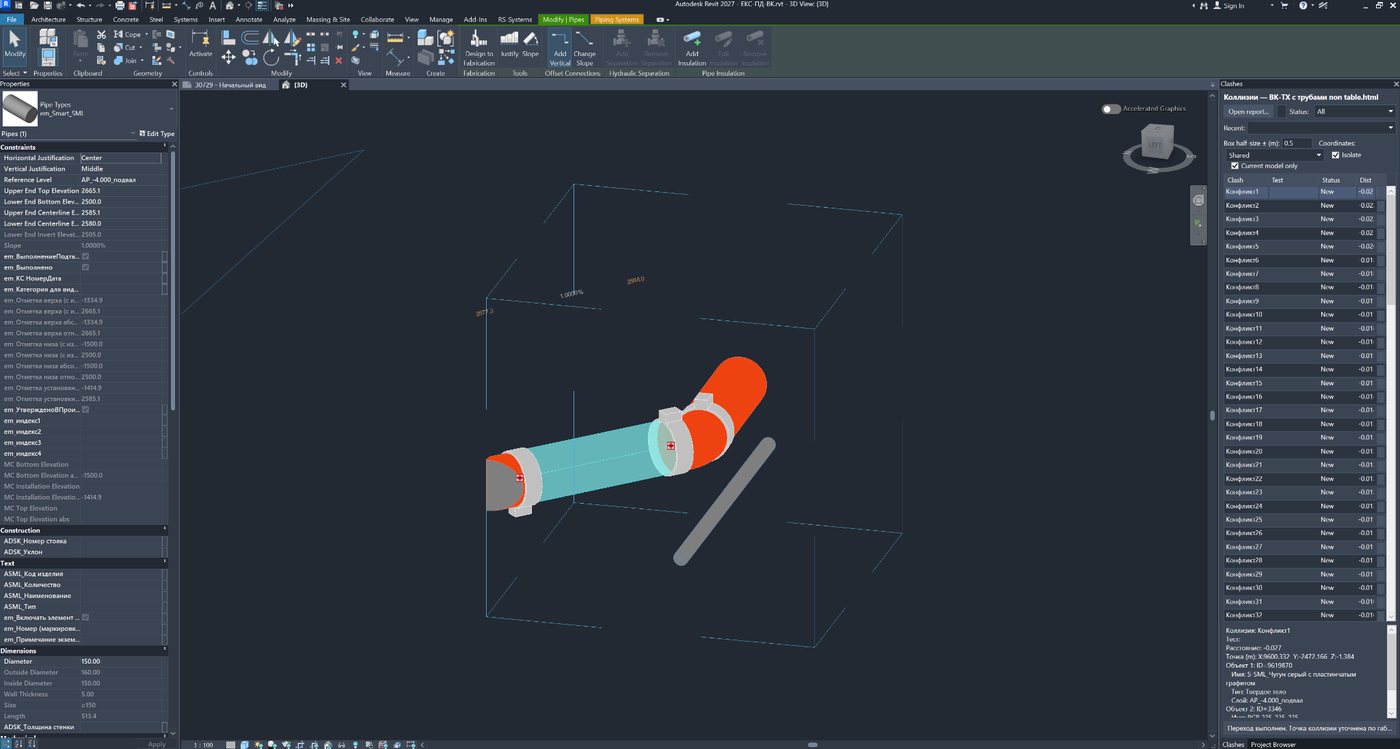
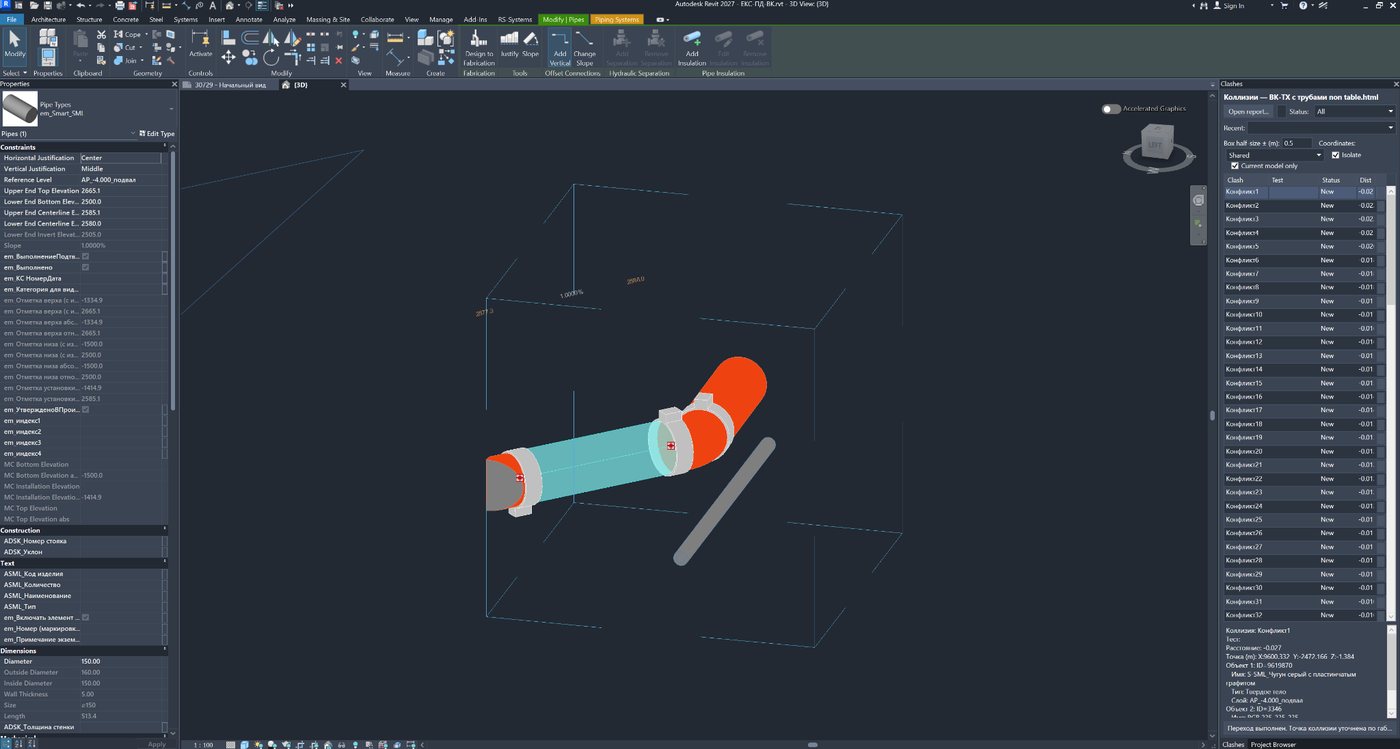
REVIT.ClashViewer opens the report in an always-available dockable Revit panel. The designer stays in the working model, selects the required row, and clicks “Go to”. The solution prepares a 3D view, creates a local section box around the conflict area, matches elements by ID, selects them, and temporarily isolates them when needed.
This turns a Navisworks report from an external document containing a list of issues into a working model navigator. Instead of searching by coordinates, copying IDs, and manually creating 3D views, the designer immediately gets a localized area where the conflict can be checked and corrected.
Figure 1. The “Navisworks Clashes” command is located on the RS-Systems tab and opens the dockable clash panel.
2. How the clash workflow changes
Conventional report distribution
Working with REVIT.ClashViewer
The BIM coordinator splits the common report by discipline or model.
One common report is distributed to all participants.
The designer manually searches for their own clashes among other disciplines’ clashes.
The “Current model only” filter determines ownership by ElementId.
Coordinates have to be checked and transferred manually.
The coordinate mode is selected in the panel; navigation by element ID is available.
A 3D area has to be created manually for every clash.
The section box is created automatically around the point or element bounds.
Objects must be found separately and isolation enabled manually.
Elements are selected and can be isolated automatically.
The report has to be found in the project folders each time.
Up to 12 recently opened reports are available in the “Recent” list.
3. Supported Navisworks report formats
The current implementation reads the main report variants generated by Navisworks Manage:
XML reports with the exchange → clashtest → clashresult structure;
XLSX reports, including multi-page and multi-sheet workbooks; the solution reads and processes report data from all relevant sheets in a single file;
tabular HTML reports in which results are collected in a common table;
non-tabular HTML reports in report/viewpoint format;
HTML files with the .html or .htm extension; the file type is also detected from its contents.
The solution extracts the test name, clash name, GUID, status, distance, clash point, object IDs, layer, element name and type, comments, and image links from the report. For images, JPG, JPEG, and PNG links located relative to the report file are supported.
Practical benefit
There is no need to ask the BIM specialist to create a special format just for the plug-in. A standard Navisworks XML or HTML report can be used, with the snapshot folder kept alongside it.
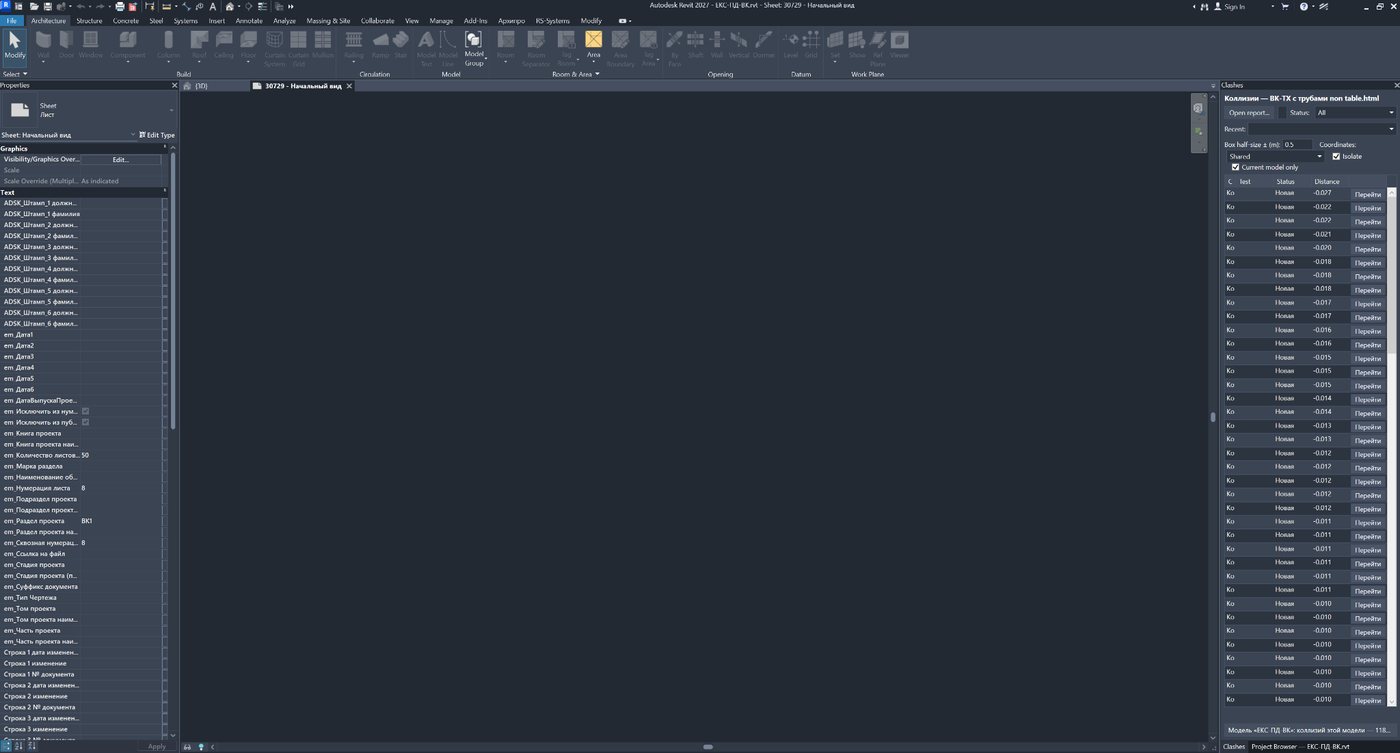
Figure 2. The report is open in the dockable panel on the right: the clash list remains available alongside the Revit model.
4. Working with coordinate systems and units
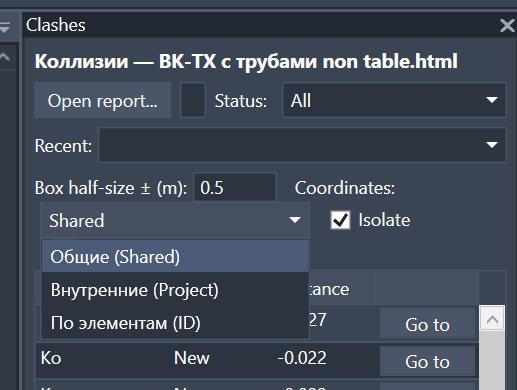
The solution provides three modes for determining the working area. This allows the same tool to be used with different NWC export rules and different project shared-coordinate settings.
Mode
How the position is determined
When to use it
Shared
The report point is treated as a shared/survey coordinate and converted into the active document’s internal coordinate system through the current Project Location.
A standard coordination workflow in which models are aligned using shared coordinates.
Project
The report point is used as an internal Revit coordinate after unit conversion.
The export was made from the internal origin, or the report coordinates already match the file’s internal coordinate system.
By elements (ID)
The report coordinate is not primary: the section box is created from the bounds of elements found in the host model.
The federated-model coordinates are unreliable, differ from the open discipline model, or the report was assembled from exports created using different methods.
For XML reports, the code respects the units recorded in the report: meters, millimeters, centimeters, feet, and inches. For HTML reports, the current version assumes meters.
Figure 3. Mode selection: shared coordinates, internal coordinates, or positioning by elements and their IDs.
5. Filtering clashes by IDs of elements in the open model
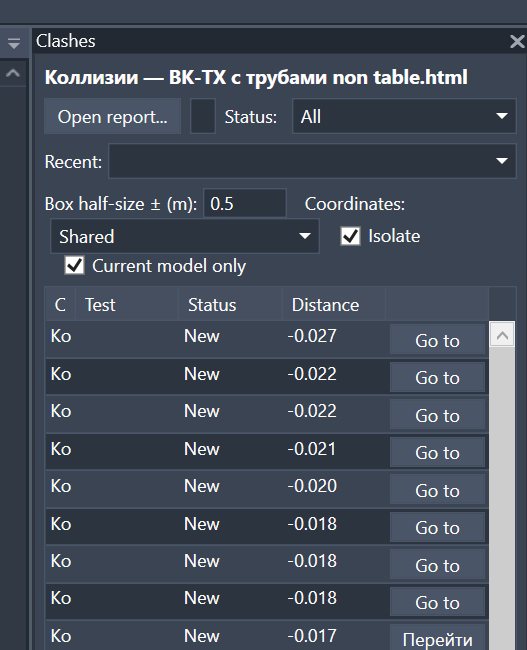
A key feature of the solution is the “Current model only” check box. After loading a report, the plug-in checks each clash object and tries to find an element in the open Revit document with the numeric ID specified in the report. A clash is considered to belong to the current model if at least one of its objects is found in the host document.
Filtering does not depend on the NWC name, model name, test name, or on how the BIM coordinator assembled the Navisworks file. The criterion is the ElementId stored by Navisworks in the object data.
Why this matters to the designer
A report may contain several thousand clashes from all disciplines. A plumbing, HVAC, electrical, structural, or architectural designer does not have to review the entire set: the list contains only conflicts involving elements from the open file.
If no clashes are found for the open model, the solution does not leave the user with an empty table: the filter is automatically cleared, all results are shown, and a warning explains that the IDs may not match or that the report may belong to another model.
Figure 4. “Current model only” filter, coordinate mode, isolation, and the first report rows.
6. Matching host-model elements and linked files
When navigating to a clash, each ID is checked first in the active host model. If the element is not found there, all loaded linked Revit models are searched. This allows the plug-in to work both in a discipline working file and in a federated coordination model with links.
Host-model elements are selected directly.
If an object is found inside a link, the corresponding RevitLinkInstance is selected and isolated.
Unloaded links are not included in the search.
Service elements and types without a geometric category are not treated as clash objects.
Two separate tasks
The “Current model only” filter checks the host document specifically. Clash-existence checking is broader and covers the host plus all loaded links, so a federated model does not incorrectly consider all conflicts fixed.
7. Navigating to a clash in Revit
Navigation is performed with the “Go to” button in the row or by double-clicking the clash. The solution then performs the following steps:
1. Uses the active 3D view. If a non-3D view is open, it attempts to switch to the first suitable printable 3D view.
2. Matches report objects to elements in the host model and loaded links.
3. Determines the center of the working area according to the selected coordinate mode.
4. Activates the section box and sets its boundaries.
5. Selects the found elements or link instances.
6. Enables or clears temporary isolation according to the check box.
7. Zooms predictably to the section-box boundaries.
The user is immediately placed in a limited local volume instead of a general 3D view of the entire model. This is especially useful on large projects, where standard Zoom to Fit can make the required area almost invisible because of remote geometry or an incorrectly positioned link.
Figure 5. Navigation result: a local section box, the found elements selected, and the rest of the model optionally isolated temporarily.
8. Section Box, point refinement, and working-area size
The working-area size is specified as the half-size of a cube in meters. A value of 0.5 means the cube extends ±0.5 m along each axis. The user can increase it for large building-services systems or reduce it for dense coordination areas.
In Shared and Project modes, the plug-in does not blindly trust the Navisworks coordinate. If host-model elements are found by ID, the report point is refined using their bounding boxes: it is moved to the intersection of the pair’s bounds or, if there is no intersection, to the combined extent of the elements. This compensates for a constant offset between the federated model and the open discipline model.
In “By elements (ID)” mode, the box is created directly around the bounds of the found elements with the specified margin. If no host elements are found but the report contains a point, the plug-in falls back to coordinate-based navigation.
Preventing the camera from jumping away
After setting the section box, the solution zooms specifically to its corners with a small margin. Distant geometry and incorrect link points should not shrink the local coordination area to just a few pixels.
9. Selecting and temporarily isolating elements
The “Isolate” check box controls the temporary Hide/Isolate mode of the active 3D view. When it is enabled, selecting another row immediately updates the isolation, so the designer does not need to run a separate command each time.
Host-model elements are selected and isolated directly.
For objects inside linked models, the corresponding link instance is isolated.
Clearing the check box turns off temporary isolation while keeping the created section box.
The check-box state is remembered and reused the next time the plug-in starts.
This mode is convenient for resolving dense building-services coordination areas: only the elements involved in the conflict remain visible, while the designer can quickly turn isolation off to see the surroundings without losing the local section-box area.
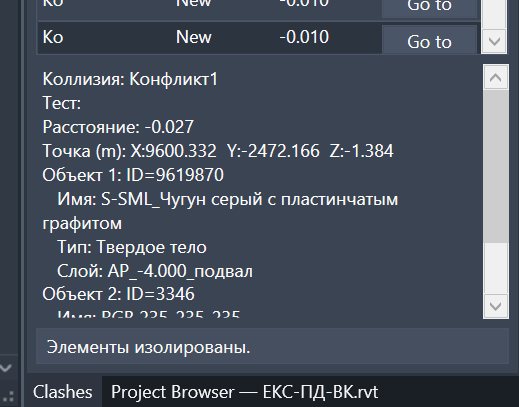
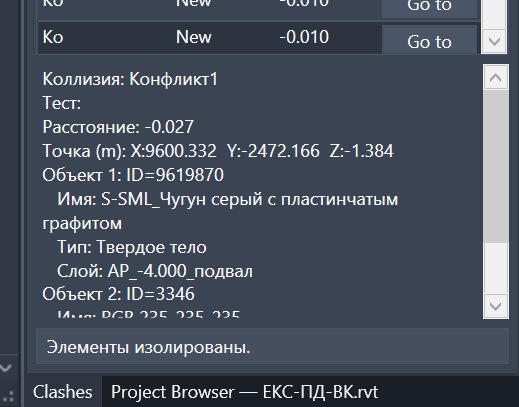
Details of the selected clash and the message confirming isolation.
Isolated model fragment in the local section box.
10. Statuses, search, and quick filtering
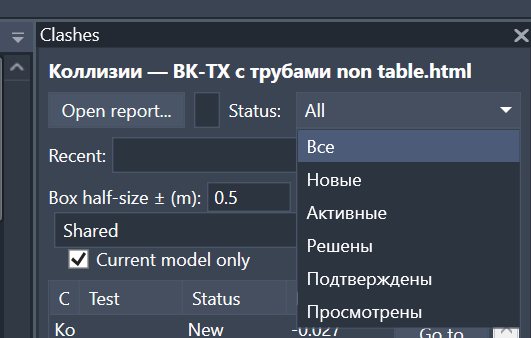
The report can be filtered by the standard Navisworks statuses: All, New, Active, Resolved, Approved, and Reviewed. Statuses from Russian and English HTML reports are normalized to a common internal scheme.
The search field checks more than just the clash name. It searches by:
clash name;
short description of the objects involved;
element IDs;
element name and type;
layer from the report.
The status filter, search, and “Current model only” work simultaneously. For example, an engineer can show only new clashes for the current model and then find conflicts involving a specific riser, equipment type, or ID.
Figure 6. Status filter: New, Active, Resolved, Approved, and Reviewed clashes.
11. Automatic detection of fixed clashes
false duplicate clashes in which both participants are the very same model element;
clashes that have already been resolved because the elements no longer intersect;
clashes in which one or both elements have been deleted from the model.
If the second element belongs to a linked model that is unloaded or not linked at all, the solution issues a warning. An unavailable link is not treated as a deleted element or a resolved clash.
Important to understand
The solution checks report entries against the current state of available models, including whether the elements exist and still intersect. Final coordination of the updated models is verified by running a new clash test in Navisworks.
12. Details, snapshots, comments, and table columns
When a row is selected, the lower part of the panel shows clash data: name, test, distance, coordinate, the ID of each object, name, type, and layer. If the report contains a linked snapshot and the file exists at the specified relative path, it is loaded into the preview without locking the source file.
By default, the table remains compact, but additional columns can be enabled from the header context menu:
Test;
Status;
Distance;
Point;
Objects;
Comment.
The selected set of columns is saved in the user settings. This lets a designer keep the list minimal, while a BIM coordinator can enable the test, status, distance, and comments for report analysis.
Figure 7. Detailed card for the selected clash: coordinate, ID, name, type, and layer for both objects.
13. Report history and personal settings
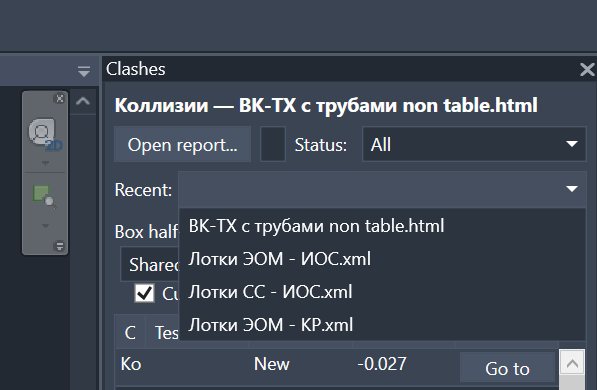
The plug-in stores up to 12 recently opened reports. The user can reopen the required XML or HTML report from the drop-down list without returning to the file-selection dialog.
The following personal settings are saved:
section-box size;
coordinate mode;
default isolation state;
state of the “Current model only” filter;
set of displayed columns;
recent-report history.
Settings and history are separated by Revit version. A user can have different working parameters for Revit 2021 and Revit 2027 without mixing them.
Figure 8. The recently opened reports list makes it easy to switch quickly between clash sets.
14. Practical workflow for the designer
1. Obtain the common Navisworks XML or HTML report together with its image folder, if one was generated.
2. Open your working Revit model and run “Navisworks Clashes” from the RS-Systems tab.
3. Open the report. Keep the “Current model only” check box enabled.
4. Select the coordinate mode. Start with Shared; if the coordinates do not align, use Project or “By elements (ID)”.
5. If necessary, filter for New or Active clashes and use search.
6. Enable “Isolate” and click “Go to” row by row.
7. Correct the model, moving through the clashes one by one.
8. After issuing the updated model, send it to the BIM coordinator for a new clash test.
Daily workflow
Report → “Current model only” → status → “Go to” → correction → next clash. The main work is performed inside Revit without manually searching for coordinates or elements.
15. Practical workflow for the BIM specialist
The BIM specialist can maintain one consistent report-generation process instead of preparing separate files for each discipline.
1. Create a common set of clash tests in Navisworks for all models and disciplines.
2. Export the report to XML or HTML with object IDs; include snapshots and comments when needed.
3. Distribute the same package to all project participants.
4. Define the recommended coordinate mode for the project and a standard section-box size.
5. Receive updated models and run a new Navisworks clash test after each correction cycle.
As a result, the BIM coordinator is responsible for the quality of the common report and repeated geometric verification, while designers independently obtain their working set of clashes directly in their own files.
Participant
What they do
What they get
BIM specialist
Creates one common report and repeats the clash test after updates.
Less manual sorting and fewer separate packages to prepare.
Discipline designer
Filters by the open model and resolves conflicts in Revit.
Only relevant clashes and instant navigation to the problem area.
Team lead
Monitors the handling of New/Active issues for the discipline.
A clear workflow without sending many separate files.
16. Limitations and important characteristics of the current version
The solution reads the report but does not write changed statuses back to Navisworks and does not provide bidirectional synchronization.
The solution checks report entries against the current state of available models, including whether the elements exist and still intersect. Final coordination of the updated models is verified by running a new clash test in Navisworks.
Model filtering depends on the numeric ElementId stored in the report. If the report does not contain an ID, or the ID changed after the object was recreated, matching is not possible.
Searching inside linked files is performed only for loaded links.
For an object inside a link, Revit allows the link instance to be selected and isolated, rather than necessarily treating the nested element as an independent host object.
The “By elements (ID)” box mode uses the bounds of found host-model elements; if they are unavailable, the plug-in falls back to coordinate-based navigation.
Navigation requires a suitable 3D view. If no such view exists, one must be created or opened.
The HTML parser is designed for the tabular and non-tabular Navisworks structures supported by the code; substantially modified third-party HTML may not be recognized.
17. Compatibility, theme, and interface languages
The project includes builds for Revit 2021–2027. Revit 2021–2024 uses .NET Framework 4.8, Revit 2025–2026 uses .NET 8, and Revit 2027 uses .NET 10.
The dockable panel automatically adapts to Revit’s light and dark themes. The interface is localized according to the Revit language and contains translation tables for 16 interface languages, including Russian, English, German, French, Spanish, Italian, Polish, Czech, Portuguese, Japanese, Korean, and Chinese.
The panel can be docked next to Project Browser or Properties so that the clash list remains visible while the model is being corrected.
18. Benefits and summary
REVIT.ClashViewer bridges the gap between checking a model in Navisworks and resolving issues in Revit. The solution does not replace Navisworks Manage as a geometric clash-detection tool; instead, it turns the Navisworks report into a convenient working tool for every designer.
REVIT.ClashViewer in one line
One common Navisworks report → automatic filtering by IDs in the open model → coordinate-mode selection → section box → selection and isolation → clash correction in Revit.
Feature
Practical result
Navisworks XML and HTML reports
Standard report formats can be used without special preparation.
“Current model only” filter by ElementId
Each specialist sees their own clashes in the common report.
Search in the host and loaded links
The solution works with both discipline working models and federated models.
Shared / Project / By Elements
Navigation works with different coordinate systems and export methods.
Point refinement using element bounds
Reduces the risk of navigating away from the required area when coordinates are offset.
Automatic section box and zoom
The clash is shown immediately in a local volume.
Selection and temporary isolation
The elements involved in the conflict become visible without manual searching.
Statuses and full-text search
A large report is quickly reduced to a workable list.
Snapshots, comments, and details
The issue context is available directly alongside the model.
History of 12 reports and personal settings
Repeated daily work is faster.
The main benefit for the project team is that the BIM specialist produces one high-quality common report, while each participant gets a personal set of relevant clashes from it without additional manual sorting. Designers spend their time correcting the model instead of searching for issues and preparing views.