
What’s New in RS Param Manager
Features and updates
Revit 2021–2027 · 1.0.6 · 2026-10-16
Parameters in bulk, not one at a time
Add, remove, map, transfer, and modify entire sets of parameters. RS Param Manager brings family and project parameter management together in clear tables and can open in place of Revit’s standard dialogs.
The key benefit: one action for multiple parameters
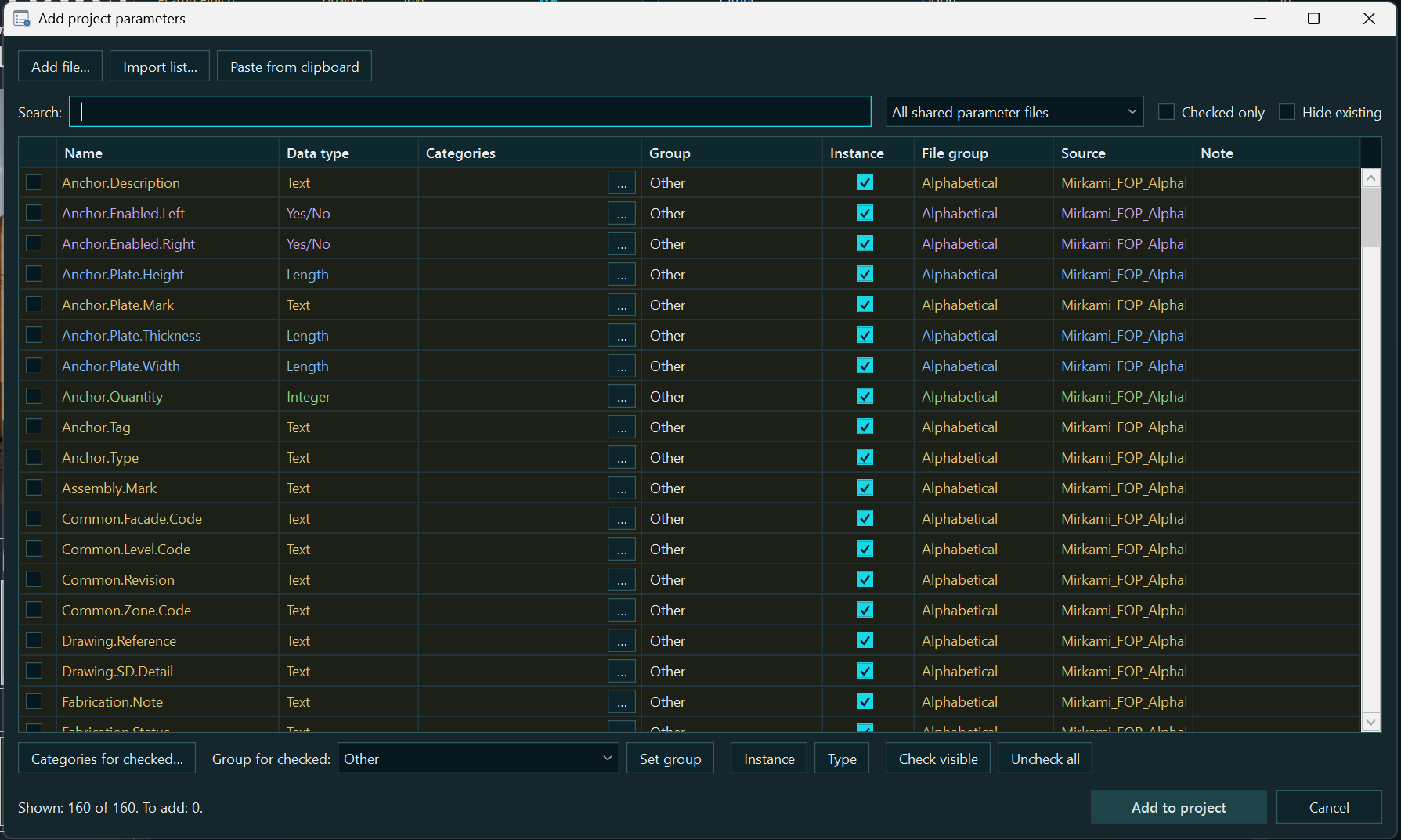
Add. Shared parameters from one or more shared parameter files, and non-shared family parameters when working in a family. Lists can be imported from Excel, CSV, TSV, or TXT, or pasted from the clipboard; the group and type/instance setting can be assigned to an entire set at once.
Remove. Remove multiple selected parameters in one confirmed command. Revit’s built-in parameters are protected; document dependencies and constraints may prevent removal.
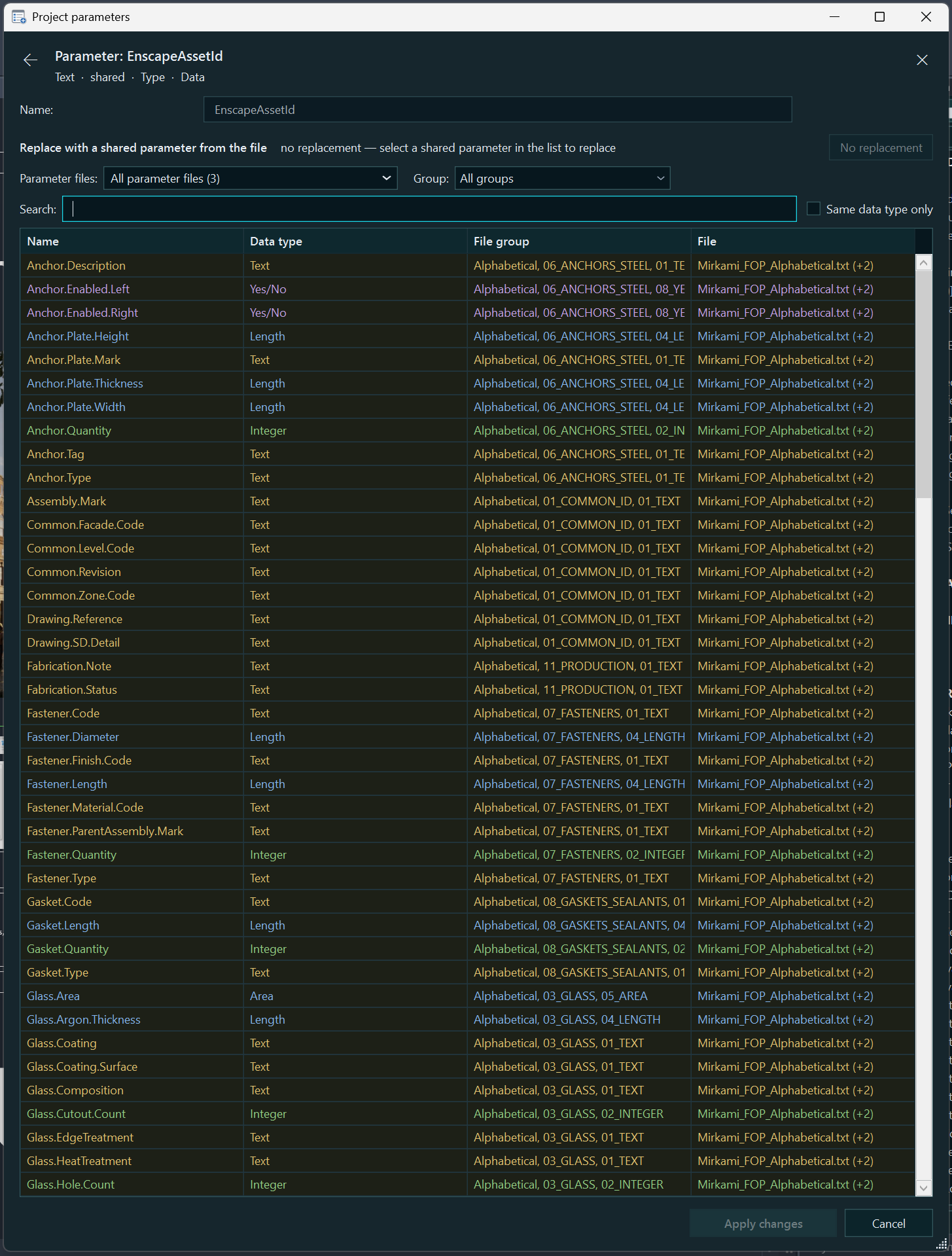
Map. In a family, prepare replacements of parameters with shared definitions from a shared parameter file, find compatible definitions by name, and review the result before applying it. Shared parameter names can be updated from the shared parameter file using the same GUID.
Transfer. Move selected parameters between groups, change their order in a family, transfer sets through exchange files, and bring project parameters into line with a reference. Values are transferred between parameters with a separate command.
Change type and properties. Switch type ↔ instance in bulk, assign groups and categories, and, in families, change properties and replace family parameters with shared parameters or vice versa wherever Revit permits.
The properties you need are visible immediately
In a family: name, origin, whether built-in, shared, or a family parameter, data type, type/instance setting, value, formula, and lock. The group is shown in the heading; additional properties are available in the editing window and tooltips.
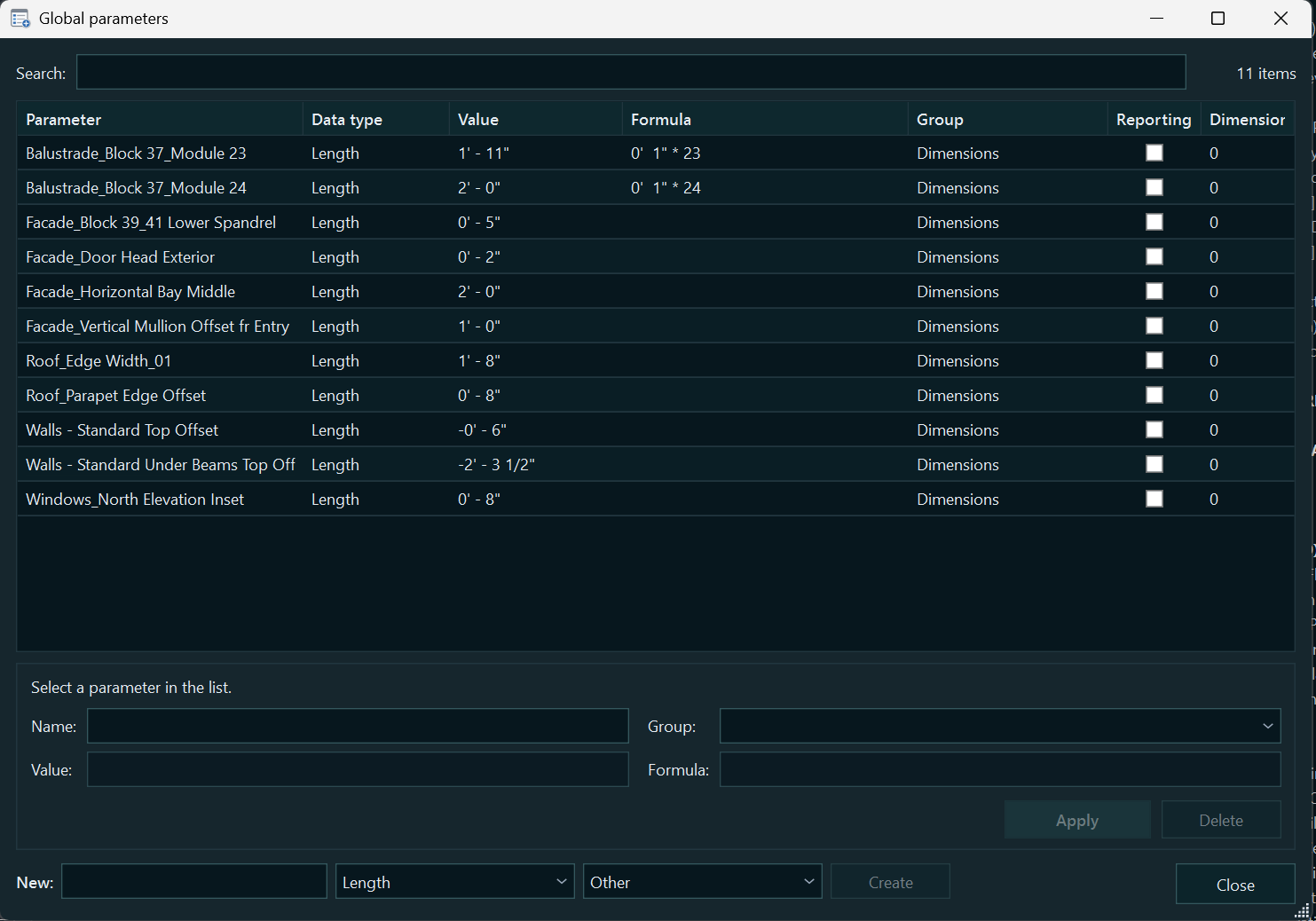
In a project and shared parameter file: parameter kind, data type, group, categories, and available binding properties. For global parameters: values, formulas, and reporting status; in the shared parameter file editor: GUID, description, and internal flags. Descriptions and modifiability of shared project parameters are read from connected shared parameter files by GUID.
Type/instance, parameter origin, and data type are different properties. An existing data type, such as Length or Text, cannot be changed arbitrarily: it must match when a parameter is replaced.
Working with families and projects
Family: add and modify an entire set
“Batch Add Parameters” brings shared parameters from shared parameter files and non-shared family parameters into one list. Properties, initial values, and formulas can be set before adding them, and existing parameters are visible in advance.
“Batch Edit Parameters” opens a properties table. Select multiple parameters; if one or none is selected, all parameters except built-in ones are shown. Assign a group, type/instance setting, reporting status, and tooltips to multiple rows. Name-based matching from a shared parameter file chooses a candidate only when there is exactly one with the same data type. You can map each row manually and apply the prepared set.
Project: parameters and bindings in one table
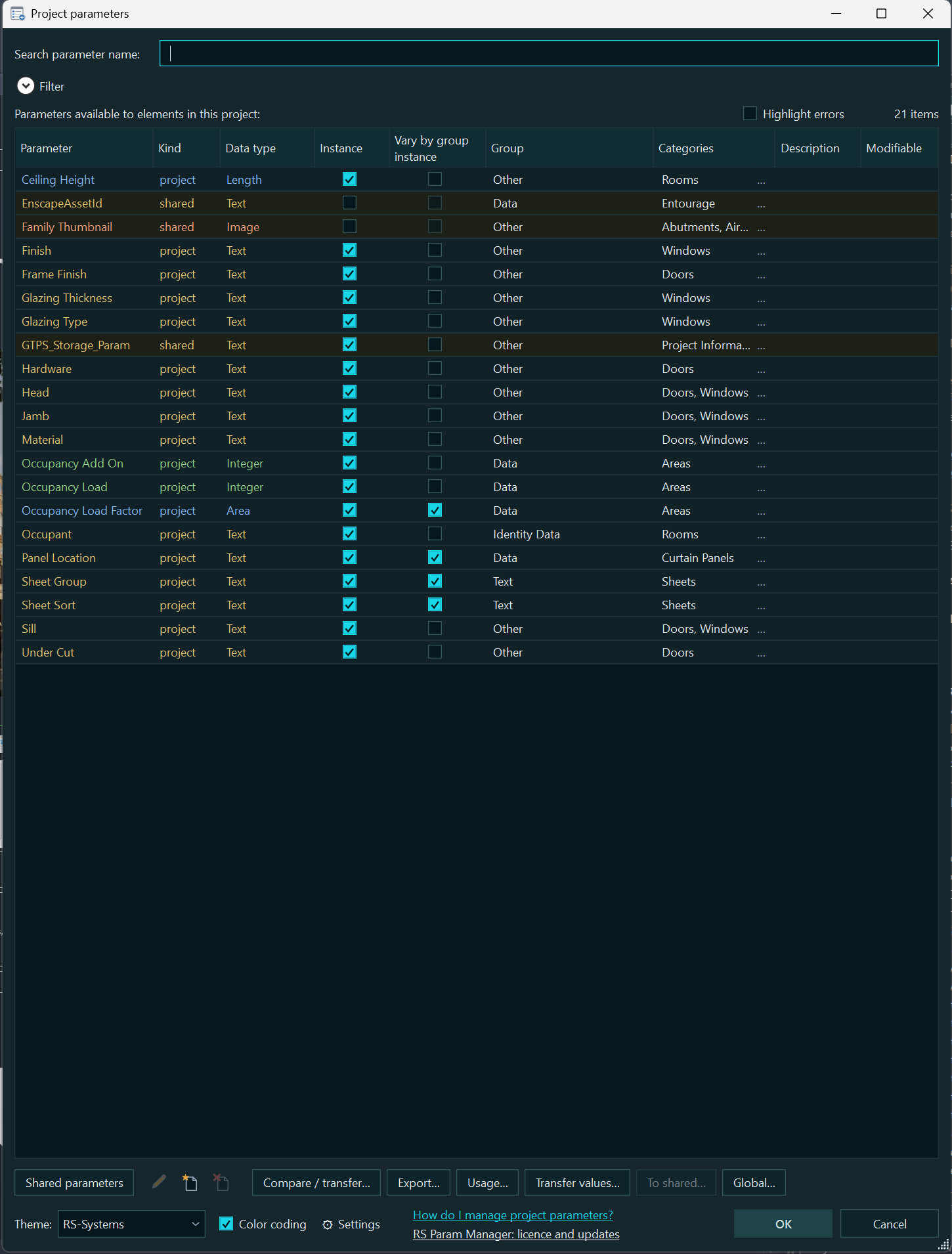
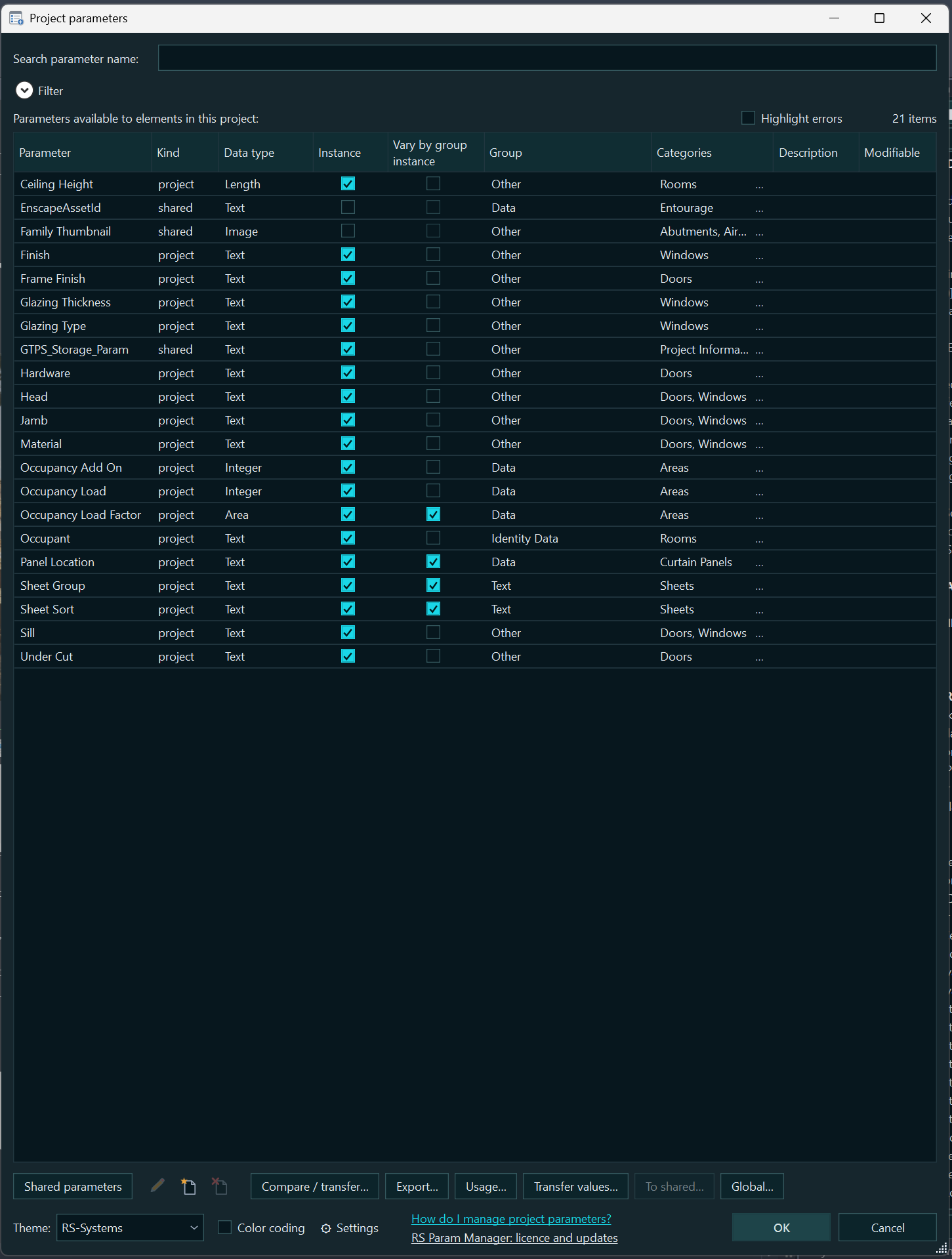
Separate collapsible sections show shared parameters, unbound shared parameters, project parameters, and global parameters. Group, categories, type/instance setting, and whether values can vary by group instance can be changed for multiple eligible rows. Unbound shared parameters can be bound to categories in bulk while retaining their GUIDs. Global parameter values and formulas can be edited here as well.
Preserving values when changing the binding: type → instance copies the type value to its instances; instance → type transfers the value only if it is the same for every instance of that type. Conflicts are reported, and the corresponding type values remain empty.
Transfer, exchange, and checks
Family — .params.json. Export saves parameters, their properties, formulas, and values for all family types. Import shows Before / After and applies only checked changes: additions, explicit removals, replacements, names, groups, type/instance settings, formulas, values, and order. A parameter’s absence from the file does not mean it will be deleted. After import, regeneration is checked for all family types.
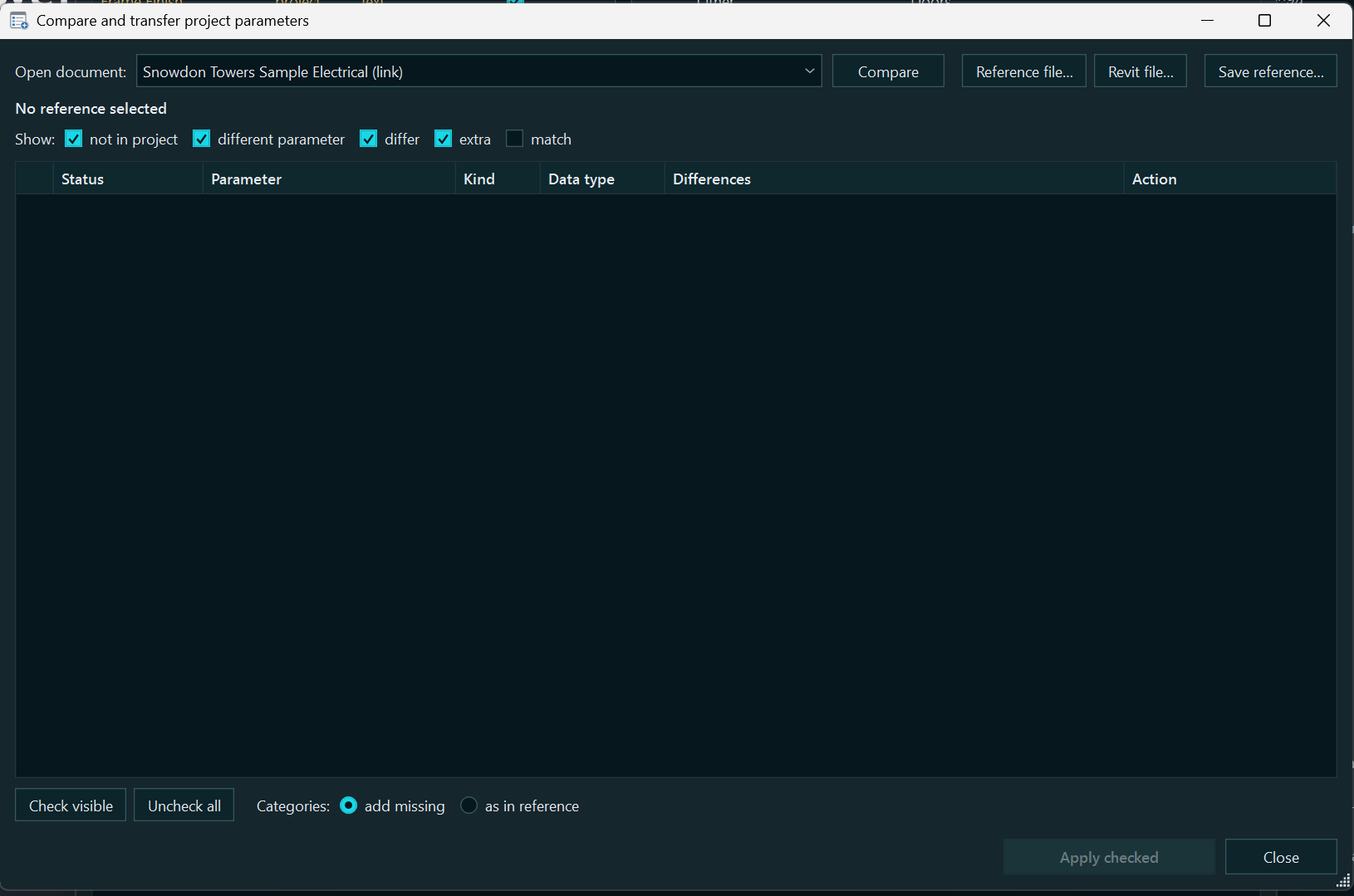
Project — comparison against a reference. The source can be an open project, a link, .rvt / .rte, or .rsparams.json. Shared parameters are matched by GUID and project parameters by name. You choose whether to add missing shared parameters, correct bindings, replace parameters, and remove extras. Export is available to Excel, CSV, or a reference file; a data type mismatch is not corrected automatically.
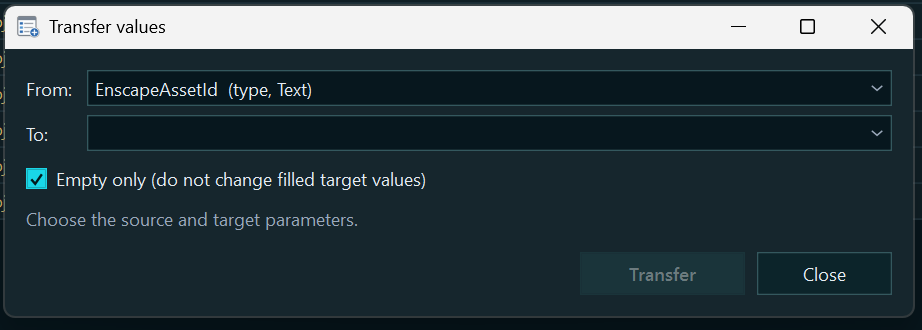
Value transfer and usage. “Transfer Values…” works with one source → destination pair but processes elements or types in the destination categories in bulk, either filling only empty values or replacing existing ones. “Usage…” helps check values, schedules, filters, views, and families; it is not proof that all dependencies are absent.
Shared parameter files: more than choosing a file
The shared parameter file editor lets you switch between connected files, view parameter properties, search, create and edit definitions and groups, and move or remove multiple selected parameters. An existing definition’s GUID and data type are not changed. A backup is created before edits; changing the shared parameter file does not, by itself, update definitions in existing families.
Familiar Revit commands and new capabilities
The product can open in place of standard dialogs
Under “Settings → Revit Commands” enable the required switches. Each command has its own setting; replacement is disabled by default. Once enabled, the familiar Revit button and its assigned keyboard shortcut open the product’s window:
“Family Types” — an expanded family parameter table.
“Project Parameters” — the project parameter table.
“Shared Parameters” — the editor for Revit’s active shared parameter file.
“Global Parameters” — the project table filtered to show only global parameters.
In a window opened this way, the “Standard Revit Dialog…” button lets you save changes and switch to the standard dialog. Command interception can be disabled. It does not cover every nested Revit dialog; interception of the Global Parameters command is unavailable in Revit 2021. If a command cannot be intercepted, is already handled by another add-in, or the product window fails to open, the standard command is retained or restored.
What’s New in Versions 1.0.3–1.0.6 (12–16.10.2026)
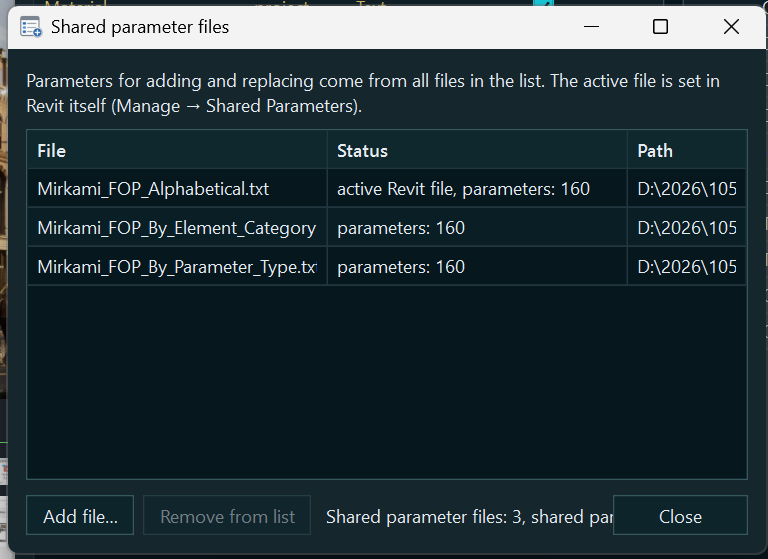
One shared-parameter-file component in every window. Wherever the product accesses a shared parameter file, including Edit Shared Parameters, Shared Parameters from Parameter Properties, the Edit panel, Add Parameters for families and projects, and Project Parameter → Shared, the same component is now used: files, group, search by name and GUID prefix, and Same Data Type Only. Within it, you can create a parameter, change its name and properties with F2, move it to another group, delete it with Delete, and manage groups and files using Add Shared Parameter File…, New Shared Parameter File…, and Shared Parameter File List….
Multiple shared parameter files at once, saved only with OK. All checked files are shown. New parameters and groups are created in the file selected under Create In; renaming, property changes, and deletion apply to all checked files containing that GUID. Until confirmation, edits affect working copies only; the actual shared parameter files change only when OK is clicked, with a backup copy saved. If someone else has changed a file in the meantime, the product asks whether to overwrite it. Closing the window with unsaved edits offers Save, Don’t Save, or Cancel.
Renaming in a shared parameter file reaches the family. If parameters renamed in the shared parameter file exist in the open family, the product offers to update their names. Replacement uses the same GUID, preserving values, formulas, and bindings. Revit does not allow a shared parameter to be renamed in a project; the window reports which parameters retained their old names.
Search immediately. When the window opens, the cursor is in the search field, ready for typing. The Refresh button in Shared Parameters is no longer clipped by the window edge. In Parameter Properties, the Type, Instance, and Reporting Parameter options have more space around them.
Beveled borders. Input fields, drop-down lists, tables, and lists are recessed; buttons are raised, and a pressed button is recessed. Hovering adds an accent line inside the border. A focused field is indicated by its text cursor, without a highlighted border. Colors follow the theme, including in Auto mode.
View tab coloring and RS.BIMManager. Revit view tabs are colored in the same way as in all products in the range, using a full-tab fill by default. Configure this under ⚙ Settings → Revit Tabs. The product window can be opened from RS.BIMManager.
Licensing and updates. Changes shared across the range: extending the trial with a code, offline activation using a license for your PC, website codes in the RS-XXXX-XXXX-XXXX format, Suite licenses, and one update window for all products. The product is named rs.ParamManager in its windows and RS.RVT.ParamManager in the program list.
Improvements through Version 1.7.78
Formulas and import. The multiline editor supports indentation and // comments and passes a single-line formula to Revit. Import accounts for formulas and values being applied together. If a formula fails, the product supplements Revit’s message with the causes it detects: unknown names, self-references and cycles, a type parameter referencing an instance parameter, or incompatible constraints. It also shows the data types of the parameters involved.
An error no longer traps you in an input loop. In the Change Not Accepted window, you can choose Continue to correct the text, which remains in the cell, select Cancel, or, when available, force Apply. The last option may remove formulas, dimension labels and locks, and interfering dimensions or lines. Before using it, check the cause and the elements selected in the model; afterward, review the report of changes made.
Navigation and dependency checks. Tab / Shift+Tab move down / up within one column; arrow keys help move between cells. The table can be scrolled while entering text. Show Related highlights direct formula dependencies. Show Unassigned retains length, angle, and integer parameters that are not assigned to dimensions or arrays; having a formula does not, by itself, count as an assignment.
What’s New from Version 1.7.78 to 1.7.108
The formula editor shows results immediately. The value of each formula line in the selected family type, defaulting to the current type, is displayed to its right. The result of the entire formula appears at the bottom, and selecting an expression shows its value. Units are checked as in Revit, with warnings about quantity mismatches, such as “the result is an angle, but the parameter is a length”, division by zero, and infinity. Functions that cannot be evaluated here, such as size_lookup, are marked; Revit performs the final check on confirmation. Evaluation only reads data and does not change the family.
Apply recalculates formulas. With cascading formulas in Revit, the value at the end of a dependency chain can sometimes become stale. Apply in Family Types now first reassigns formulas in dependency order and regenerates all family types, then saves the changes. If values changed, a list is shown after saving in the format “family type: parameter, before → after”. If Revit rejects the recalculation, nothing is saved and the window retains your edits. OK works without recalculation.
Revit rejection messages are clearer. The Change Not Accepted window retains Revit’s error text and a brief explanation, such as an invalid value like length ≤ 0, parameters recalculated by formulas, or elements that cannot be regenerated. Problematic elements are immediately selected and shown in the model; Show in Model displays them again. Parameter rows where the error appeared are highlighted in the table. The buttons are Continue, which returns to the cell with the entered text; Apply, which forces the change with the same risks described above; and Cancel.
A formula with an error is not lost. Entered text remains in the cell until you explicitly cancel the input. Clicking elsewhere, sorting, collapsing a group, or reordering rows does not discard it. Esc in the error window is equivalent to Continue. While entering text, you can click “=” at any time and continue in the formula editor with the text already entered. Right-click any parameter to insert its name into the formula or copy it to the clipboard. The cell’s bold formatting is preserved during editing.
Moving a parameter used in formulas to another group. Previously, this move was rolled back because Revit itself changed whitespace in formula text when replacing the parameter, or because of false property mismatches involving data type versions and the Modifiable and Visible properties of family parameters. These cases now succeed. Checks on other data remain equally strict: the substance of formulas, values in every family type, dimension labels, associations with element parameters, and locking. If a move is still canceled, the message identifies exactly what differs, showing before / after.
“Add Parameters”: two lists. On the left, “To Be Added to the Family” supports in-cell editing of the name and data type (for non-shared parameters), group, “Instance”, “Reporting”, value for all family types, formula, and tooltip; on the right, “Shared Parameters from the Shared Parameter File” provides search and filtering by file. Arrows move parameters between the lists; parameters already in the family are unavailable. Empty and invalid names and duplicates are checked, including duplicates between non-shared and shared parameters. Everything runs within the dialog’s transaction—“Cancel” rolls it back.
Set the group immediately during bulk addition and import. The selected group is applied to the checked parameters immediately and becomes the default group for the remaining parameters, without manual selection. In “Import Family Parameters” (.params.json), rows to be added now have a “Group” column and a “Group for New Parameters” field; group changes for existing parameters follow the file and can be unchecked.
“Project Parameters”: groups, movement, and order. Within each section (shared, unbound shared, project, and global parameters), parameters are displayed in Revit groups, with collapsing, drag-and-drop, and group-order arrows shared with the family dialog. Selected parameters can be moved with “Move to Group” and shifted using “Up / Down” within a group, as a block, and relative to visible rows. The order of global parameters is changed in Revit itself; Revit does not store an order for shared and project parameters, so it is saved in the model (RS.ParamManager storage) and is visible to everyone with the plugin installed. It does not affect values, bindings, or schedules. “Cancel” in the dialog rolls everything back.
“Up / Down” in a family. Movement works among the displayed rows, including with “Show Unassigned” and search enabled; hidden parameters stay in place, and the selection of visible rows is retained. The table no longer flickers or scrolls when items are reordered: only the affected rows move.
Shared parameter files: “Refresh” and file management. The “Import Family Parameters” and “Modify Shared Parameters” dialogs now include “Refresh Shared Parameter Files” (reread files from disk) and “Shared Parameter Files…” / “Shared Parameter File List…”. Previously, a parameter added to a shared parameter file while the dialog was open (in another program or by another user) remained “not found” until the dialog was reopened. The dialogs automatically warn when a file has changed on disk since it was read; after refreshing, the import plan is recalculated while retaining the checked items and selected groups.
Data types. A new family parameter and a new definition in the shared parameter file editor default to the “Length” type (“Dimensions” group). In the “Parameter Type” list, identically named types from different disciplines include a qualifier, such as “Length (Electrical)”; the same label appears in the table.
Tables and settings. Long menus can be scrolled with the mouse wheel and arrow keys, and value menus open at the current item. A “Copy Name” command has been added (without “(default)”); the “Settings” window remembers its position and size.
Licensing and usage data. “Pay-per-use” has been added: 1 cent per minute of active use, with a shared balance for all solutions in the product line, online only. A new plugin runs free for the first 90 days. Offline use is available only during a trial period or under a license; setting the clock back does not extend the period, and existing trials and activations are retained. Usage data includes only the fact that the plugin is being used and accumulated minutes—without information about models or your actions.
Appearance and change control
Fast tables, separate columns for project sections, search, sorting, and saved column widths and group states make large lists easier to work with. Under “Settings → Colors”, parameter origins can be distinguished by background color and data types by text color; themes and bold formatting are configured separately. Licensing and updates are also available here in the general settings.
Save a copy of the document before making bulk edits. Check the preview and report: a failed operation does not always cancel the entire batch. “Cancel” in the main window rolls back changes that have not yet been confirmed; “Apply” commits the current stage. The shared parameter file is saved separately: when you cancel, the editor offers to restore the file from its saved state.