The product name has been standardised: “rs.FoliageTool” in plugin windows (licence, first launch, purchase and update), viewport messages and tooltips, and the Plug-in Manager; “RS.3DS.FoliageTool” in the Windows installed programs list and the installer name. The new installer updates the installed version and preserves licenses.
Usage data has been reduced to a minimum: only a “plugin started” flag and the minutes during which the plugin was actually used are sent. The installation identifier, versions, licence status and details of your actions are not sent.
1.0.26–1.0.27 | 13.10.2026
Updates for the entire product range in one window: the plugin finds all RS-Systems products for 3ds Max installed on the computer, including products installed later, and offers to update, postpone, skip this version or stop asking for each one. The update button in the licence rollout opens this window.
Selected updates are downloaded only from rs-systems.org, with signature, size and checksum verification, and installed as a single batch after all 3ds Max sessions are closed, with one administrator permission prompt. Products installed through the combined RS-Systems 3ds Max Suite package are updated through that package.
Fixed: plugins did not accept the RS-Systems 3ds Max Suite license. A purchased suite now activates every plugin it includes, and the suite activation code can be entered in any of them.
1.0.26 | 03.10.2026
Licensing now follows the common RS-Systems system: signed licences and a trial period that works without an internet connection.
The licence rollout now includes background update checks and an update button.
Sending usage data no longer starts the trial period.
DESCRIPTION
Product demonstration
Watch the complete workflow in action.
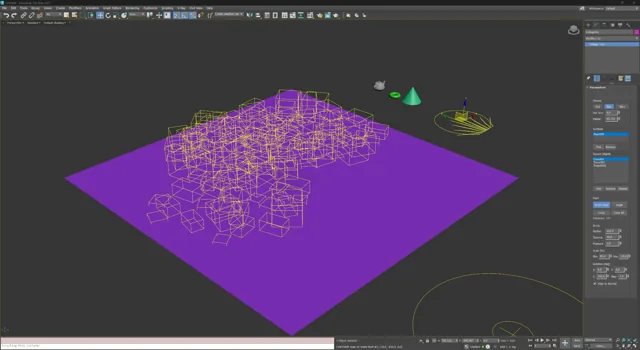
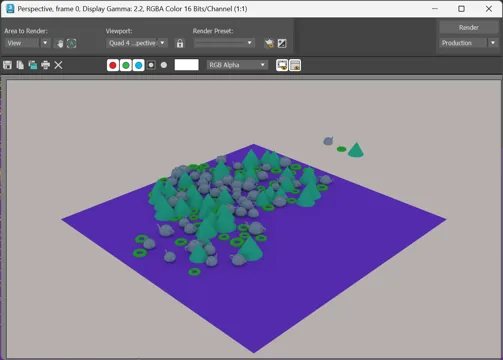
The demonstration shows the actual interface and setup sequence: creating a helper object, adding surfaces and sources, painting in the viewport, and obtaining a render-ready scene without manual copying.
Create a single Foliage Tool object and control all the main settings from one panel.
02
Painting on a surface
Select the target surface once and paint directly where you want the objects to appear.
03
Natural variation
Mix several source objects and randomize scale and rotation to eliminate repetition.
04
Viewport performance
Dot and Box modes keep the scene responsive even with large numbers of scattered instances.
Step-by-step workflow
From an empty surface to a render-ready result.
This section follows the actual working sequence, helping new users immediately understand the plugin's purpose and how to get started.
01
Prepare the surface
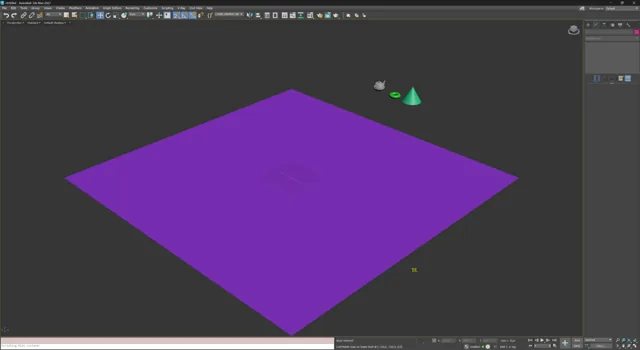
Create terrain, a floor plane or any other surface on which objects should be placed.
02
Create a Foliage Tool object
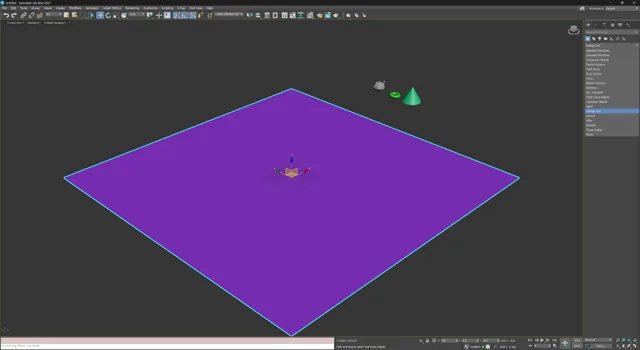
Select Foliage Tool in the Create panel and place the helper in the scene like a regular 3ds Max object.
03
Add the scattering brush
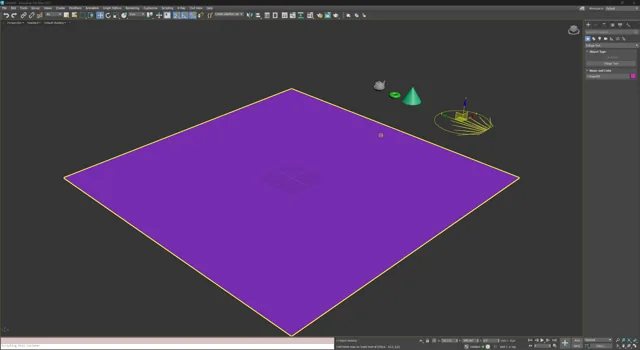
Once created, the helper generates a brush that becomes the central tool in the scattering workflow.
04
Select surfaces and source objects
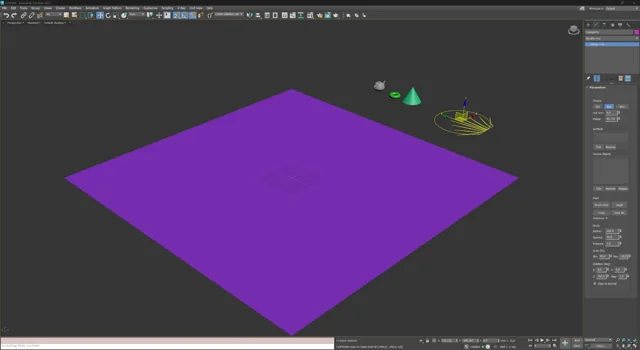
Assign one or more target surfaces, then add source objects. Brush radius, spacing, density, scale and rotation are adjusted in a single panel.
05
Paint, erase and refine
Use Brush Paint for bulk placement, Single for precise placement, and Erase to create paths and clear areas. Lightweight display modes keep the viewport fast.
06
Render the final scene
The finished distribution can be visualized with your chosen renderer. This workflow is suitable for landscape visualization, exteriors and decorative site population.
Main parameters
All essential settings remain visible and easy to understand.
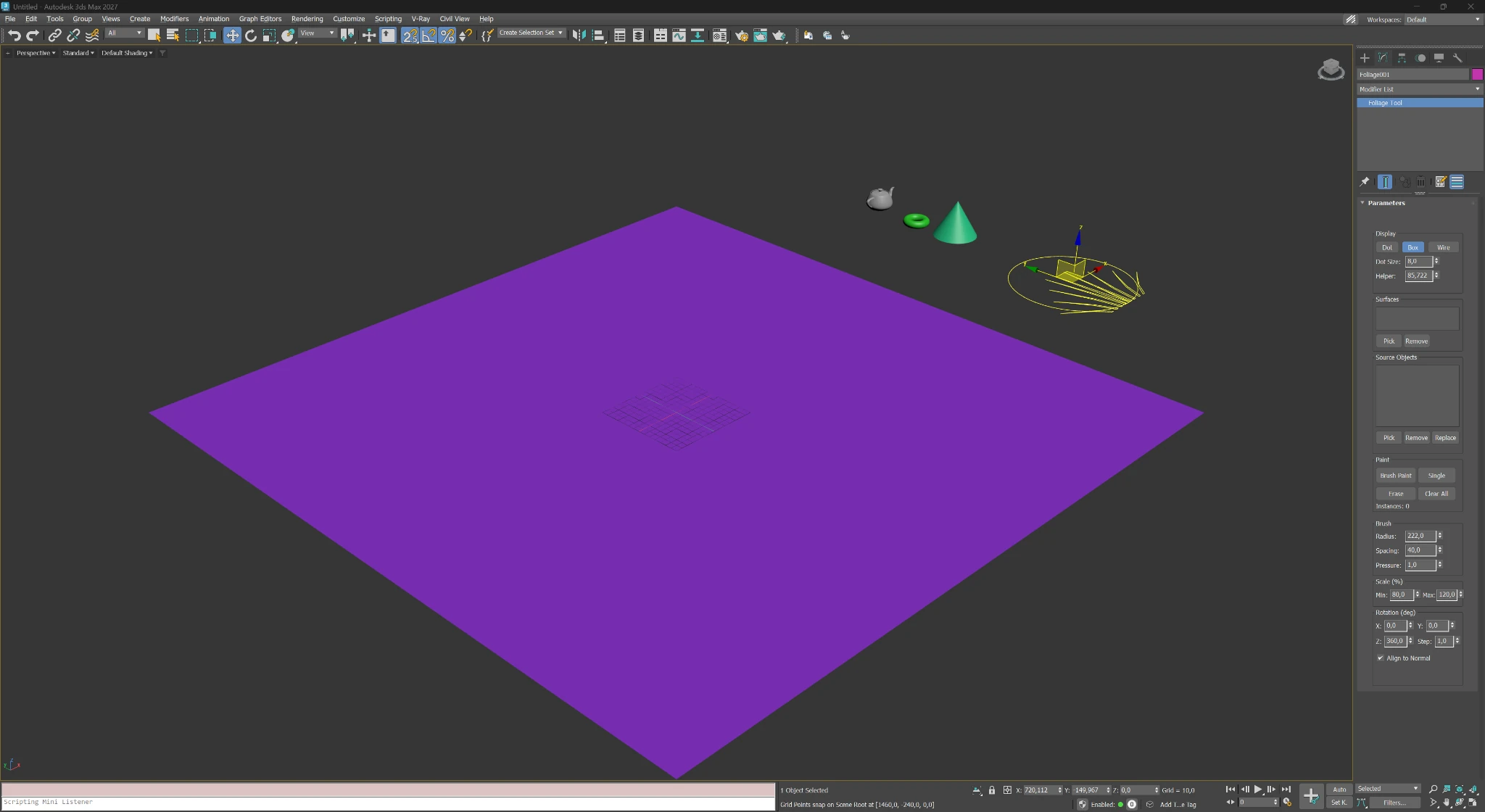
FoliageTool's strength is its simple interface: target surfaces, source objects, painting modes, density and random variation are available in a single panel.
Select one or more target surfaces and add multiple source objects for a more varied result.
02
Display modes
Use Dot, Box or Wire when working with heavy scenes, then switch to a more detailed display for the final review.
03
Painting modes
Brush Paint quickly covers large areas, Single places one object per click, and Erase removes scattered elements.
04
Radius, Spacing and Pressure
These settings define the brush area, minimum distance between instances and overall placement density.
05
Random scale and rotation
Set scale and rotation ranges along the X, Y and Z axes to eliminate repetition and create controlled irregularity.
06
Align to the normal
Keep trees and grass upright, or align objects to the surface normal when placing them on slopes, walls and uneven terrain.
07
Material ID selection
For a target object with a Multi/Sub-Object material, you can select the Material ID (MatID) on which to paint. Objects are placed only on faces with that MatID; faces with other IDs are ignored.
08
Brush shortcuts and straight lines
Alt + mouse wheel changes the brush size, while Shift + mouse wheel reduces its softness. Hold Shift and mark two points with the left mouse button to place objects along a straight line between them, as in Photoshop.
Main use cases
A practical tool for landscapes, exteriors and environments.
The plugin is not limited to trees and shrubs. The same workflow can quickly and naturally distribute any repeating objects.
Licensing
Purchasing and activating FoliageTool.
After payment, the licence appears in your account. Activation is performed through the website or offline by email for isolated workstations.
FoliageTool can also be activated with an RS-Systems 3ds Max Suite licence if the suite includes this plugin. The update button in the licence rollout opens the shared update window for all installed RS-Systems products for 3ds Max.