Windows now use the application icon. F1 help is available on the ribbon button and opens the English product page.
The update window, messages, status bar and licence tab are translated into the supported Revit interface languages.
The view and filter selection tooltip is translated. Known limitation: two row counters in the main window still appear in Russian.
1.0.65 | 12.08.2026
Manual update checking now shows the installed version. The downloaded installer runs after Revit closes; disabled checking can be enabled from the interface.
Existing settings and user data are migrated automatically.
1.0.52 | 07.08.2026
Light, Dark and RS-Systems themes are available, with automatic matching to the Revit theme in Revit 2024 and later. The selection is saved separately for each Revit version.
DESCRIPTION
Revit.Descriptor — AI processing of model parametric data
Figure 1 — Revit.Descriptor: AI processing of model parametric data.
Convert Revit model data into a compact tabular form and process it with AI in a standard browser or desktop chat — without continuously sending heavy model context through an MCP server.
Converts element and parameter data into a compact tabular representation.
Reduces context volume, token consumption and the cost of AI processing.
Enables AI to check, map and assign parametric data in bulk.
Works with the information layer of the model and is not intended to modify geometry.
Interface and preparation of tabular data
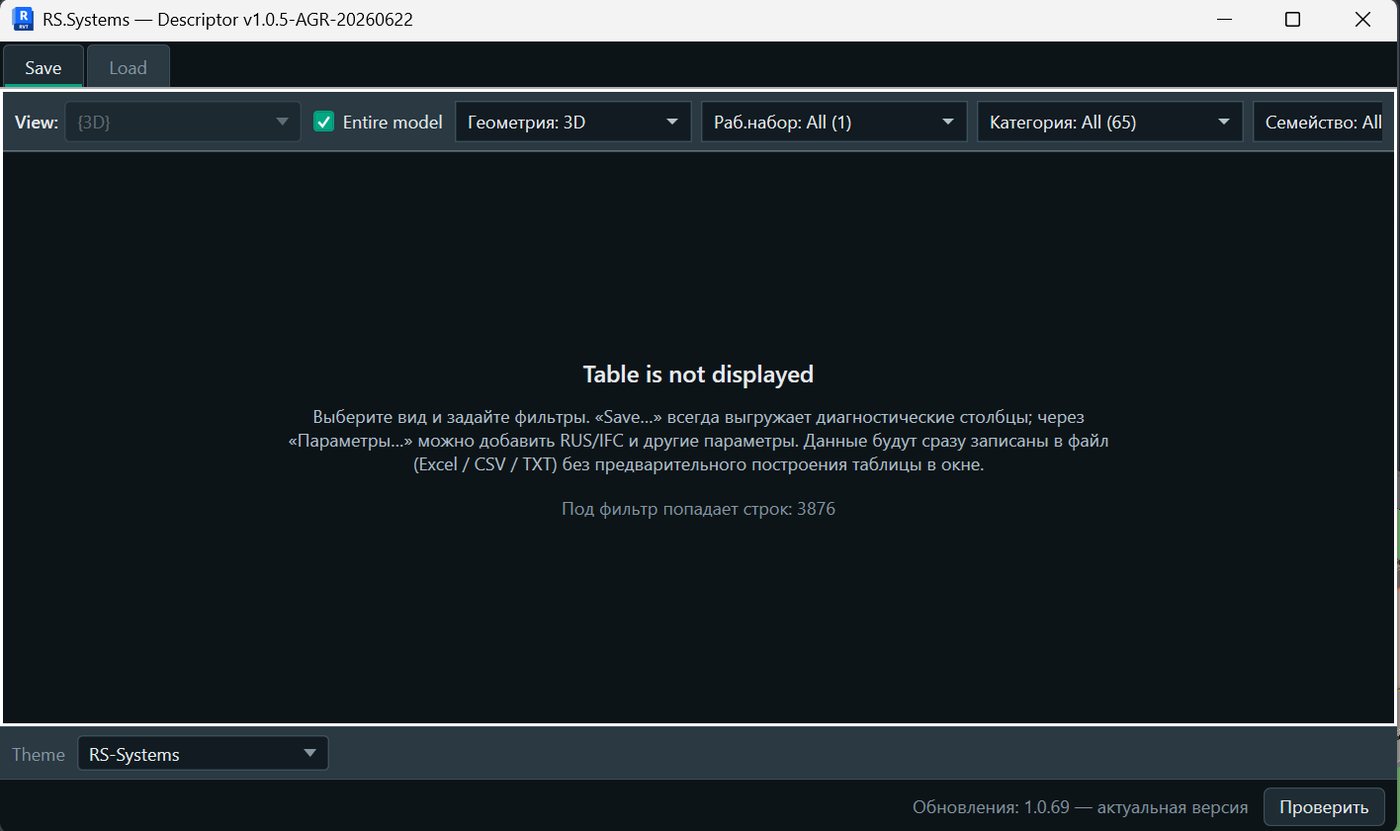
Figure 2 — Main Revit.Descriptor window and model filter panel.
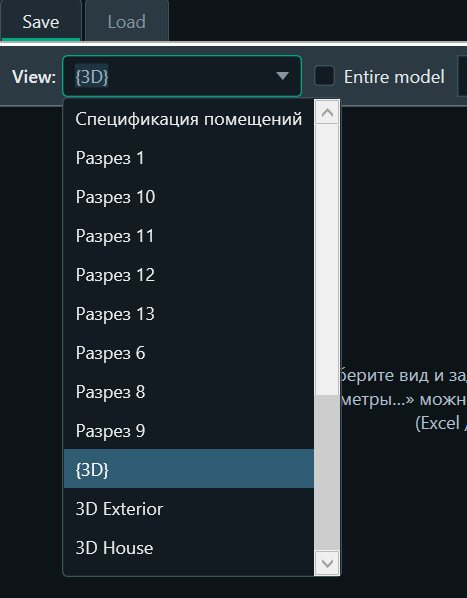
Figure 3 — Selecting a Revit view to create the data set.
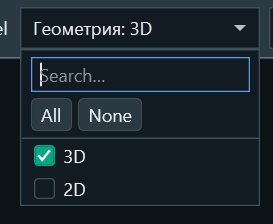
Figure 4 — Filter by geometry type.
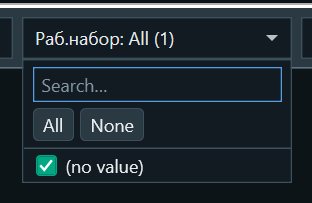
Figure 5 — Filter by worksets.
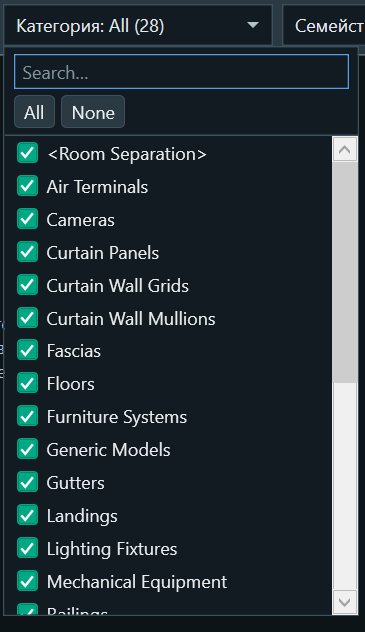
Figure 6 — Selecting element categories.
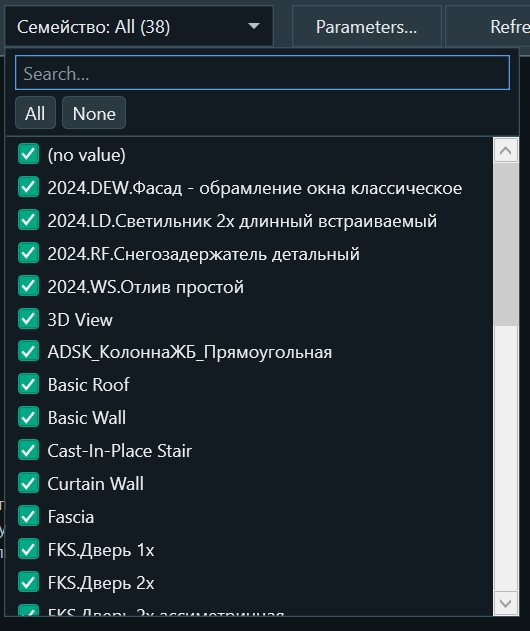
Figure 7 — Selecting families.
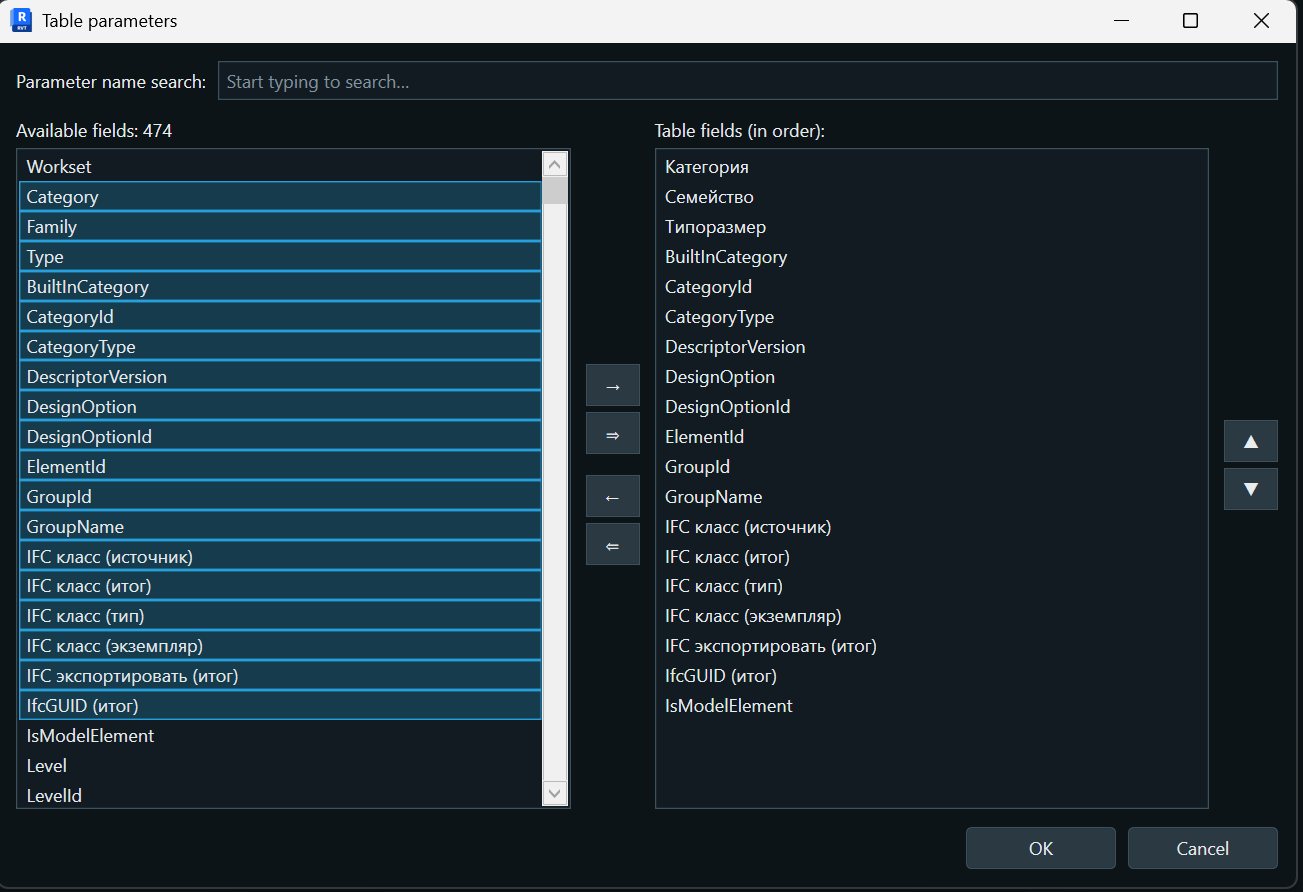
Figure 8 — Configuring the parameters included in the exported table.
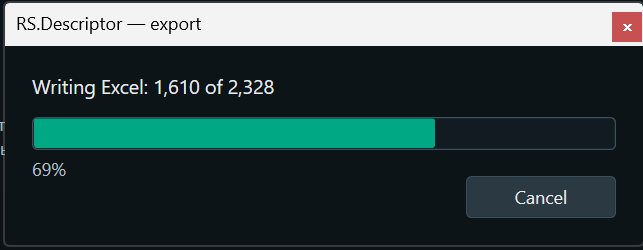
Figure 9 — Excel file generation in progress.
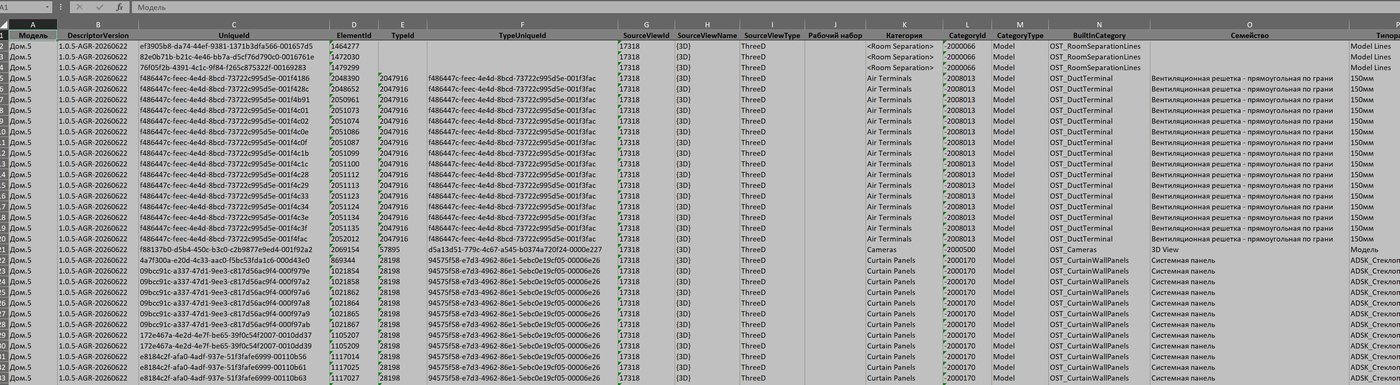
Figure 10 — Result of exporting model data to tabular form.
Why it is needed
An alternative to token-intensive direct work via MCP
MCP servers allow AI to interact directly with an application and model, but in complex BIM scenarios this interaction may require transmitting a large amount of context and making many intermediate requests. This increases token consumption, processing time and operating cost. Revit.Descriptor takes a different approach: it represents the required model data in a compact tabular form sufficient for the specific task.
Compact model representation
Instead of sending the AI the entire model structure or a long sequence of commands, only the required data is sent to the chat: elements, categories, parameters and values. Tabular data is easier to analyse, compare and process in bulk.
Work in a standard AI chat
Prepared data can be processed in a familiar browser or desktop AI application. Typical parameter operations do not require a permanent connection between the AI and Revit through a separate MCP workflow.
Fewer tokens — faster and less expensive
Reducing the amount of transmitted context lowers token consumption and speeds up processing. This is especially noticeable with large models and repeated checks or bulk data population.
What you can do
Typical AI tasks
Assign corporate codes
AI can assign company-required codes, classifiers and other values according to defined rules, as well as check existing data and identify deviations.
Check parameters and categories
Check that parameters are present and correct, that values are allowed, and that parameters correspond to element categories. AI can identify omissions, inconsistencies and errors in bulk.
Prepare data for IFC and other formats
Use AI to check category and parameter mappings, requirements for exported data, and the correctness of information content before transferring the model to IFC or other external formats.
Limitations
Work with data, not geometry
Revit.Descriptor does not create or modify model geometry: it does not build, move, rotate or edit the shape of elements. Its scope is the information content of the BIM model: parameters, values, codes, classifications, mappings and other structured data.